If you are experiencing slow startup times, the following solutions can help speed up application readiness.
Before troubleshooting, validate application performance with an empty workspace by creating a new empty XML workspace and setting it as the current one.
-
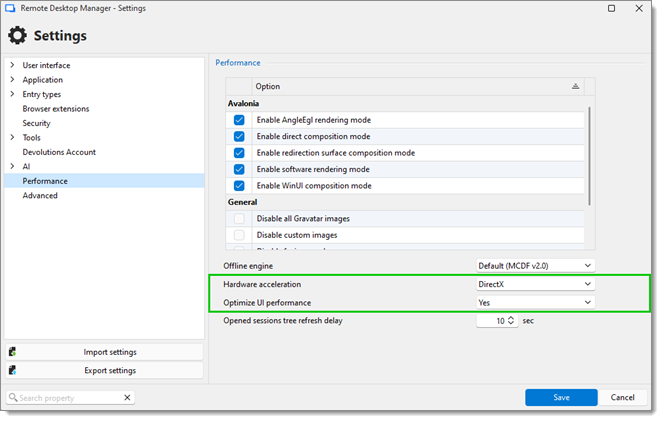
In Remote Desktop Manager, go to File – Settings – Performance.
-
Set Hardware acceleration to DirectX and Optimize UI performance to Yes.
-
Save your changes, then restart Remote Desktop Manager to apply them.
Remote Desktop Manager is signed with a code signature that is validated at startup. On machines without internet access, the application waits for a response from the certificate authority until a timeout occurs. For more background, refer to these Microsoft articles:
To work around this, create a text file named RemoteDesktopManager.exe.config in the Remote Desktop Manager installation folder with the following content:
<configuration>
    <runtime>
        <generatePublisherEvidence enabled="false"/>
    </runtime>
</configuration>
Each time Remote Desktop Manager starts, it attempts to connect to the Devolutions website to fetch news. Disabling this behavior prevents the application from making those requests.
The easiest way to do this is through the UI: go to File – Settings – Advanced and toggle on the Disable telemetry option.
Alternatively, you can add <DisableSendingAnalytics>true</DisableSendingAnalytics> directly to your RemoteDesktopManager.cfg file, placing it above the closing </Option> tag.
To locate the configuration file, navigate to File – Settings – Advanced in Remote Desktop Manager and click on the hyperlink at the bottom of the window.
If the profiler log shows a slowdown of 10 to 30 seconds during one of the three offline loading stages, an antivirus may be restricting access to the application path. Allowlisting the path can significantly reduce startup times.
To isolate whether the antivirus is the cause, temporarily disable its protection under controlled conditions: close all browsers, keep only essential applications running, and limit the test to a short duration. If your antivirus allows it, disable monitoring specifically for Remote Desktop Manager's installation folder rather than turning off protection entirely.
Note that this is a diagnostic step only; there is nothing we can do to address antivirus interference directly. We do not recommend disabling antivirus protection in risky conditions.
On the Download center page, select Remote Desktop Manager and download a Windows .7z build, either x64 or arm64. These builds offer significantly better startup performance than standard builds.
 Share your feedback