Remote Desktop Manager can be launched using a command line.
Some features are only available in the Team Edition. Remote Desktop Manager also offers a Web Protocol Handler.
It is possible to get the IDs of a database, workspace, entry, and vault.
-
Right-click on the entry and select Properties.
-
Navigate to Common – Entry information.
-
Click the Copy button.
-
Paste the command line into a Windows command prompt and press Enter to create an executable.
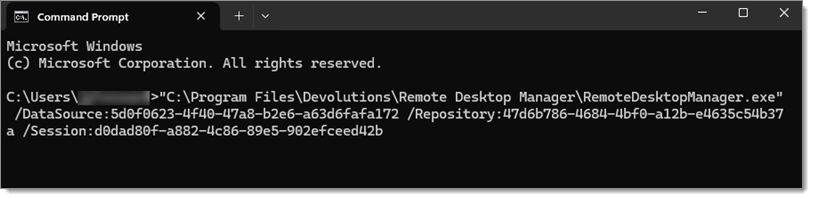
Here is another way to get only workspace IDs:
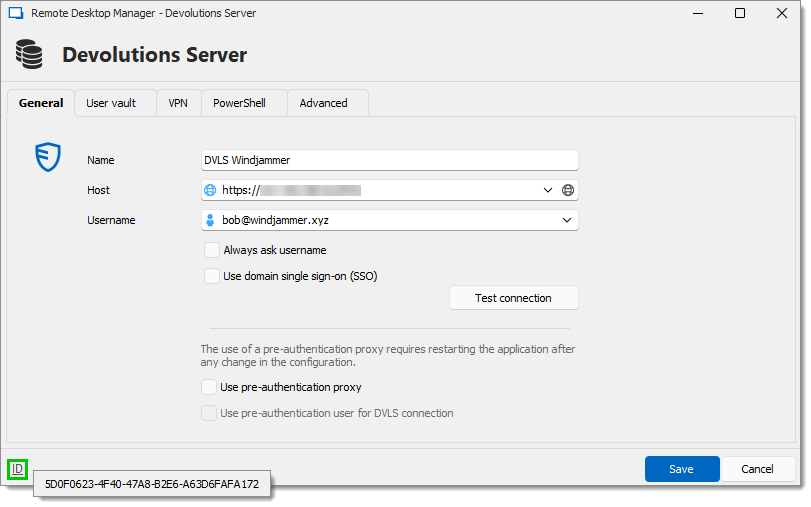
Go to File – Workspaces. Alternatively, click on the ellipsis next to the workspace name in the navigation pane.
Select a workspace and click on Edit workspace.
Click on ID to copy it into the Windows clipboard.
| Parameters | Description |
|---|---|
/Help/? |
Display all the information pertaining to the parameters, with examples and notes. |
/Silent |
Start Remote Desktop Manager minimized in the system tray. |
/CloseApp/CloseRdm |
Close Remote Desktop Manager after the operation is completed. |
/CloseOnDisconnect |
Close application when last session closes. |
/Profiler:{level} |
Start with profiler enabled (performance diagnostics). |
| Parameters | Description |
|---|---|
/DataSource:{guid} |
Select a workspace in the UI. |
/Database:{guid} |
Select a database (alternative to DataSource). |
/Repository:{id} |
Navigate to repository. |
/Department:{name} |
Navigate to department. |
/Filter:{text} |
Apply text filter to connection tree. |
| Parameters | Description |
|---|---|
/Session:{guid}[;...] |
Open session(s) by ID (semicolon-separated). |
/Close |
Close specified session(s). |
/ChangePassword:{pwd} |
Change password for specified session. |
/MacroScript:{guid} |
Execute macro script with playlist. |
| Parameters | Description |
|---|---|
/Template:{type} |
Template ID (e.g., RDP, SSH, VNC). |
/Host:{hostname} |
Hostname or IP address (required with /Template). |
/Port:{port} |
Port number. |
/Username:{user} |
Username for authentication. |
/Domain:{domain} |
Domain for authentication. |
/Password:{password} |
Password for authentication. |
/ConnectionFileName:{file} |
Load connection from file. |
| Parameters | Description |
|---|---|
/TabTitle:{title} |
Tab title for embedded session. |
/TabPage:{page} |
Tab page name. |
/OpenConnectionMode:{mode} |
How to open: Default, Embedded, or External. |
/CustomField1:{value} |
Pass value to custom field 1. |
/CustomField2:{value} |
Pass value to custom field 2. |
/CustomField3:{value} |
Pass value to custom field 3. |
/CustomField4:{value} |
Pass value to custom field 4. |
/CustomField5:{value} |
Pass value to custom field 5. |
| Parameters | Description |
|---|---|
| `/Report:{id | name}` |
/ReportOutput:{path} |
Output file path for exported report. |
/ReportSettings:{path} |
Report settings file path. |
/SecurityProviderPassphrase:{pass} |
Set security provider passphrase. |
These switches can be combined with /CloseApp for fully automated workflows.
Example #1 - Open a template and connect to a host RemoteDesktopManager.exe /DataSource:178c2fda-dab4-4f41-98df-6e3205c0a011 /Template:a666b21b-1479-4eee-b482-0a3d561d2411 /Host:Windjammer-PC1
Example #2 - Open a session RemoteDesktopManager.exe /DataSource:178c2fda-dab4-4f41-98df-6e3205c0a011 /Session:474bcbcf-d507-435b-8c0a-a9e868781910
Example #3 - Start Remote Desktop Manager with the profiler RemoteDesktopManager.exe /Profiler
Example #4 - Set a passphrase on the Database RemoteDesktopManager64.exe /Database:B26638B2-7957-466C-192B-6621DA12179A /SecurityProviderPassphrase:Password
All switches are case-insensitive (except
/Helpwhich can be in uppercase).GUIDs can be found in the Advanced tab of a session or workspace Properties.
Multiple sessions: separate GUIDs with semicolons (;) in the
/Sessionparameter.Special characters in passwords: escape with ^ (e.g., Pass^^word for Pass^word)
Line continuation in CMD: use ^ at end of line
Exit codes:
0 = Success
-1 = Error
 Share your feedback