Le présent article détaille les paramètres et options disponibles dans une entrée du tableau de bord VMware dans Remote Desktop Manager.
En plus d'afficher des informations utiles, les entrées du tableau de bord VMware permettent aux utilisateurs de créer, démarrer/arrêter, suspendre, éteindre ou redémarrer les systèmes invités, de se connecter ou d'interagir autrement avec les machines virtuelles VMware directement au sein de Remote Desktop Manager. Un clic droit n'importe où dans la zone de contenu du tableau de bord fait apparaître toutes les options disponibles pour les machines virtuelles qu'il contient.
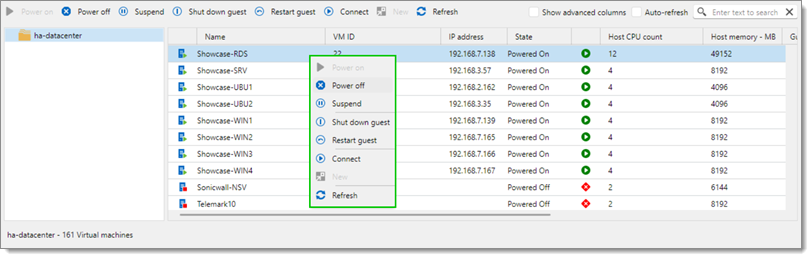
Cliquer sur Afficher les colonnes avancées pour afficher plus d'informations concernant, entre autres, l'utilisation du processeur, le temps de fonctionnement, et quel Datastore est utilisé.
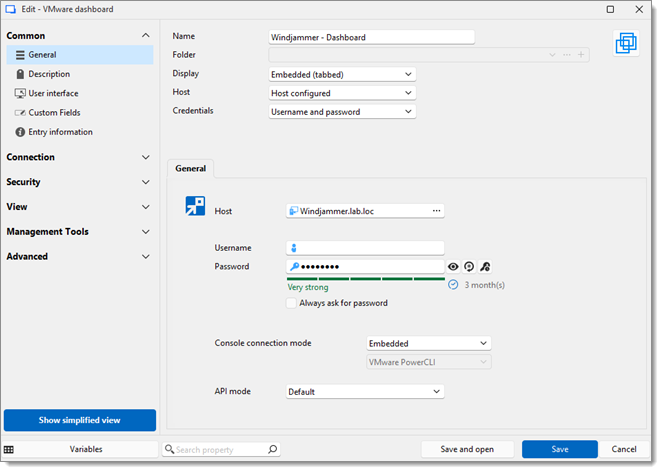
PARAMÈTRES | DESCRIPTIONS |
|---|---|
Nom | Entrer un nom pour l'entrée du tableau de bord VMware. |
Dossier | Choisir un dossier pour créer l'entrée. |
Afficher | Choisir si le tableau de bord s'ouvre en mode d'affichage Intégré (onglets) ou Détaché . |
Hôte | Déterminer à quel hôte se connecter entre :
|
Identifiants | Choisir les identifiants à utiliser pour l'authentification entre :
|
| SETTINGS | DESCRIPTIONS |
|---|---|
| Host | Manually enter a host or choose one from the Computer list (ellipsis button). |
| Username | Enter the username for the host. |
| Password | Enter the password for the host. |
| Always ask for password | By checking this box, you will be prompted for the host's password every time you launch the entry. |
| Console connection mode | Select a display mode for the VMs opened from the dashboard. |
| API mode | Choisir entre :
|
 Partagez vos commentaires