Remote Desktop Manager's SQLite workspace is ideal for single user and stand-alone situations. More powerful and more flexible than the XML file format, it also supports a few of the advanced workspace options like Logs and Attachments.
Full connection log and attachments support.
Key points to consider:
All passwords are encrypted by default by Remote Desktop Manager. You can specify a custom password to fully encrypt the content of the SQLite database.
Password recovery is not possible, the data will be unrecoverable if you cannot authenticate. Please ensure you backup the password in a safe place.
SQLite supports an unlimited number of simultaneous readers, but will only allow one writer at any instant in time. For this reason Remote Desktop Manager does not support sharing an SQLite workspace between several users by storing it on a network drive. If you want to share your data and work in a team environment with your colleagues, please use one of the advanced workspaces. Please consult SQLite.org for more information.
You can specify a master key to further encrypt your data. Specify it at creation time. If the workspace already exists, you can modify the master key in File – Manage master key.
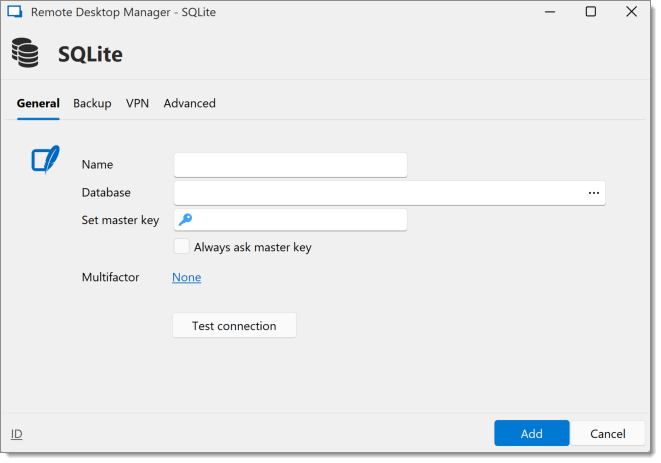
| OPTION | DESCRIPTION |
|---|---|
| Name | Name of the workspace. |
| Database | Indicate the filename of the SQLite database (.db). |
| Set master key | Add an additional layer of security by encrypting your workspace with a master key. |
| Always ask master key | Always prompts for the master key when connecting to the workspace. |
| Multifactor | Enable multifactor authentication to access your workspace. |
| Test Connection | Test the current database path and password for connection. |
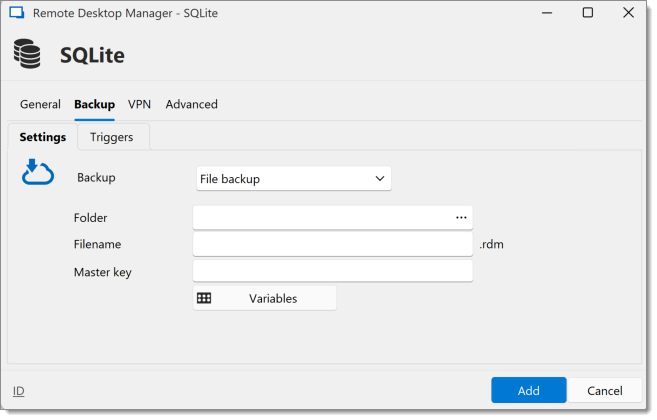
| OPTION | DESCRIPTION |
|---|---|
| Backup | Select between:
|
Folder | Select the folder in which you want the backup to be saved. |
Filename | Specify the backup name. |
Master key | Encrypt your backup with a master key. |
Switch to the Triggers tab to define when the backups should occur.
| OPTION | DESCRIPTION |
|---|---|
| On entry modification | Create a backup each time you edit an entry in the workspace. |
Before switching workspace | Backs up automatically when you switch from one workspace to another. |
On application close | Create a backup whenever you close Remote Desktop Manager. |
Backup interval | Schedule backups at a regular time interval (for example, every 10 minutes). |
Open a VPN to access your data prior to connecting to your SQLite.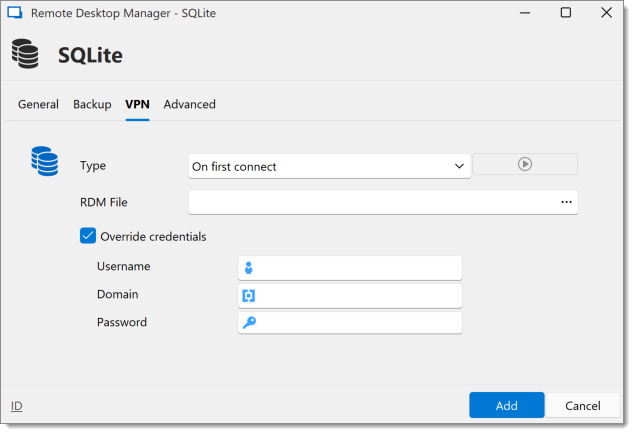
| OPTION | DESCRIPTION |
|---|---|
Type | Determine when the VPN should be launched. |
RDM File | Specify the path to a VPN configuration file. |
Override credentials | Set custom credentials that will be used for the VPN connection. |
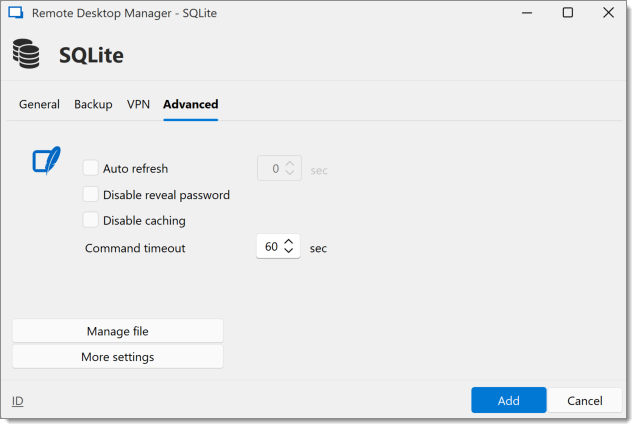
| OPTION | DESCRIPTION |
|---|---|
| Auto refresh | Set the interval for the automatic refresh. |
| Disable reveal password | Disable the reveal password feature when a user accesses this workspace. |
| Disable caching | Entries will be reloaded in Simple mode in the workspace. See Caching for more information. |
| Command timeout | Waiting time before a command timeout. |
| Manage file | Contain multiple SQLite commands to facilitate managing. You should usually only access these when our customer support teams demands it. |
| More settings | Use to directly modify the connection string value. |
| OPTION | DESCRIPTION |
|---|---|
| Name | Name of the workspace. |
| Database | Indicates the filename of the SQLite database (.db). |
| Password | Specify a password to further encrypt your workspace. |
| Secure with password | Secure the workspace with a password. This is used to encrypt the database content and it cannot be recovered if lost. |
| Always ask password | Always ask for the password when connecting to the workspace. |
| Two Factor | Enable the 2-Factor Authentication to access your workspace. |
| OPTION | DESCRIPTION |
|---|---|
| Backup | Select between:
|
| Backup name | Specify the backup name that will allow you to automatically save your sessions in a safe online storage space and restore them in the event of problems. |
| OPTION | DESCRIPTION |
|---|---|
| Auto refresh | Set the interval for the automatic refresh. |
| Command timeout | Waiting time before a command timeout. |
| Disable reveal password | Disable the reveal password feature when a user access this workspace. |
| Disable caching | Entries will be reload in Simple mode in the workspace. See Caching Mode for more information. |
| Advanced Settings | Use to directly modify the connection string value. |
| OPTION | DESCRIPTION |
|---|---|
| Manage SQLite File | Manage all your SQLite file to analyse, vacuum, repair or delete them. |
| Vacuum | Used to compress and clean up the current database file. |
 Partagez vos commentaires