Remote Desktop Manager's Website entry allows users to store a website's login information, set a custom autofill behavior, launch in incognito mode, determine refresh rates, and more. This article describes the entry's available settings.
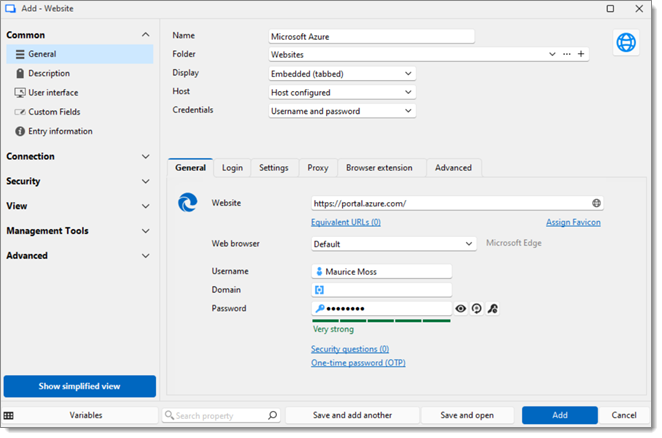
| SETTINGS | DESCRIPTION |
|---|---|
| Website | The target URL for Remote Desktop Manager to open. |
| Assign Favicon | Use the target website's favicon as the entry icon if available. |
| Equivalent URLs | Enter alternate URLs to be treated as the same website. |
| Web browser | Choose on which web browser to open the website. |
| Username | Enter the value to be used in the website login's username field. |
| Domain | Enter the value to be used in the website login's domain field, if any. |
| Password | Enter the value to be used in the website login's password field. |
| Security questions | Store the answers to your security questions. To be used when the website prompts for them. |
| One-time password (OTP) | Configure or link to a one-time password (OTP) to be used if the website prompts for it. See One-time password (OTP) usage with entries for more details. |
| SETTINGS | DESCRIPTION |
|---|---|
| Authentication | Choose authentication mode between:
|
| Autofill login | Enable automatic filling of the credentials. |
| Auto-submit | Automatically submit the autofilled credentials for the website session. |
| Only send the password in the HTML password field | Make sure the password is only injected into the HTML password field (<input type="password">). This can prevent accidental exposure. |
| Fill in hidden fields | Allow autofill to fill hidden form fields. |
Enforce origin check for autofill | Only autofill if the page origin matches expectations. |
Autofill on every page navigation | Choose whether the autofill only occurs once or on every page load. |
Script type | Choose a script type and create a custom script to handle autofill for website using custom login flows. |
| SETTINGS | DESCRIPTION |
|---|---|
| Private session (incognito) | Enable or disable the incognito mode for the session. |
| SmartScreen | Enable or disable SmartScreen for the session. |
| Additional browser arguments | Add command line switches to customize the behavior of the browser during the session. |
| SETTINGS | DESCRIPTION |
|---|---|
| Proxy type | Choose among the listed proxy types the one that best fits your needs. |
| Host | Enter the proxy's hostname. |
| Credentials | Enter the proxy's credentials. |
| SETTINGS | DESCRIPTION |
|---|---|
| Allow Workspace browser extension autofill | Allow Workspace browser extension autofill during the session. |
| Compare type | Determine which part of the website's URL the Workspace browser extension compares to the URL (or equivalent URLs) entered in the Website field of the General tab. |
| SETTINGS | DESCRIPTION |
|---|---|
| Automatic refresh | Automatically refresh the website at the determined intervals. |
| Refresh once after a delay | Set a timer after which the page is refreshed, once. |
| Allow any additional hosts with Devolutions Gateway | Allow additional hosts when this website entry is used in conjunction with Devolutions Gateway. |
| Allow any port with Devolutions Gateway | Allow the use of any port when this website entry is used in conjunction with Devolutions Gateway. |
| Language code | Force a specific language for the website session, e.g., en-US, fr-CA. |
| Tabs visible | Set the behavior of tabs for the website session. |
| Override default download path | Define an alternative default download path. |
| Default download action | Choose the default download action for the website session between:
|
| Zoom factor | Set the default zoom level for the website session. |
| Profile name | Associate the session with a specific browser profile. |
 Partagez vos commentaires