Remote App permet d'ouvrir une application à l'intérieur d'une session RDP via CyberArk dans Remote Desktop Manager. Vous pouvez le lancer de deux manières : à partir de l'entrée du tableau de bord CyberArk ou en utilisant une entrée d'identifiants PVWA.
Les intégrations CyberArk nécessitent la licence du solution de gestion des accès privilégiés.
Ouvrir Remote Desktop Manager et ajouter une nouvelle entrée.
Sélectionner le tableau de bord CyberArk.
Saisir les informations requises, puis ouvrir l'onglet Avancé.
Dans l'onglet Général, activer Ouvrir les sessions à l’externe.

Sélectionner le compte et lancer la session RDP.
Lorsque cela est demandé, sélectionner le composant de connexion requis.
La session RDP démarre et n'ouvre que l'application sélectionnée.
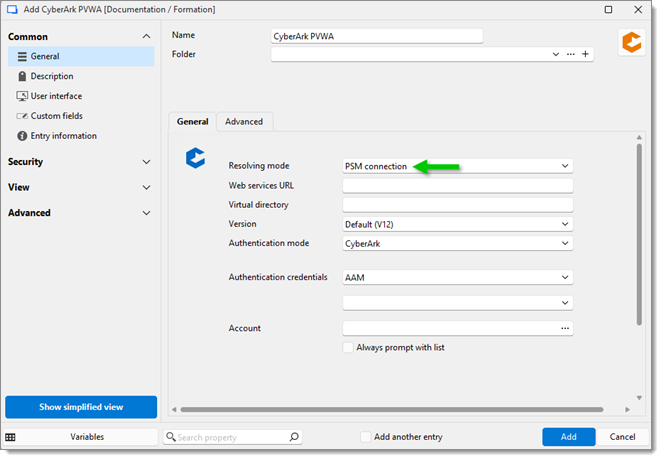
Dans votre entrée d'identifiants CyberArk PVWA, définir Mode de résolution sur Connexion PSM.
Entrer les informations requises et sauvegarder l'entrée.
Éditer une entrée RDP associée.
Dans Affichage, définir Externe (par défaut) (Bureau actuel).
Lier l'entrée d'identifiants CyberArk PVWA à la session RDP. Aller dans Identifiants – Lié (coffre).
Sélectionner l'entrée d'identifiants CyberArk PVWA dans la liste déroulante.
Sur l’onglet Programmes, activer Utiliser RemoteApp (mode transparent).
Aller au champ Programme et saisir
||PSMInitSession.Cliquer sur Enregistrer pour fermer l’entrée.
Lorsque vous lancez la session RDP et sélectionnez le composant de connexion requis, la session ouvre uniquement l'application que vous avez choisie.
 Partagez vos commentaires