Follow the steps to lean how to enable offline mode for a Devolutions Cloud data source.
To enable a user account to use offline mode, go to Administration – Users – Edit and click Allow offline.
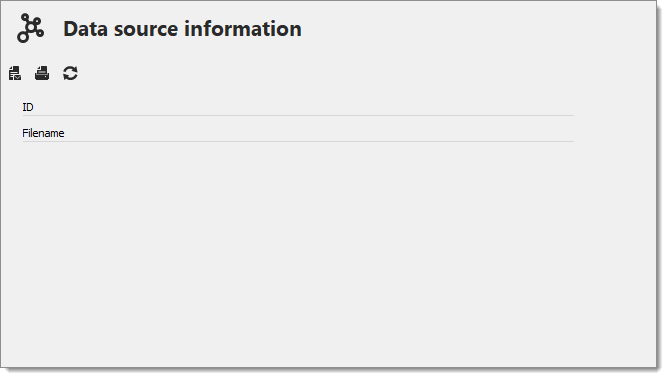
To have a overview of the data source configuration, open the data source information by going to File - My data source information in Remote Desktop Manager.
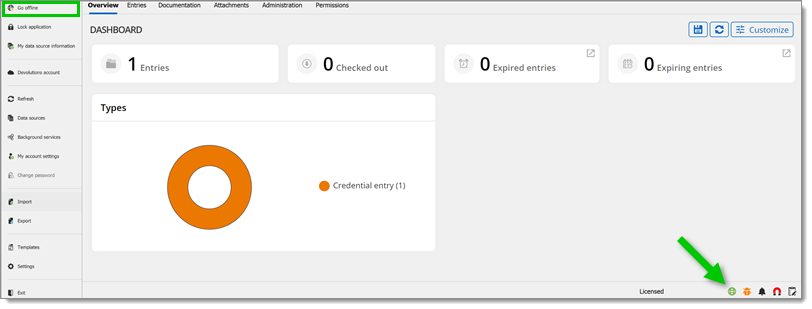
Remote Desktop Manager will prompt for offline mode when the application is unable to reach the data source. The offline mode can also be toggled manually via File – Go offline or by clicking the Go offline button located in the bottom pane (Windows only).
 Share your feedback