The present article details the settings and options available in a Microsoft Hyper-V dashboard entry in Remote Desktop Manager.
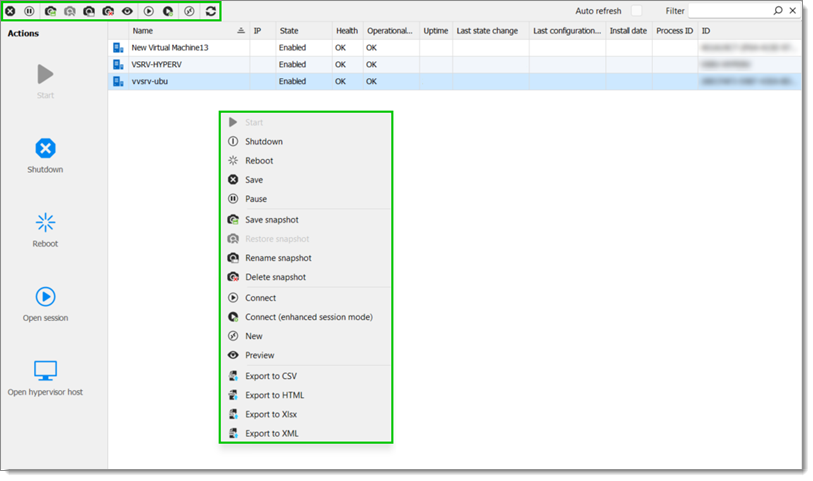
On top of displaying useful informations, Microsoft Hyper-V dashboard entries allow users create, edit or otherwise interact with Hyper-V virtual machines directly within Remote Desktop Manager. Right-clicking anywhere in the dashboard's content area brings up all the available options for the VMs it contains.
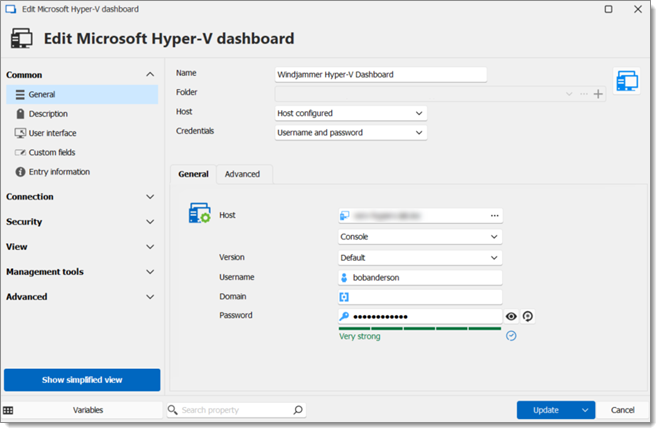
| SETTING | DESCRIPTION |
|---|---|
| Name | Enter a name for the Microsoft Hyper-V dashboard entry within Remote Desktop Manager. |
| Folder | Choose a folder in which to create the entry. |
| Host | Determine which host to connect to between:
|
| Credentials | Choose credentials to use for authentication between:
|
| SETTING | DESCRIPTION |
|---|---|
| Host | Manually enter a host or choose one from the Computer list (ellipsis button).The second dropdown menu allows users to choose whether to open to VMs' Console |
| Version | Choose between Hyper-V generation 1 or 2. |
| Username | Enter the username for the host. |
| Domain | Enter the domain for the host. |
| Password | Enter the password for the host. |
| SETTING | DESCRIPTION |
|---|---|
| VM processor usage | Adds a column in the dashboard showing VM processor usage. |
| VM memory demand | Adds a column in the dashboard showing VM memory demand. |
 Share your feedback