To following message may appear when trying to sign into a Devolutions Hub Business using Microsoft Single Sign-On (SSO: "The client ID or secret supplied by your organization is invalid, please contact an administrator of your organization."
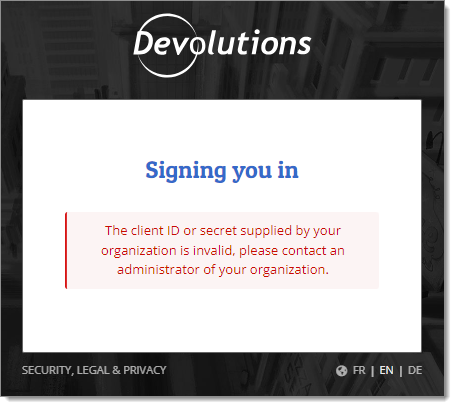
This most likely means that the Microsoft Azure Portal client secret is expired. The solution is to create a new secret and change it in the Devolutions Hub Business' SSO configuration.
-
In a new web browser page, sign into Microsoft Azure Portal.
-
Select Microsoft Entra ID in the Azure services section. If it is not immediately visible, click on More services.
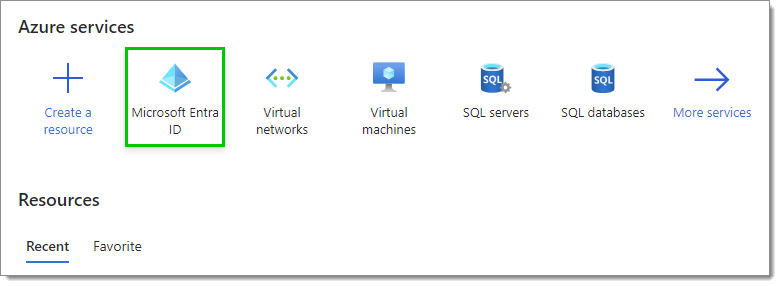
Microsoft Entra ID service -
Click on App registrations in the left menu.
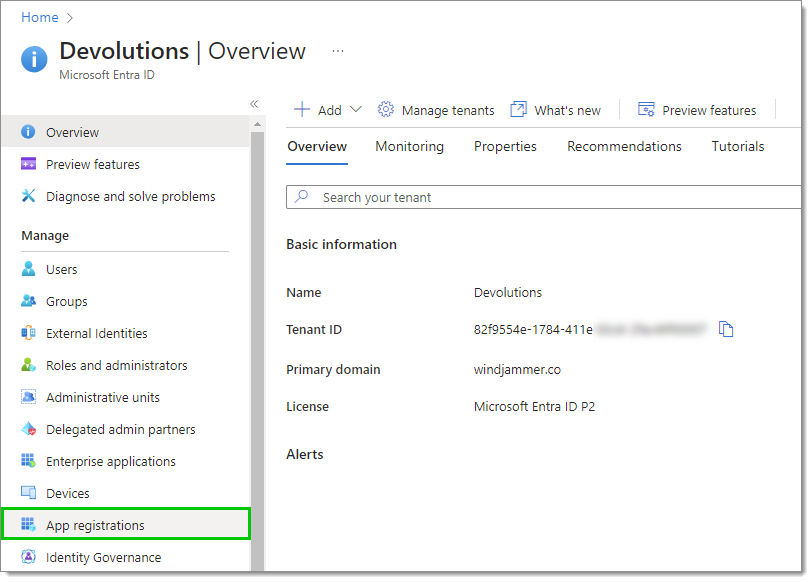
App registrations -
In the list, click on the application that was used to configure SSO in the problematic hub.
-
Click on Certificates & secrets in the left menu.
-
Locate the secret that is currently used for Devolutions Hub Business' SSO configuration and see if it is expired in the Expires column.
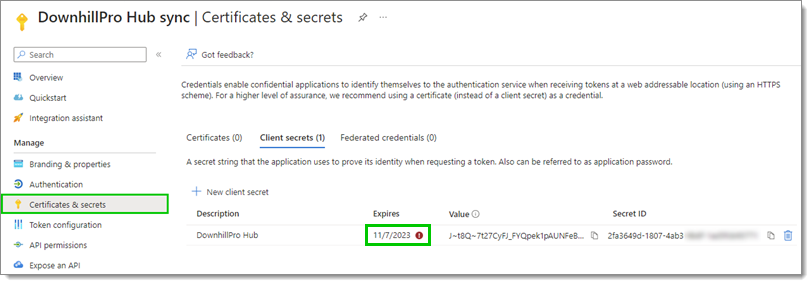
Enterprise applications
If it is indeed expired, this is most likely the cause of the connection issue. The next step is to create a new client secret and change it in Devolutions Hub Business' SSO configuration.
If the client secret is not expired, the issue may come from the client ID. Verify that it matches the one in Devolutions Hub Business' SSO configuration then try logging in again.
-
Click on New client secret.
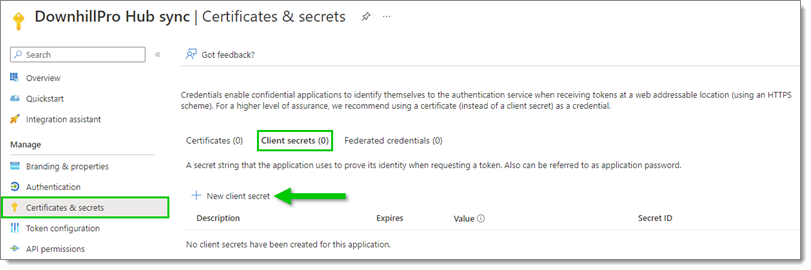
New client secret -
In the Add a client secret window, enter a Description (for example, the name of the Enterprise app) and select an expiration date for this client secret, as per your best internal security practices.
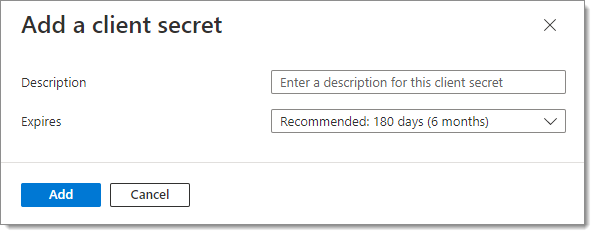
Add a client secret -
Click Add.
-
Copy the Value of this new client secret by clicking on the Copy to clipboard icon next to it.
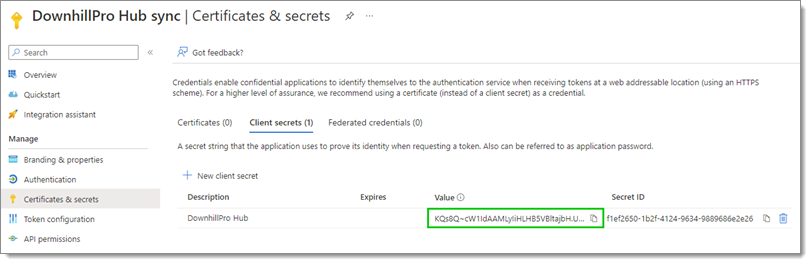
Copy the client secret value The expired client secret can be deleted without any issue since it is expired and cannot be used anymore.
-
Log in to Devolutions Hub Business with your Devolutions Account.
If the Force SSO on all users option is enabled, logging in will not be possible with your Devolutions Account. In this case, contact our customer support team to request the disabling of this option.
-
Once logged in, go to Administration – Authentication – Single Sign-On (SSO), then select your Microsoft SSO configuration.
-
Replace the currently expired Client secret key with the newly created one. This field can only be populated using the Paste button. It cannot be typed in directly.
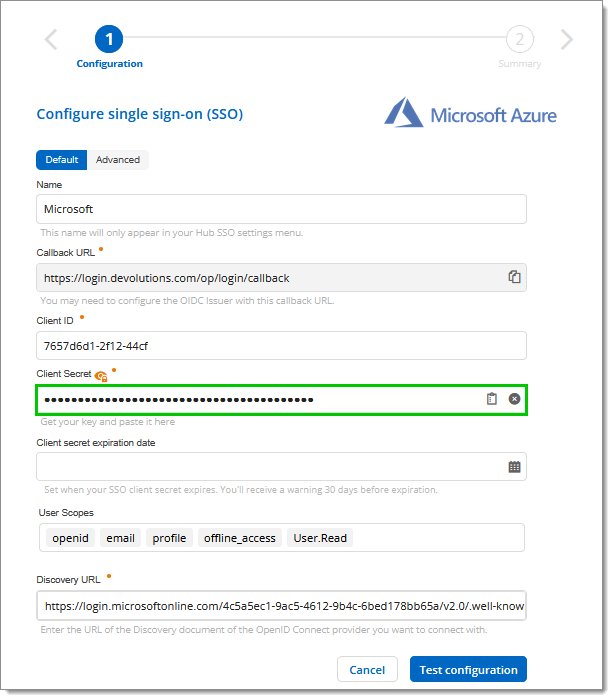
Replace the client secret key -
Click Test Configuration.
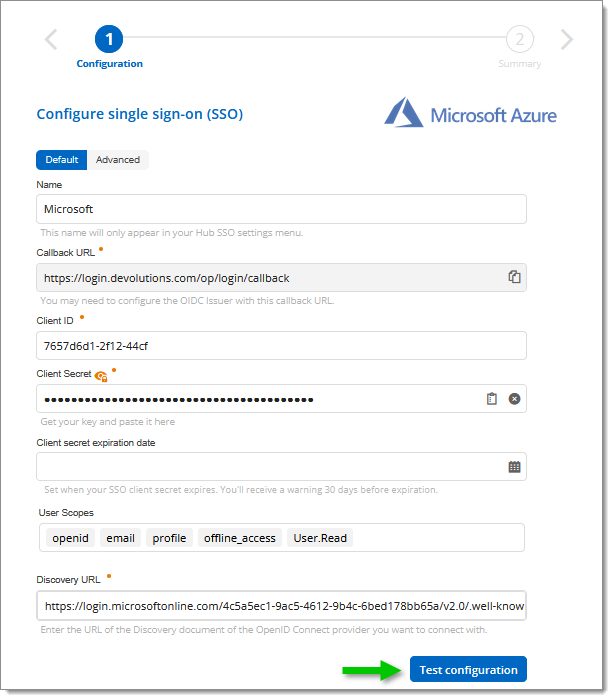
Test Configuration -
If the connection is successful, your account will connect with Entra ID and a summary of the configuration will be displayed.
-
In the Summary of the configuration, click Save.
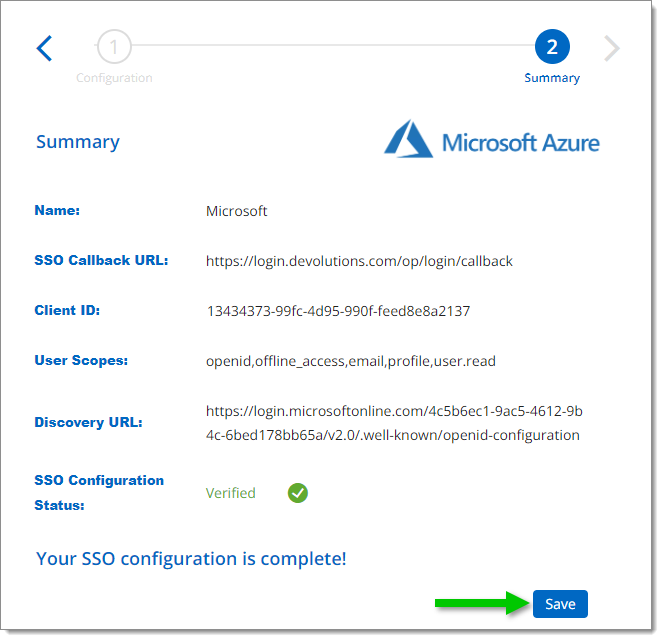
Save configuration
If issues persist, contact our customer support team.
 Share your feedback