The Password list entry allows secure storage and management of credentials, including usernames, passwords, associated domains, and descriptions.
Open Remote Desktop Manager and select Password list. Click on the + sign (Add).
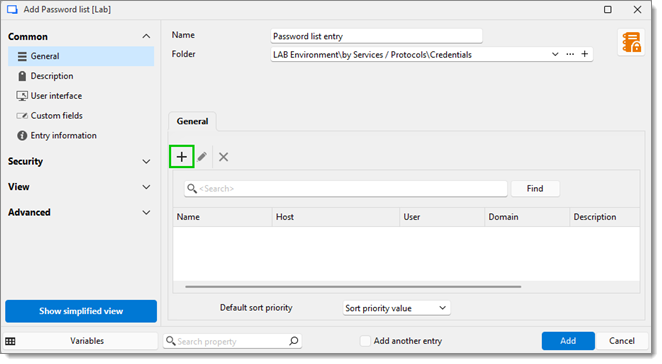
In the Password list item window, enter the required information. You can also configure one-time password (OTP) settings or define custom fields if needed.
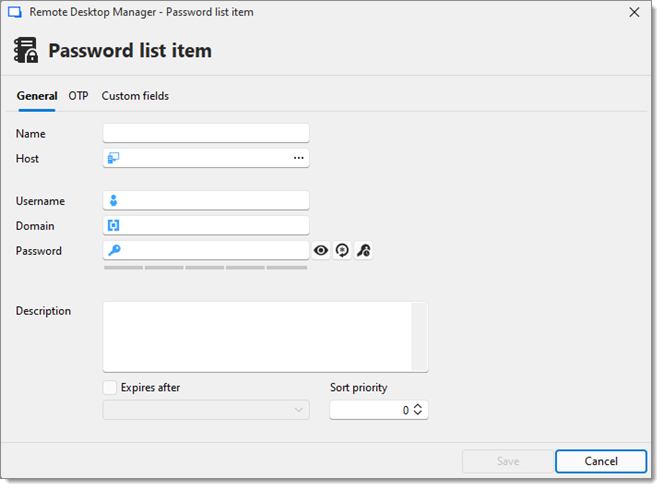
| SETTINGS | DESCRIPTIONS |
|---|---|
| Name | Enter a meaning full name to identify the password list. |
| Host | (Optional) Specify the host or IP address associated with the login. |
| Username | Enter the username tied to this password. |
| Domain | Specify the domain if applicable. |
| Password | The corresponding password for the username. |
| Description | Add notes or context about the entry. |
| Expires after | (Optional) Set an expiration date for the password. |
| Sort priority | Determines the order of this item in the list. |
After creating a Password list entry, options such as View password, Copy Username, and Copy domain are available in the left panel.
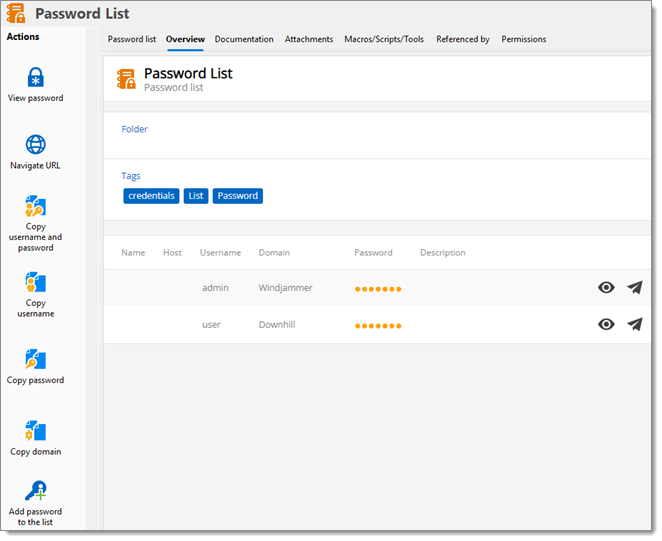
| SETTINGS | DESCRIPTIONS |
|---|---|
| View password | Select which password to view from the Password list. |
| Navigate URL | Open the URL from the selected Password list item. |
| Copy username and password | Copy both the username and the password to your clipboard. |
| Copy username | Copy only the username for the selected item in the Password list. |
| Copy password | Copy only the password for the chosen Password list item. |
| Copy domain | Copy the domain from the selected Password list item. |
| Add password to the list | Add a new Password list item to the Password list entry. |
 Share your feedback