Remote App lets you open an application inside an RDP session through CyberArk in Remote Desktop Manager. You can launch it in two ways: from the CyberArk dashboard entry or by using a PVWA credential entry.
CyberArk integrations require the Privileged access management solutions package license.
Open Remote Desktop Manager and add a new entry.
Select CyberArk dashboard.
Enter the required information, then open the Advanced tab.
In the General tab, enable Open sessions externally.

Select the account and launch the RDP session.
When prompted, select the required connection component.
The RDP session starts and opens only the selected application.
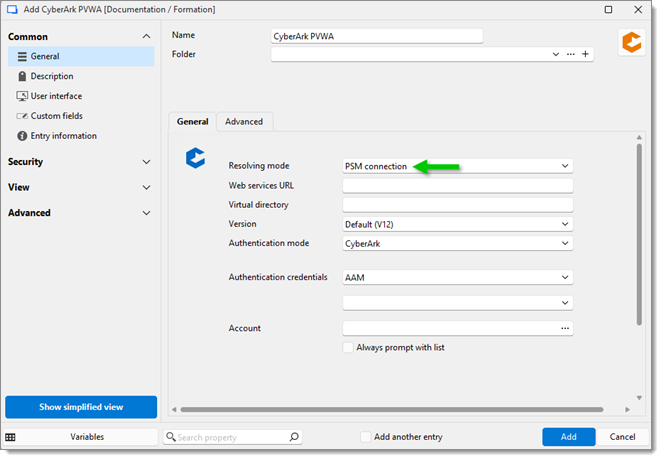
In your CyberArk PVWA credential entry, set Resolving mode to PSM connection.
Enter the required information and save the entry.
Edit a related RDP entry.
In Display, set External (default) (Current desktop).
Link the CyberArk PVWA credential entry to the RDP session. Go to Credentials – Linked (vault).
Select the CyberArk PVWA credential entry in the drop-down list.
On the Programs tab, enable Use RemoteApp (seamless mode).
Go to the Program field and enter
||PSMInitSession.Click Save to close the entry.
When you launch the RDP session and select the required connection component, the session opens only the application you chose.
 Share your feedback