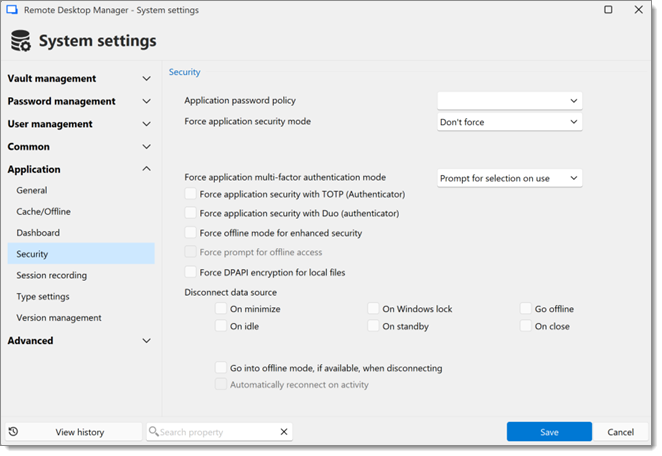
The Security section In Remote Desktop Manager contains options and settings that determine how the application protects access and data. The section can be found under Administration – System settings – Application – Security.
| SETTINGS | DESCRIPTIONS |
|---|---|
| Application password policy | Enables the application password policy. |
| Force application security mode | Sets how the application is secured and unlocked by using an application password, the current computer’s credentials as the application password, or Windows Hello. |
| Force application multi-factor authentication mode | Defines how multifactor authentication is applied at the application level: use the default behavior, check against all configured methods, or prompt for selection on use. |
| Force application security with TOTP (Authenticator) | Enforces TOTP MFA using an authenticator app. |
| Force application security with Duo (authenticator) | Enforces Duo MFA. |
| Force offline mode for enhanced security | Forces Remote Desktop Manager to operate in offline mode using an encrypted offline cache. |
| Force prompt for offline access | Requires a prompt before allowing offline access to data. |
| Force DPAPI encryption for local files | Forces Windows DPAPI encryption for locally stored files. |
| Disconnect data source | Sets application to lock:
The data source disconnect behavior can also be configured in the Devolutions Server web interface. |
| Go into offline mode, if available, when disconnecting | Switches to offline mode whenever a disconnection occurs (if this mode is available). |
| Automatically reconnect on activity | Reconnects the data source when user activity resumes. |
 Share your feedback