Privileged access management (PAM) in Devolutions Server and Remote Desktop Manager provides several check-in behaviors for what happens when you close an entry.
Devolutions Server
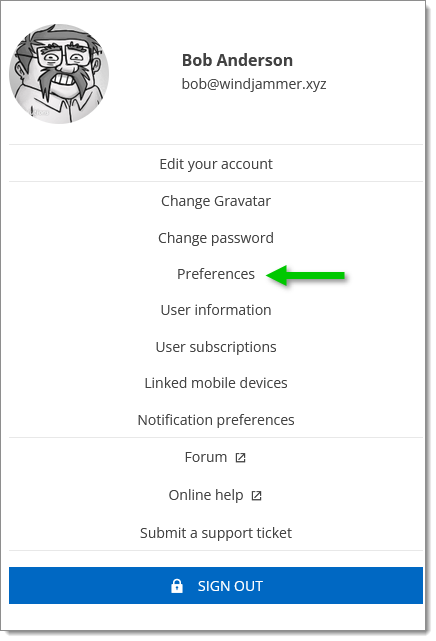
Open Devolutions Server web interface and go to the Preferences section located in the account menu.
Preferences
Options
Description
Automatically check in PAM account when closing the entry
Default: Use the default check-in setting, the value of which can be changed in Administration – Privileged access management (PAM) – Default settings.
Always prompt: Enforce prompting for check-in confirmation regardless of the default settings.
Check-in automatically: Automatically check-in the PAM account without prompting when closing the entry.
Don't check-in automatically: Disables automatic check-in, requiring manual intervention to check in the PAM account.
Remote Desktop Manager
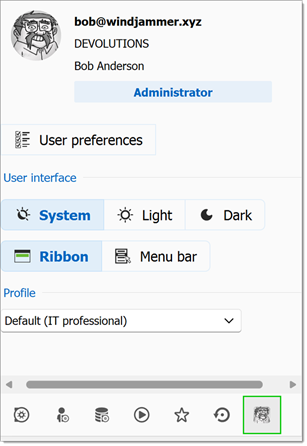
Open Remote Desktop Manager and go to Account information and click User preferences.
Account information
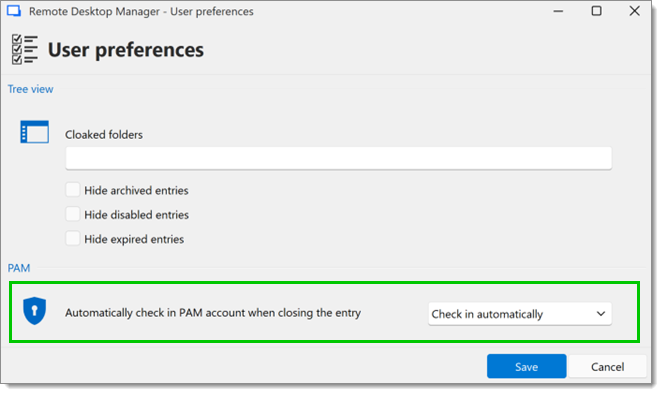
Select an option from the Automatically check in PAM account when closing the entry drop-down menu.
User preferences
Options
Description
Automatically check in PAM account when closing the entry
Always prompt: Enforces prompting for check-in confirmation regardless of the default settings.
Check-in automatically: Automatically check-in the PAM account without prompting when closing the entry.
Don't check-in automatically: Disables automatic check-in, requiring manual intervention to check in the PAM account.
 Share your feedback