The Devolutions Hub Services installer facilitates the installation and configuration of different features such as the Privileged access management module, the Encryption service (SSO-enabled feature) and the Hub reporting service. The installed service will establish communication between your Devolutions Hub Business and your internal resources.
Multiple instances of Devolutions Hub Services can be run simultaneously for higher availability. Hub will simply use the one executed first and leave the others on standby. Should one fail, Hub will automatically use the next service in line.
A Friendly name can be attributed to each service during installation to help differentiate them.
-
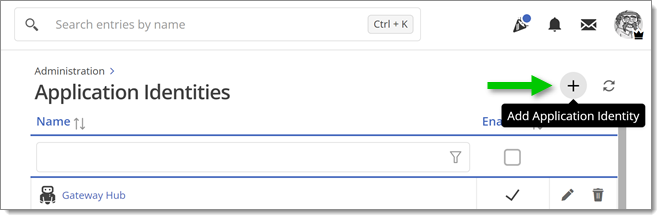
In Devolutions Hub, click on Administration – Application identities.
-
Select Add application identity (+).
-
Enter a name and click Add.
-
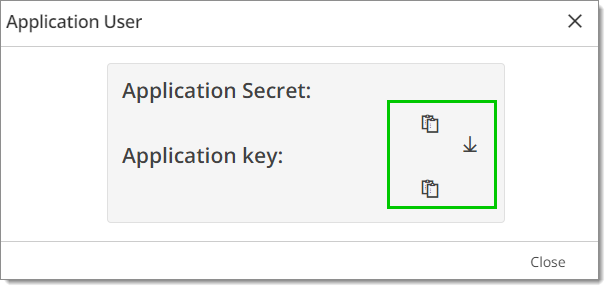
Copy the Application secret and Application key, and paste them somewhere safe. Alternatively, you can download them as a PDF file. These will be needed during Devolutions Hub Services installation later on.
-
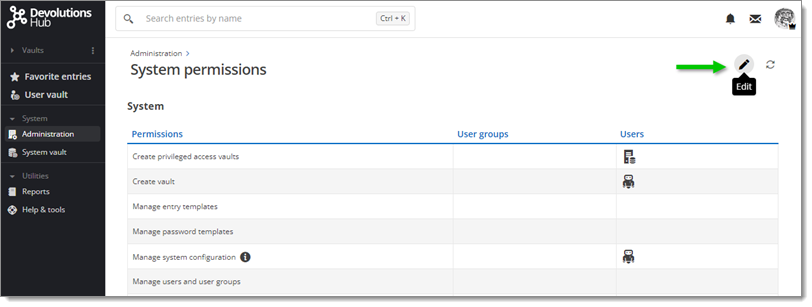
In Devolutions Hub, Click Administration – System permissions.
-
Click the Edit icon (+).
-
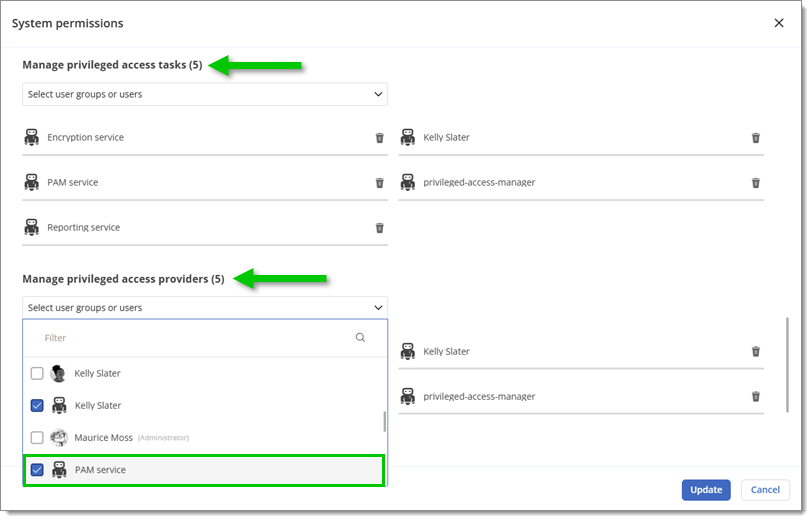
In the System tab, give both Manage privileged access tasks and Manage privileged access providers permissions to your application identity created during step 1. Click on Update.
You need to grant permission on the vault either at System level or Individual PAM vault level.
-
In Devolutions Hub, go to Administration – Configuration and security – System permissions.
-
Click the Edit button.
-
Select Vaults and choose your Application user in the drop-down menu under the Contributor section.
-
Click Update to close the window.
-
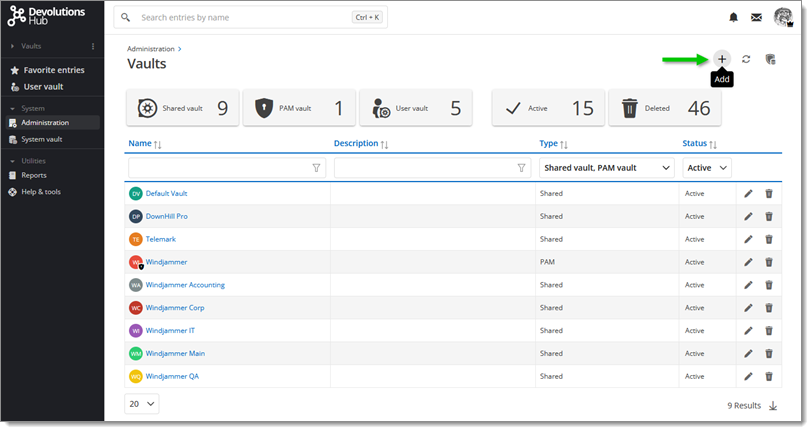
In Devolutions Hub, go to Administration – Management – Vaults
-
Click the Add button (+).
-
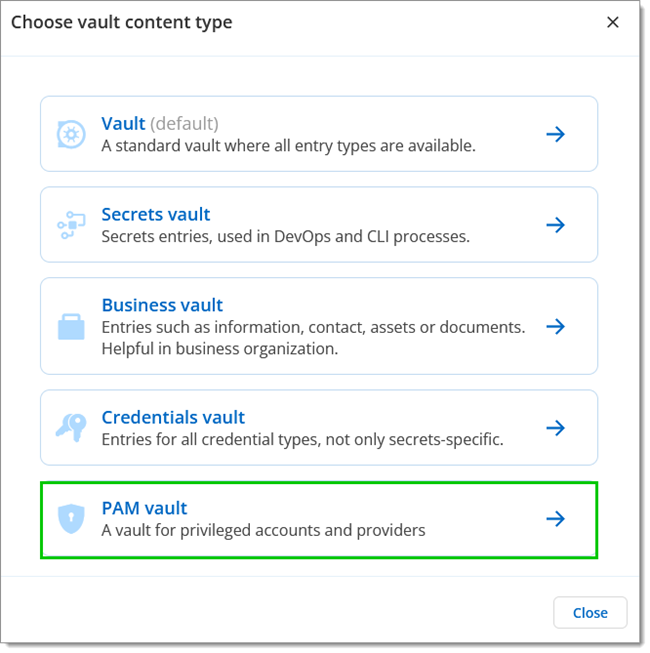
Select PAM vault in the menu to create your PAM vault.
-
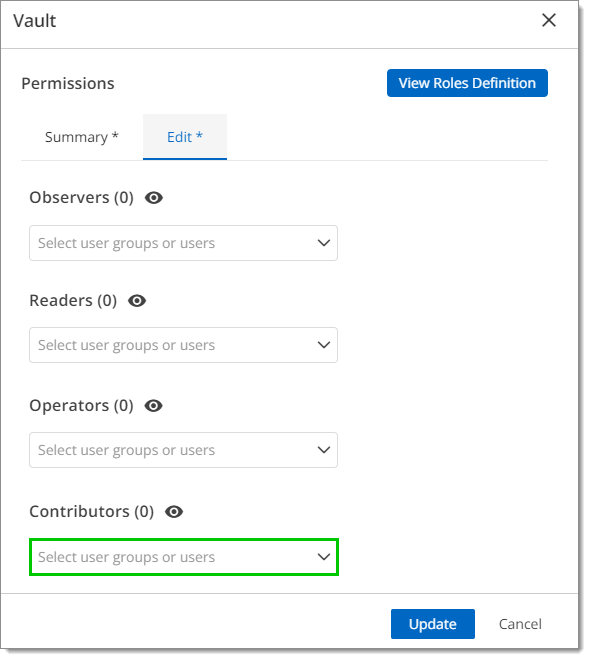
Go to the Security menu and select the Edit tab.
-
Choose your Application user in the drop-down menu under the Contributor section.
-
Click Add to close the window.
-
Download Devolutions Hub Services, and launch the installer.
-
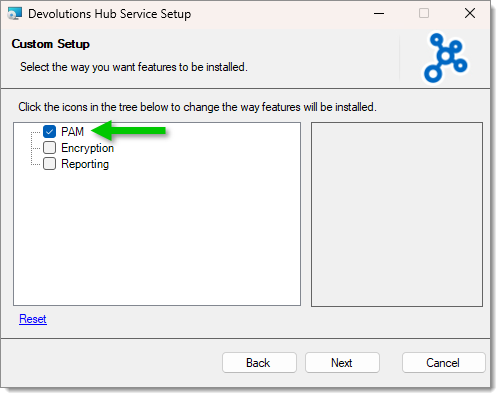
After reading and accepting the End-user license agreement, check PAM from the Custom setup feature list.
-
Enter your Host URL, as well as the Application secret and Application key you saved at the end of step 1. You can then test your connection to see if everything is working properly. Click on Finish.
To create an application service, go to Administration, then select Application services under Configuration and security.

Click on the Add (+) button and select PAM service. Some information is needed, such as an Application service name, a Description, and the Application identity.

Devolutions Hub Services' logs are available in Windows Event Viewer. The service should be able to connect to the created provider. The provider needs to be added in Devolutions Hub.
It is also possible to see the Devolutions Hub Services as a service in the Services window of Windows which shows the current status and where it can be started or stopped.
 Share your feedback