The following instructions explain how to use Devolutions Gateway in an RDP session.
-
Select an RDP session and open its Properties dialog.
-
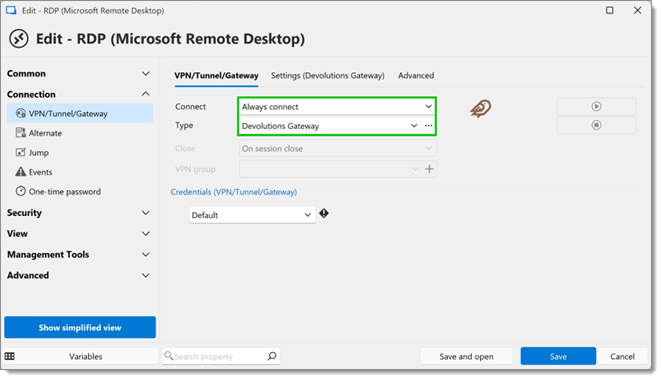
Go to Connection – VPN/SSH/Gateway.
-
Set the Connect option to Always connect.
-
Set the Type option to Devolutions Gateway.
-
In the Settings (Devolutions Gateway) tab select the gateway configured in Devolutions Server configuration.
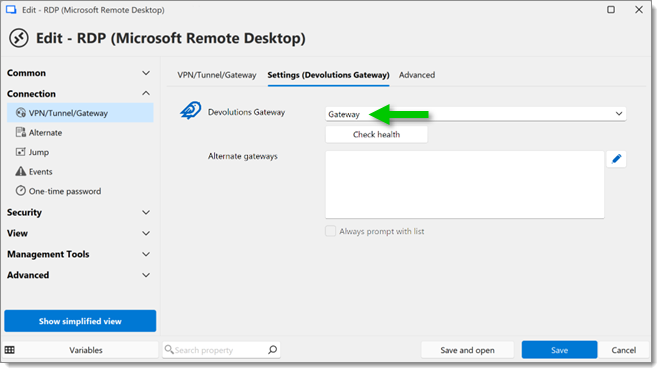
Select the gateway configured To remove the five-second delay when opening a connection, set the Delay value to 0 in the Advanced tab.
-
Once the RDP session is connected, the following log entry should be in Reports – Data Source Logs, which are located in the Devolutions Server web interface.
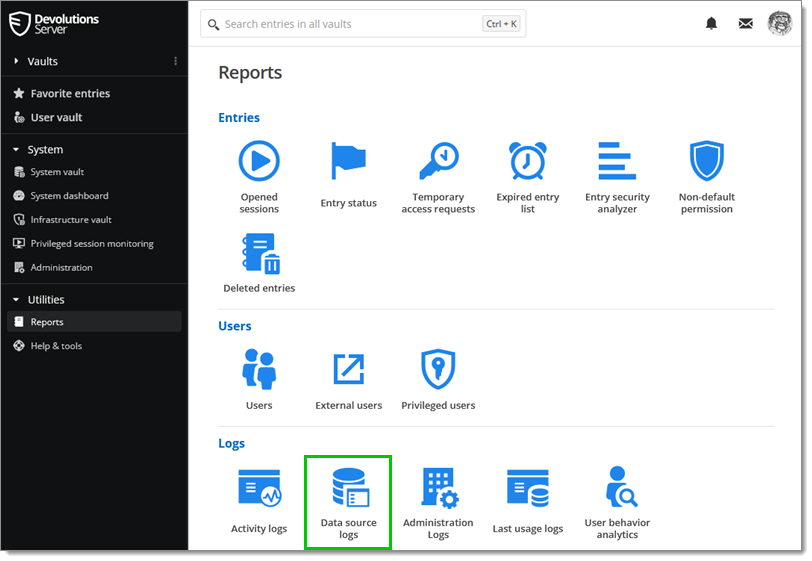
Reports – Data Source Logs -
All of your sessions, logs, and configurations can be managed from the Remote Desktop Manager ribbon by going to Administration – Devolutions Gateway.

Administration -
A session recording provides a record of what a user did while a remote connection was opened in Remote Desktop Manager.
Open the properties of your RDP entry.
Go to Session recording.
From the Mode dropdown menu, select your preferred setting.
In the Recording dropdown menu, choose Remote.
Click Save.
 Share your feedback