If you are experiencing an issue with Devolutions Hub Business, our customer support techicians may ask you to send a trace report to help diagnose the problem. Follow the steps below to generate and send them a trace report.
HAR files can contain sensitive data, including content of the pages you downloaded while recording and your cookies. This allows anyone with the HAR file to impersonate your account and all the information that you submitted while recording (personal details, passwords, credit card numbers, etc.). Protect your session data by sanitizing your HAR files before sharing.
-
Open the browser’s developer tools by pressing F12 on your keyboard (in Chrome or most modern browsers).
-
Click the Console tab.
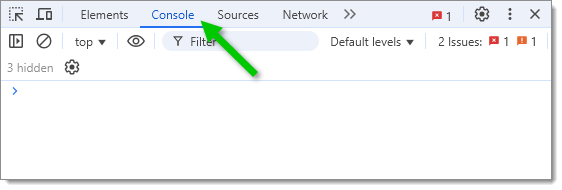
Open the Console tab -
Click the Clear button to remove any unrelated data.
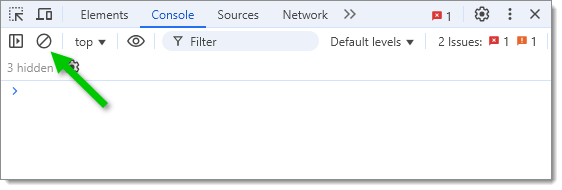
Clear unrelated data -
Reproduce the issue in the Devolutions Hub Business web interface, as requested by our customer support team.
-
Right-click anywhere inside the console output area, select Save as..., and save the file as a
.log. -
Click the Network tab.
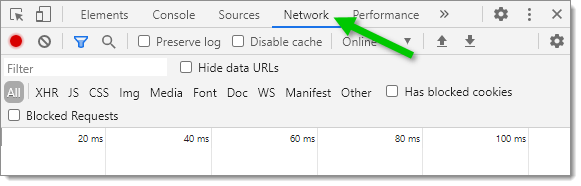
Open the Network tab -
Click the Clear button to remove any unrelated data and check Preserve log to ensure all actions are recorded.
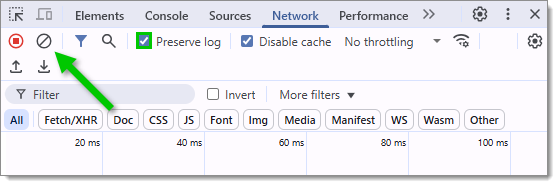
Clear unrelated data and preserve logs -
Reproduce the issue again.
-
Click the Export HAR (arrow down) button to export the trace report.
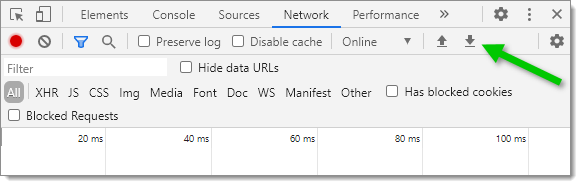
Export the trace report -
Remove sensitive session data by sanitizing your HAR files before sharing. Click Browse and select your HAR file. Select the following elements if they are listed:
key__Host-sid-*
-
Click on Download Sanitized HAR.
-
Email both the sanitized
.harand.logfiles to service@devolutions.net, and include your support ticket number for reference.
 Share your feedback