Follow the steps to clear your browser's local storage.
-
Open a Google Chrome browser page.
-
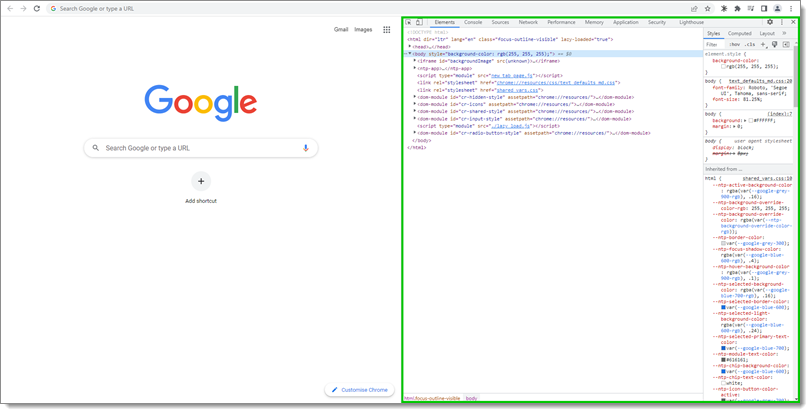
Use your keyboard's F12 key to open the Google Chrome Developer Tools Console.
-
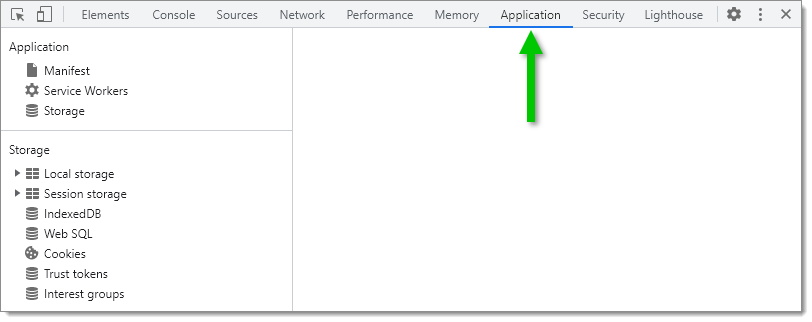
Click Application in the console's top menu.
-
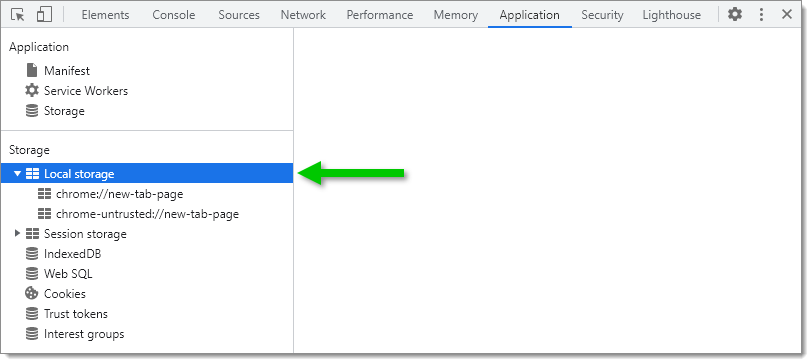
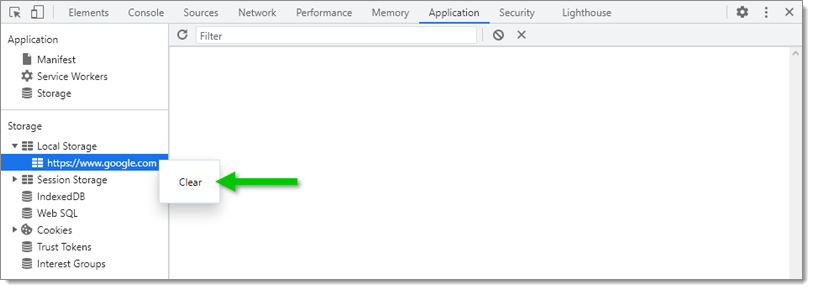
Expand the Local storage list located under the Storage section in the console's left menu.
-
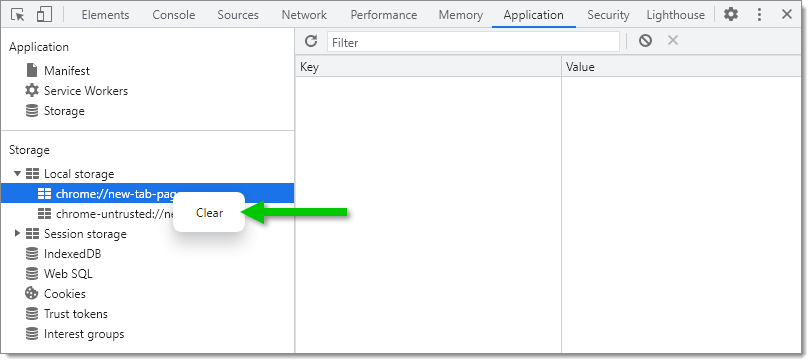
Right-click your site(s) and click Clear to delete the local storage.
-
Open a Microsoft Edge browser page.
-
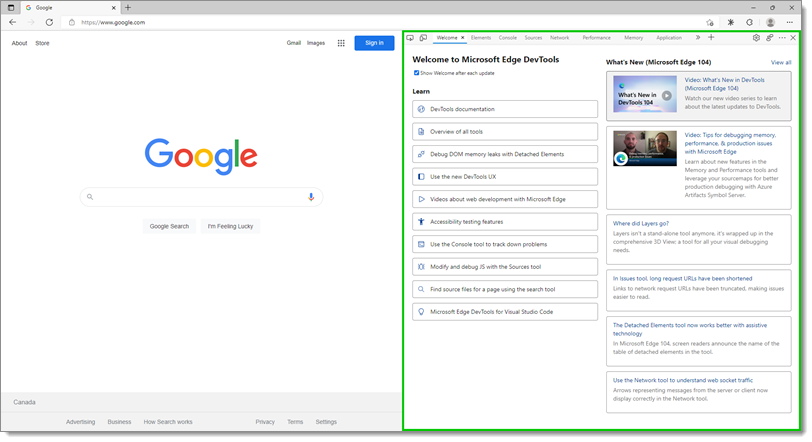
Use your keyboard's F12 key to open the Microsoft Edge Developer Tools Console.
-
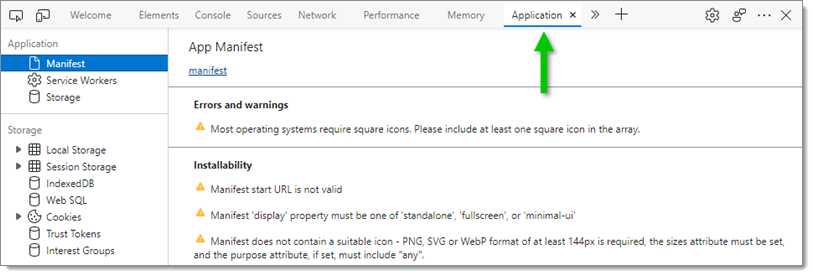
Click Application in the console's top menu.
-
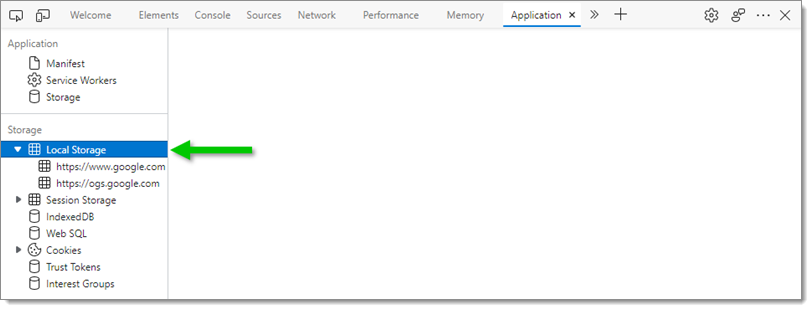
Expand the Local Storage list located in the Storage section of the console's left menu.
-
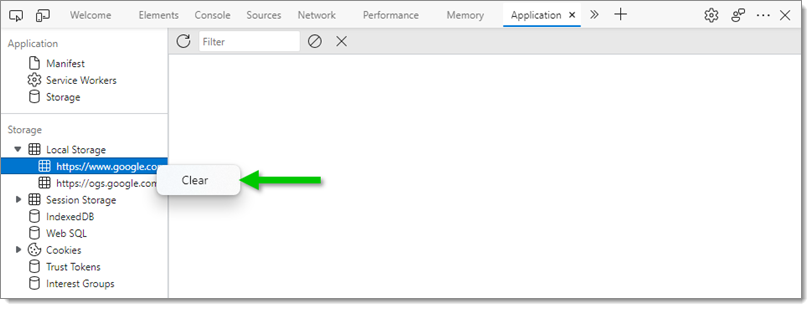
Right-click your site(s) and click Clear to delete the local storage.
-
Open a Firefox browser page.
-
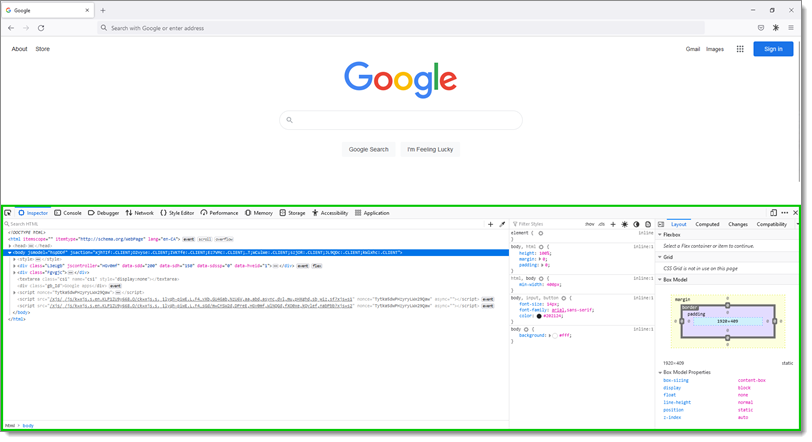
Use your keyboard's F12 key to open the Firefox Developer Tools Console.
-
Click Storage in the console's top menu.

-
Expand the Local Storage list located in the console's left menu.

-
Right-click your site(s) and click Delete All to delete the local storage.

-
Open an Opera browser page.
-
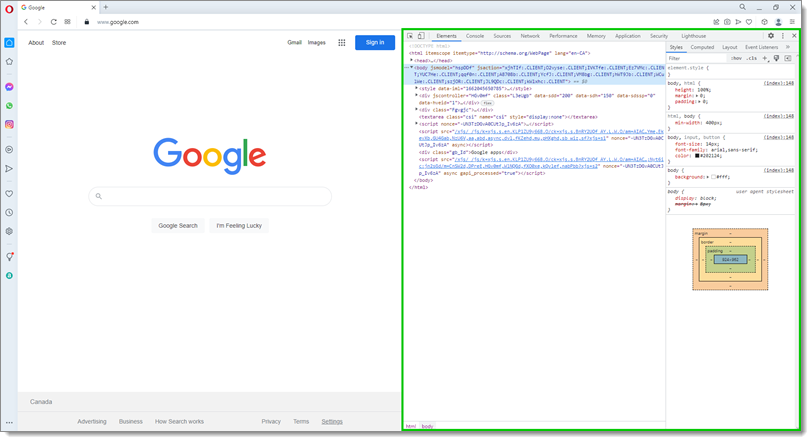
Use your keyboard Ctrl+Shift+I keys to open the Opera Developer Tools Console.
-
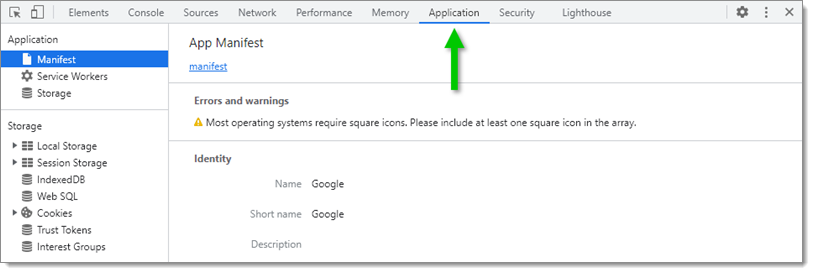
Click Application in the console's top menu.
-
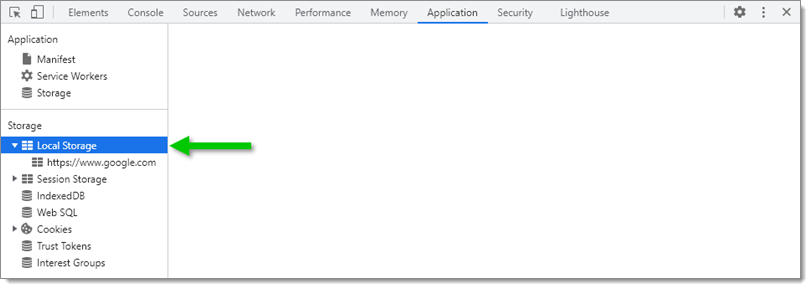
Expand the Local Storage list located in the Storage section of the console's left menu.
-
Right-click your site(s) and click Clear to delete the local storage.
-
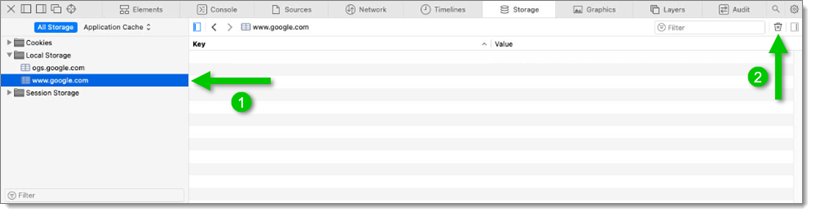
Open a Safari browser page.
-
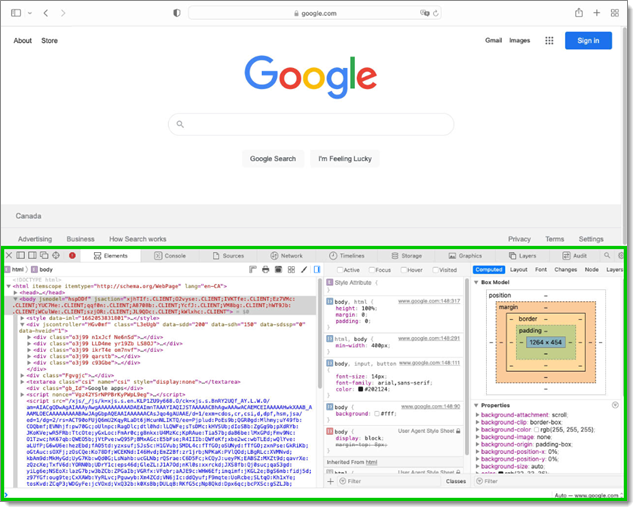
Use your keyboard Alt+Cmd+C keys to open the Safari Javascript Console.
-
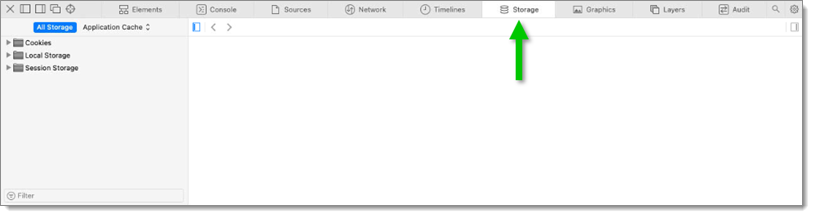
Click Storage in the console's top menu.
-
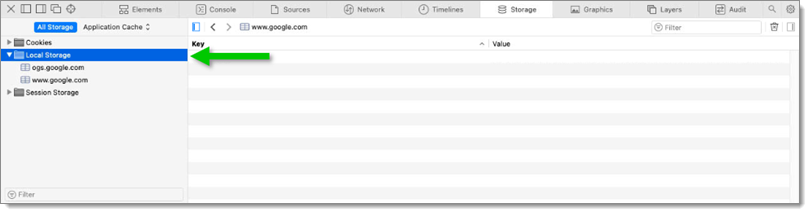
Expand the Local Storage list in the console's left menu.
-
Select your site and click Clear Local Storage to delete the local storage.
 Share your feedback