> For the complete documentation index, see [llms.txt](https://docs.devolutions.net/llms.txt). Markdown versions of documentation pages are available by appending `.md` to page URLs; this page is available as [Markdown](https://docs.devolutions.net/server/it/knowledge-base/knowledge-base-articles/sql-server-express-configuration.md).
# Configurazione di SQL Server Express
Configuri Microsoft SQL Server Express Edition per Devolutions Server abilitando l'autenticazione in modalità mista, le connessioni remote e il servizio browser.
Per potersi connettere a un database SQL con Devolutions Server, ecco la configurazione suggerita in Microsoft SQL Server Express Edition.
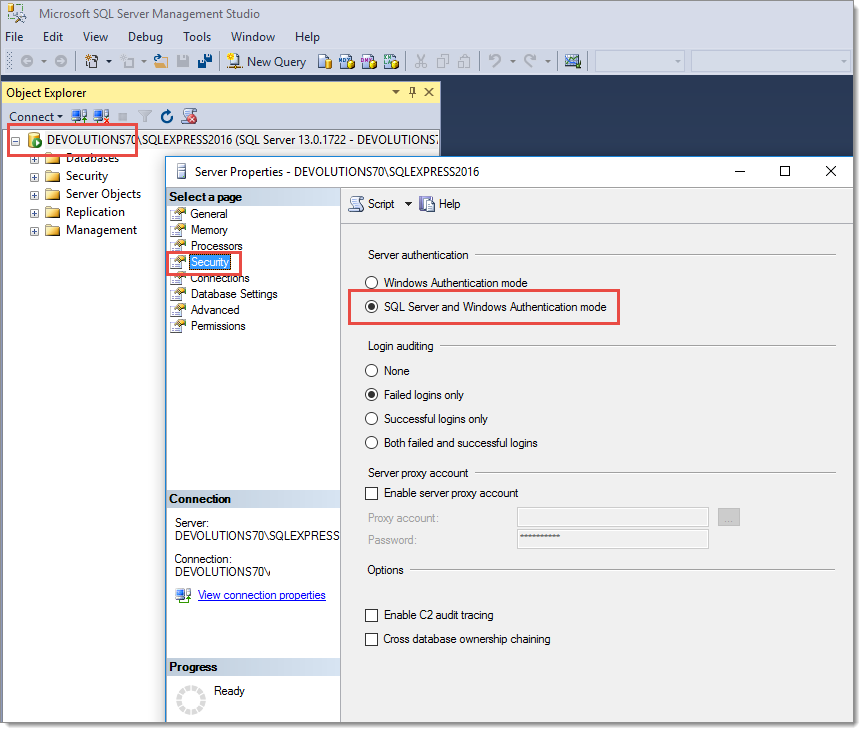
**La maggior parte dei nostri clienti utilizza l'autenticazione del server in modalità mista**. Secondo Microsoft, non è il metodo di autenticazione più sicuro da utilizzare con Microsoft SQL Server Express Edition, ma ne consigliamo l'uso per configurare e testare la sua istanza di Devolutions Server. Dopo un'installazione riuscita di Devolutions Server, può reimpostarla sulla modalità ***Autenticazione di Windows*** e impostare l'opzione ***Single sign-on (SSO) di dominio*** nella scheda ***Database*** delle impostazioni server di Devolutions Server. Consulti [Configurare il single sign-on (SSO) di dominio](/server/it/knowledge-base/how-to-articles/configure-domain-single-sign-on-sso.md). Per abilitare la modalità mista, in Microsoft SQL Server Management Studio, apra la finestra di dialogo delle proprietà del suo server e vada nella scheda ***Sicurezza***. Quindi, selezioni l'opzione della modalità di autenticazione di SQL Server e Windows.
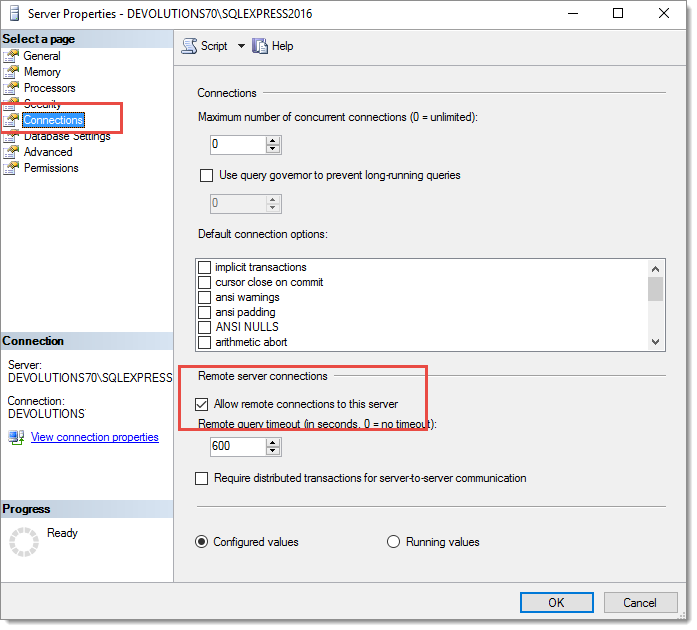
L'opzione successiva che deve essere attivata è l'opzione ***Consenti connessioni remote a questo server***. Troverà tale opzione nella scheda ***Connessioni*** della finestra di dialogo ***Proprietà*** di SQL Server. Quindi, clicchi sul pulsante ***OK*** per salvare le modifiche.
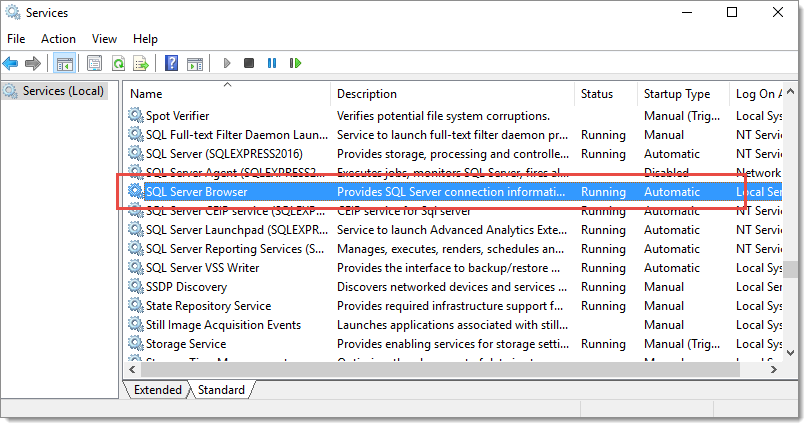
Infine, il servizio SQL Server Browser deve essere avviato sulla macchina in cui è ospitato SQL Server. Esegua servicesmsc e cerchi SQL Server Browser nell'elenco.
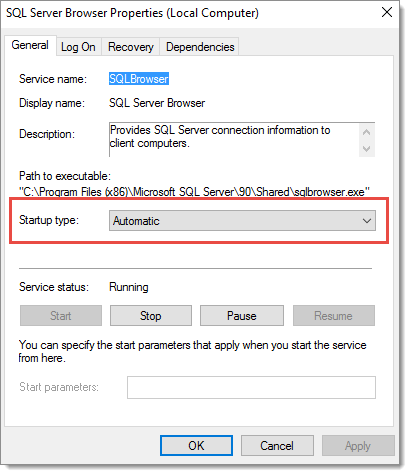
Consigliamo di impostare il tipo di avvio su Automatico per il servizio SQL Server Browser. Faccia doppio clic sul servizio per aprire la finestra di dialogo ***Proprietà***. Quindi avvii il servizio cliccando sul pulsante ***Avvia*** e selezioni ***Automatico*** nel menu a discesa Tipo di avvio. Infine, clicchi sul pulsante ***OK***.
---
# Agent Instructions
This documentation is published with GitBook. GitBook is the documentation platform designed so that both humans and AI agents can read, navigate, and reason over technical content effectively. Learn more at gitbook.com.
## Querying This Documentation
If you need additional information that is not directly available in this page, you can query the documentation dynamically by asking a question.
Perform an HTTP GET request on the current page URL with the `ask` query parameter, and the optional `goal` query parameter:
```
GET https://docs.devolutions.net/server/it/knowledge-base/knowledge-base-articles/sql-server-express-configuration.md?ask=&goal=
```
`ask` is the immediate question: it should be specific, self-contained, and written in natural language.
`goal` is optional and describes the broader end goal you are ultimately trying to accomplish on behalf of the user. GitBook uses it to tailor the answer towards what is most useful for that goal.
The response will contain a direct answer to the question and relevant excerpts and sources from the documentation.
Use this mechanism when the answer is not explicitly present in the current page, you need clarification or additional context, or you want to retrieve related documentation sections.