> For the complete documentation index, see [llms.txt](https://docs.devolutions.net/llms.txt). Markdown versions of documentation pages are available by appending `.md` to page URLs; this page is available as [Markdown](https://docs.devolutions.net/server/it/knowledge-base/how-to-articles/configure-ssl.md).
# Configurare SSL
Configuri SSL per Devolutions Server importando un certificato, creando un binding HTTPS in IIS e aggiornando le impostazioni delle applicazioni client.
Esegua questi passaggi solo dopo aver configurato l'istanza di Devolutions Server e dopo essersi effettivamente connesso tramite un'applicazione client. Eseguire questi passaggi fin dall'inizio può aggiungere un livello di complessità che potrebbe impedirle di riuscire nella configurazione iniziale.
### Importare un certificato o creare un certificato autofirmato
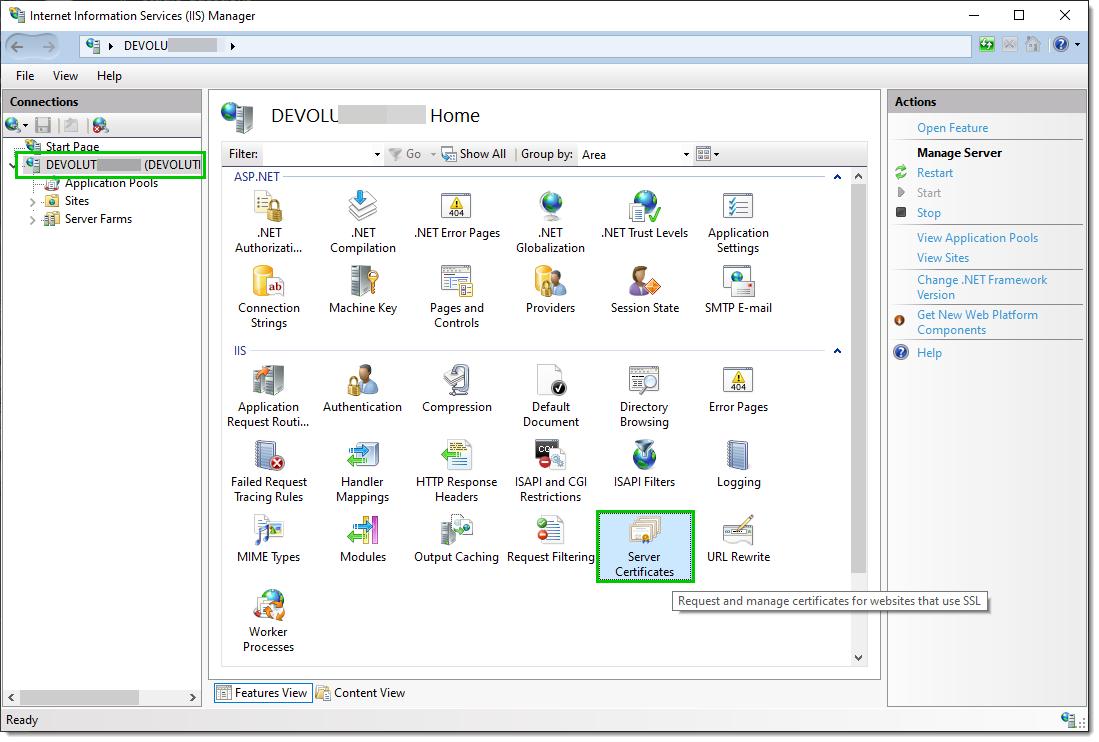
1. Selezioni il nodo del server nella vista ad albero e faccia doppio clic sulla funzionalità ***Server Certificates*** nella ***List View***:
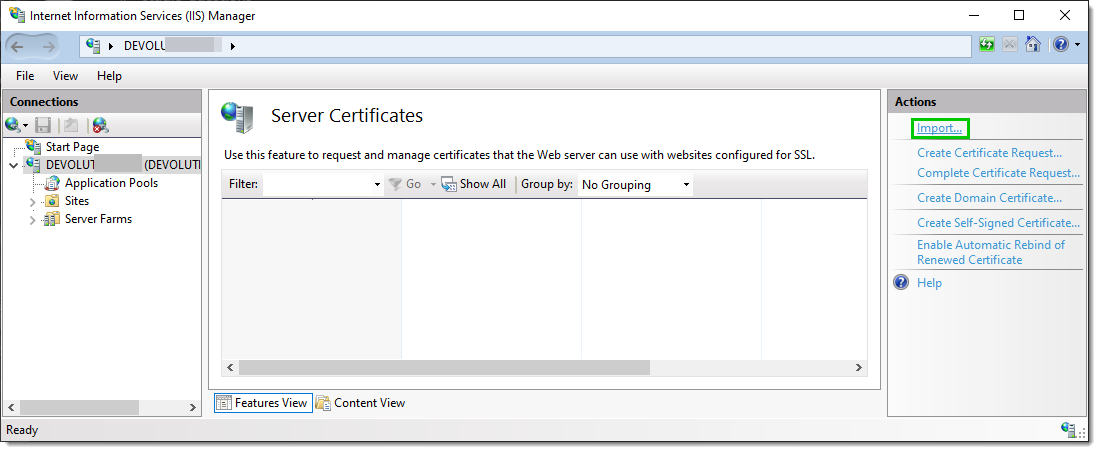
2. Clicchi su ***Import...*** nel riquadro ***Actions***.
### Creare un binding SSL
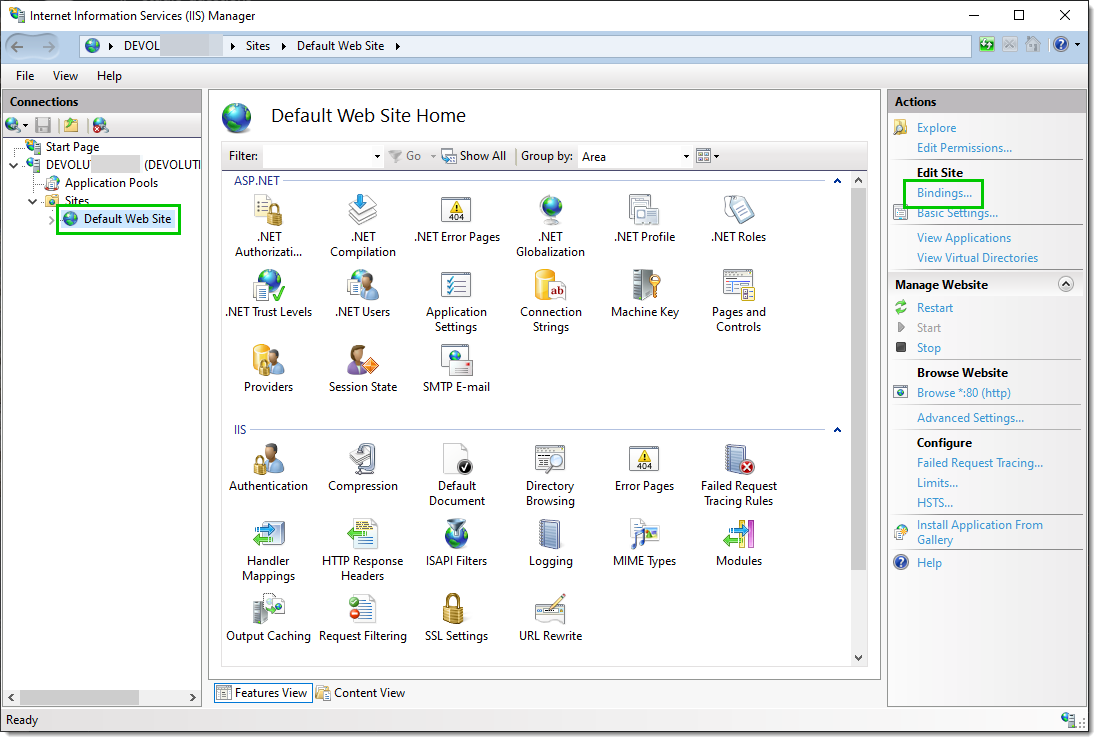
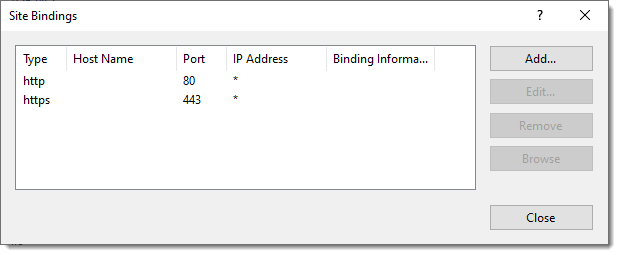
1. Selezioni il sito web nella vista ad albero. Clicchi su ***Bindings...*** nel riquadro ***Actions***. Verrà visualizzato l'editor dei binding che le consente di creare, modificare ed eliminare i binding per il suo sito web.
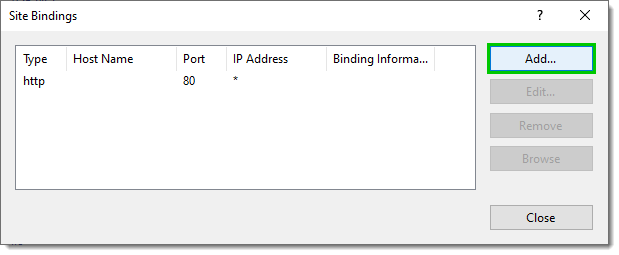
2. Clicchi su ***Add...*** per aggiungere il nuovo binding SSL al sito.
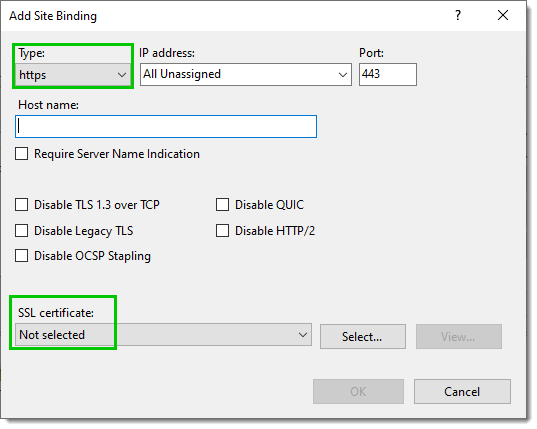
3. Selezioni ***https*** nell'elenco a discesa ***Type***. Selezioni il certificato che ha importato o creato dall'elenco a discesa ***SSL Certificate*** e poi clicchi su ***OK***.
4. Ora dispone di un nuovo binding ***SSL*** sul suo sito.
### Modificare la configurazione di Devolutions Server
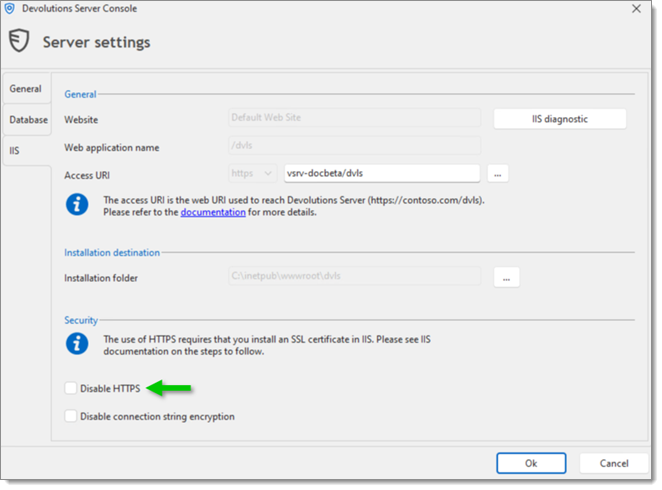
1. Dalla Devolutions Server Console, modifichi l'istanza di Devolutions Server.
2. Vada nella scheda IIS e deselezioni l'opzione ***Disable HTTPS***.
3. Salvi la modifica con il pulsante ***Save***.
### Configurare le impostazioni SSL nelle applicazioni client
1. Modificare lo spazio di lavoro Devolutions Server
2. Cambi l'URL del server per utilizzare il protocollo ***https\://***.
#### Vedi anche
* [Devolutions Academy - Installing Devolutions Server](https://academy.devolutions.net/student/page/2942307-installing-devolutions-server?curriculum_activity_id=4493546\&path_id=2942210\&sid=1f0658ca-fdf5-4f74-a93f-a6a4b8853c09\&sid_i=0)
---
# Agent Instructions
This documentation is published with GitBook. GitBook is the documentation platform designed so that both humans and AI agents can read, navigate, and reason over technical content effectively. Learn more at gitbook.com.
## Querying This Documentation
If you need additional information that is not directly available in this page, you can query the documentation dynamically by asking a question.
Perform an HTTP GET request on the current page URL with the `ask` query parameter, and the optional `goal` query parameter:
```
GET https://docs.devolutions.net/server/it/knowledge-base/how-to-articles/configure-ssl.md?ask=&goal=
```
`ask` is the immediate question: it should be specific, self-contained, and written in natural language.
`goal` is optional and describes the broader end goal you are ultimately trying to accomplish on behalf of the user. GitBook uses it to tailor the answer towards what is most useful for that goal.
The response will contain a direct answer to the question and relevant excerpts and sources from the documentation.
Use this mechanism when the answer is not explicitly present in the current page, you need clarification or additional context, or you want to retrieve related documentation sections.