> For the complete documentation index, see [llms.txt](https://docs.devolutions.net/llms.txt). Markdown versions of documentation pages are available by appending `.md` to page URLs; this page is available as [Markdown](https://docs.devolutions.net/server/es/knowledge-base/how-to-articles/create-a-devolutions-server-workspace-with-an-application-key.md).
# Crear un espacio de trabajo de Devolutions Server con una clave de aplicación
Cree un espacio de trabajo de Devolutions Server mediante una clave de aplicación y un secreto, ya sea a través de Remote Desktop Manager o de un script de PowerShell.
Con el módulo Devolutions.PowerShell, es posible conectarse a una instancia de Devolutions Server utilizando una [***clave de aplicación y un secreto de aplicación***](/server/es/web-interface/administration/user-and-security-management/applications-identities.md). Puede crear un espacio de trabajo de Devolutions Server en Remote Desktop Manager o manualmente mediante PowerShell. Siga el método que mejor se adapte a sus necesidades.
#### Método 1: Remote Desktop Manager
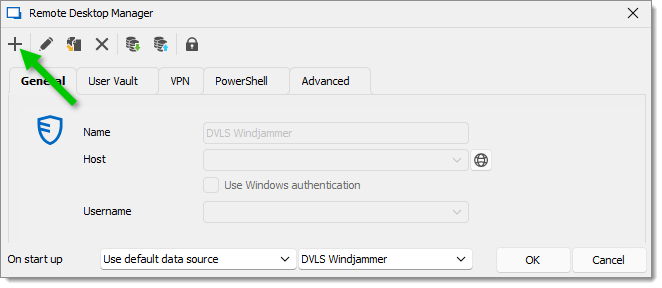
1. En Remote Desktop Manager, vaya a ***Archivo – Espacios de trabajo***.
2. Haga clic en el botón ***Añadir un nuevo espacio de trabajo***.
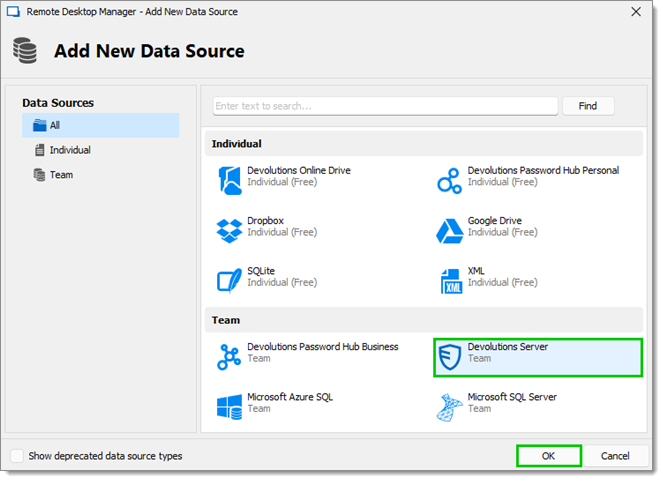
3. En la siguiente ventana, seleccione el espacio de trabajo de equipo ***Devolutions Server*** y, a continuación, haga clic en ***OK***.
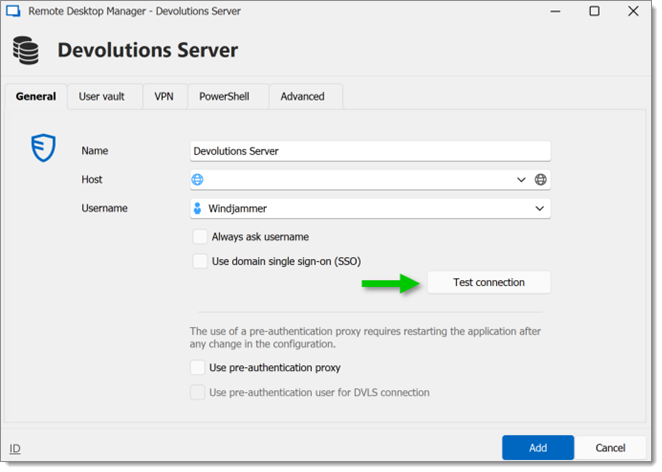
4. En la pestaña ***General***, introduzca un ***Nombre***, un ***Host*** y un ***Nombre de usuario*** para su nuevo espacio de trabajo. A continuación, puede hacer clic en el botón ***Probar conexión*** para confirmar que la conexión funciona.
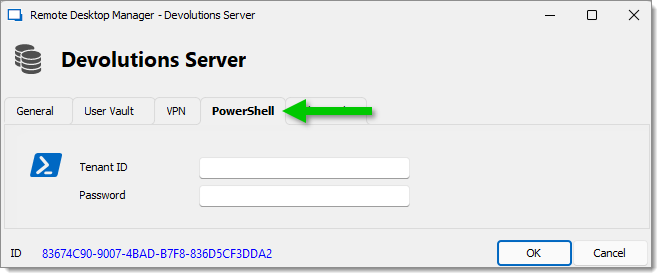
5. Haga clic en la pestaña ***PowerShell***.
6. Introduzca su [***clave de aplicación y secreto de aplicación***](/server/es/web-interface/administration/user-and-security-management/applications-identities.md) en el campo ***ID de tenant*** y en el campo ***Contraseña*** respectivamente, y luego haga clic en ***OK***.
Su nuevo espacio de trabajo de Devolutions Server ya está creado. Ahora puede conectarse a su Devolutions Server y ejecutar sus scripts.
#### Método 2: PowerShell
1. Mediante los cmdlets de PowerShell, pegue el siguiente script de ejemplo:
```powershell
$dsname = "DVLS PowerShell"
$dsurl = "https://your_dvls_url"
$appkey = "your_appkey"
$appsecret = "your_appsecret"
$ds = New-RDMDataSource -DVLS -Name $dsname -Server $dsurl -ScriptingTenantID $appkey -ScriptingApplicationPassword $appsecret -SetDatasource -WarningAction SilentlyContinue
Set-RDMDataSource $ds
Set-RDMCurrentDataSource $ds
```
2. Sustituya los valores de las variables por los suyos y, a continuación, ejecute el script.
Su nuevo espacio de trabajo de Devolutions Server ya está creado. Ahora puede conectarse a su Devolutions Server y ejecutar sus scripts.
---
# Agent Instructions
This documentation is published with GitBook. GitBook is the documentation platform designed so that both humans and AI agents can read, navigate, and reason over technical content effectively. Learn more at gitbook.com.
## Querying This Documentation
If you need additional information that is not directly available in this page, you can query the documentation dynamically by asking a question.
Perform an HTTP GET request on the current page URL with the `ask` query parameter, and the optional `goal` query parameter:
```
GET https://docs.devolutions.net/server/es/knowledge-base/how-to-articles/create-a-devolutions-server-workspace-with-an-application-key.md?ask=&goal=
```
`ask` is the immediate question: it should be specific, self-contained, and written in natural language.
`goal` is optional and describes the broader end goal you are ultimately trying to accomplish on behalf of the user. GitBook uses it to tailor the answer towards what is most useful for that goal.
The response will contain a direct answer to the question and relevant excerpts and sources from the documentation.
Use this mechanism when the answer is not explicitly present in the current page, you need clarification or additional context, or you want to retrieve related documentation sections.