> For the complete documentation index, see [llms.txt](https://docs.devolutions.net/llms.txt). Markdown versions of documentation pages are available by appending `.md` to page URLs; this page is available as [Markdown](https://docs.devolutions.net/server/es/knowledge-base/how-to-articles/configure-ssl.md).
# Configurar SSL
Configure SSL para Devolutions Server importando un certificado, creando un enlace HTTPS en IIS y actualizando la configuración de las aplicaciones cliente.
Realice estos pasos únicamente después de haber configurado la instancia de Devolutions Server y de haberse conectado efectivamente a través de una aplicación cliente. Realizar estos pasos desde el principio puede añadir un nivel de complejidad que le impida completar con éxito la configuración inicial.
### Importar un certificado o crear un certificado autofirmado
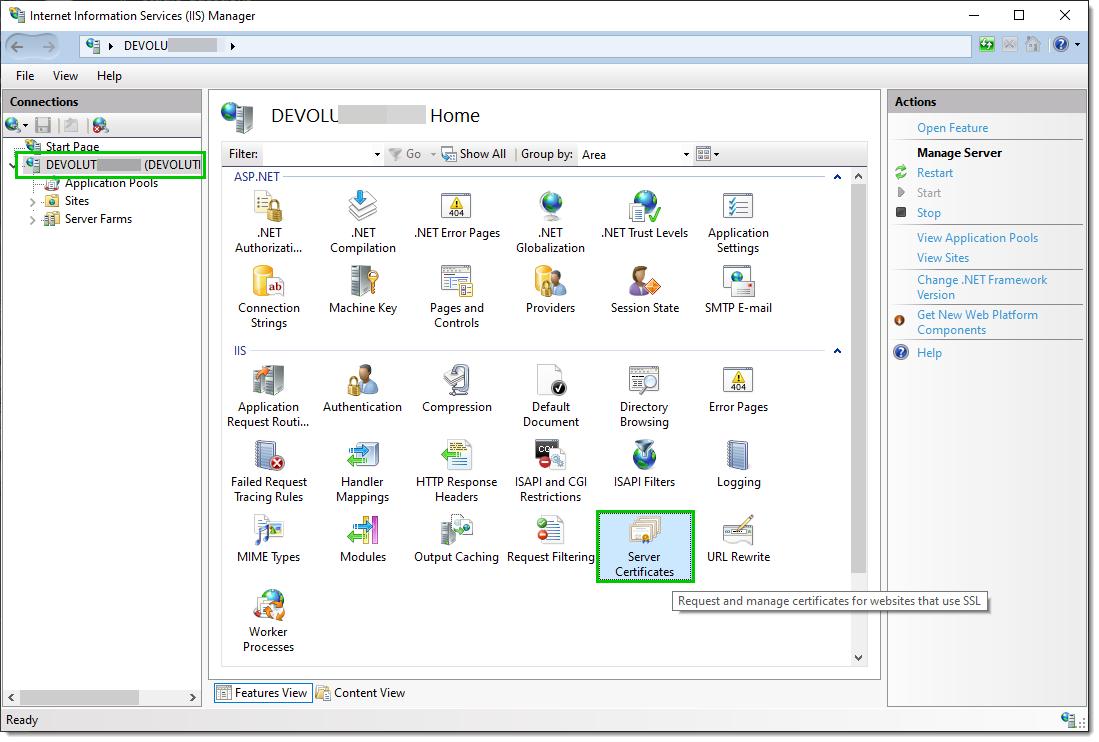
1. Seleccione el nodo del servidor en la vista de árbol y haga doble clic en la función ***Certificados de servidor*** en la ***vista de lista***:
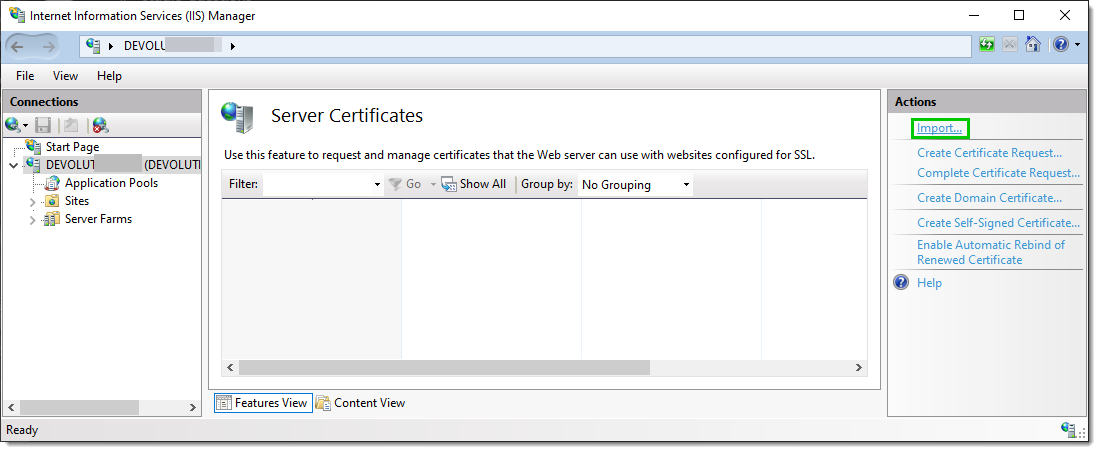
2. Haga clic en ***Importar...*** en el panel ***Acciones***.
### Crear un enlace SSL
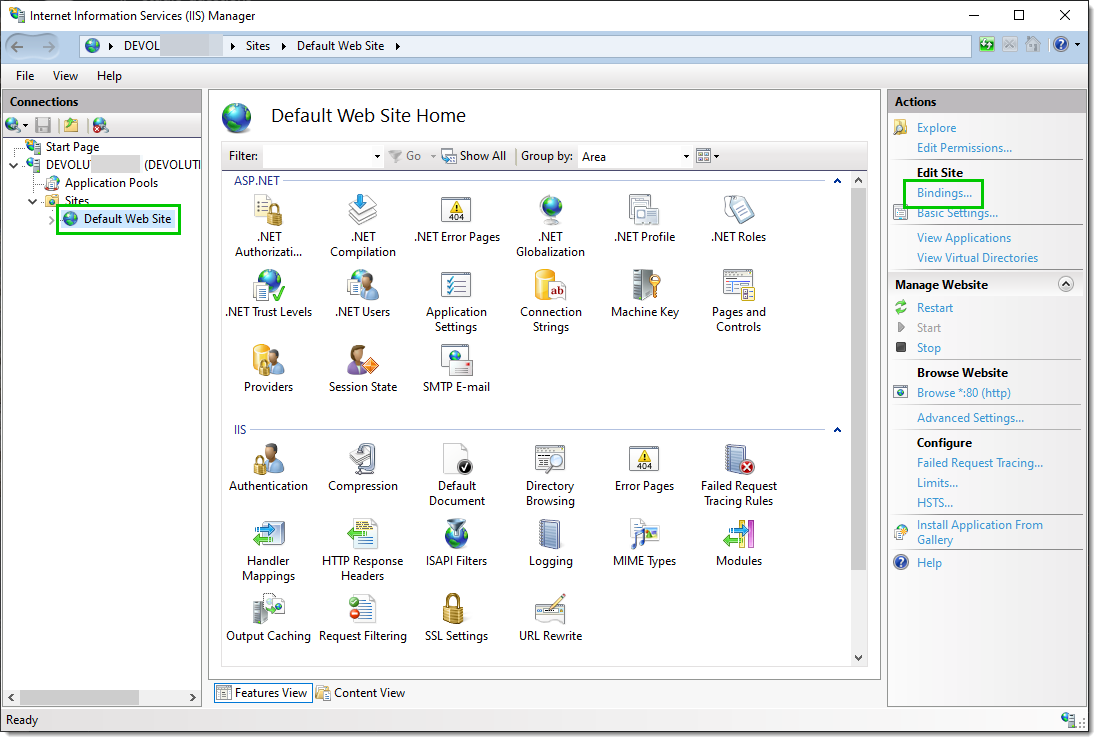
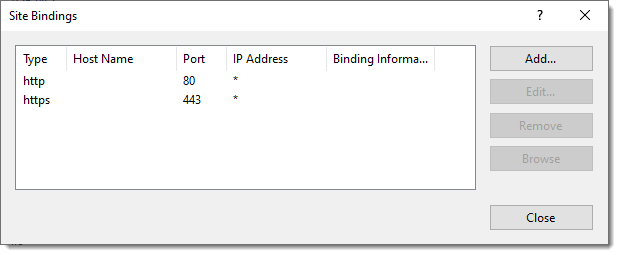
1. Seleccione el sitio web en la vista de árbol. Haga clic en ***Enlaces...*** en el panel ***Acciones***. Esto abre el editor de enlaces, que le permite crear, editar y eliminar enlaces para su sitio web.
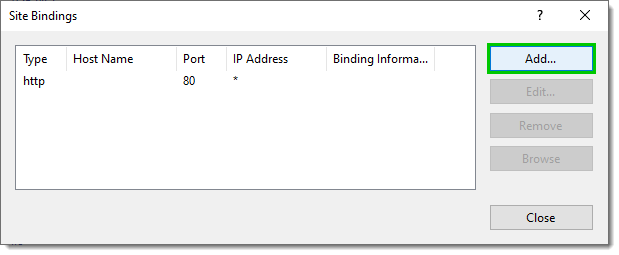
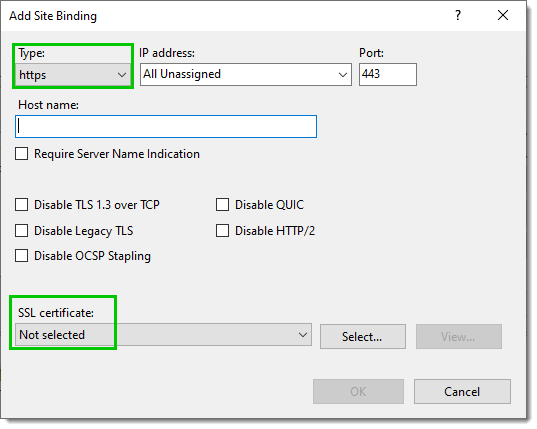
2. Haga clic en ***Agregar...*** para añadir su nuevo enlace SSL al sitio.
3. Seleccione ***https*** en la lista desplegable ***Tipo***. Seleccione el certificado que ha importado o creado en la lista desplegable ***Certificado SSL*** y, a continuación, haga clic en ***Aceptar***.
4. Ahora dispone de un nuevo enlace ***SSL*** en su sitio.
### Modificar la configuración de Devolutions Server
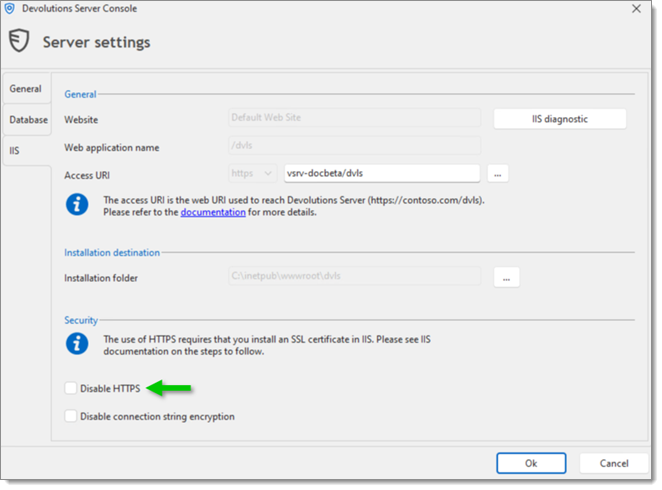
1. Desde la Devolutions Server Console, edite la instancia de Devolutions Server.
2. Vaya a la pestaña IIS y desmarque la opción ***Disable HTTPS***.
3. Guarde la modificación con el botón ***Guardar***.
### Configurar los ajustes de SSL en las aplicaciones cliente
1. Edite el espacio de trabajo de Devolutions Server
2. Cambie la URL del servidor para utilizar el protocolo ***https\://***.
#### Véase también
* [Devolutions Academy - Installing Devolutions Server](https://academy.devolutions.net/student/page/2942307-installing-devolutions-server?curriculum_activity_id=4493546\&path_id=2942210\&sid=1f0658ca-fdf5-4f74-a93f-a6a4b8853c09\&sid_i=0)
---
# Agent Instructions
This documentation is published with GitBook. GitBook is the documentation platform designed so that both humans and AI agents can read, navigate, and reason over technical content effectively. Learn more at gitbook.com.
## Querying This Documentation
If you need additional information that is not directly available in this page, you can query the documentation dynamically by asking a question.
Perform an HTTP GET request on the current page URL with the `ask` query parameter, and the optional `goal` query parameter:
```
GET https://docs.devolutions.net/server/es/knowledge-base/how-to-articles/configure-ssl.md?ask=&goal=
```
`ask` is the immediate question: it should be specific, self-contained, and written in natural language.
`goal` is optional and describes the broader end goal you are ultimately trying to accomplish on behalf of the user. GitBook uses it to tailor the answer towards what is most useful for that goal.
The response will contain a direct answer to the question and relevant excerpts and sources from the documentation.
Use this mechanism when the answer is not explicitly present in the current page, you need clarification or additional context, or you want to retrieve related documentation sections.