> For the complete documentation index, see [llms.txt](https://docs.devolutions.net/llms.txt). Markdown versions of documentation pages are available by appending `.md` to page URLs; this page is available as [Markdown](https://docs.devolutions.net/server/de/knowledge-base/troubleshooting-articles/failed-request-tracing-with-iis/configuration.md).
# Konfiguration
Erläutert, wie die Ablaufverfolgung fehlgeschlagener Anforderungen in IIS für Devolutions Server mithilfe des Befehlszeilenprogramms appcmd oder der IIS Manager-Oberfläche konfiguriert wird.
Es gibt zwei Methoden zur Konfiguration der Ablaufverfolgung fehlgeschlagener Anforderungen:
* [Verwendung des Befehls appcmd.exe](#using-the-appcmd.exe-command)
* [Über die IISManager-App](#via-the-iismanager-app)
### Verwendung des [Befehls appcmd.exe](https://docs.microsoft.com/en-us/iis/get-started/getting-started-with-iis/getting-started-with-appcmdexe)
| |
| ------------------------------------------------------------------------------------------------------------------------------------------------------------------------------------------- |
| appcmd.exe set config -section:system.applicationHost/sites "/\[name='Default Web Site'].traceFailedRequestsLogging.enabled:True" /commit:apphost |
| appcmd.exe set config -section:system.applicationHost/sites "/\[name='Default Web Site'].traceFailedRequestsLogging.maxLogFiles:10" /commit:apphost |
| appcmd.exe set config -section:system.applicationHost/sites "/\[name='Default Web Site'].traceFailedRequestsLogging.directory:%SystemDrive%\inetpub\logs\FailedReqLogFiles" /commit:apphost |
| appcmd.exe set config "Default Web Site" -section:system.webServer/tracing/traceFailedRequests /+"\[path='\*']" |
| appcmd.exe set config "Default Web Site" -section:system.webServer/tracing/traceFailedRequests /+"\[path='\*'].traceAreas.\[provider='WWW Server',areas='Rewrite',verbosity='Verbose']" |
| appcmd.exe set config "Default Web Site" -section:system.webServer/tracing/traceFailedRequests /\[path='\*'].failureDefinitions.statusCodes:"400-599" |
{% hint style="info" %}
Beachten Sie, dass die oben genannten Schritte nur für IIS 7.0 oder höher gelten und dass die Befehle am besten funktionieren, wenn cmd.exe als Administrator ausgeführt wird.
{% endhint %}
### Über die IISManager-App
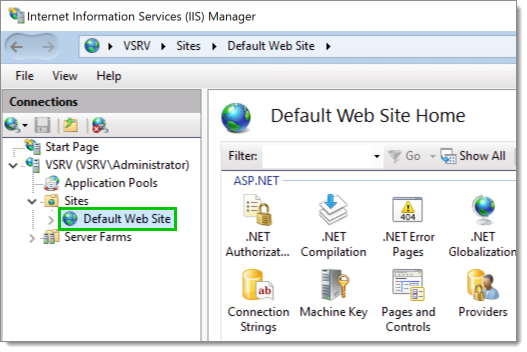
1. Erweitern Sie im IIS Manager den Stammknoten, erweitern Sie ***Sites*** und wählen Sie dann ***Default Web Site*** aus.
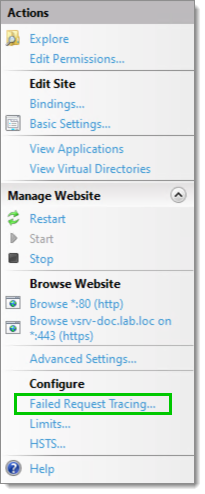
2. Wählen Sie im Bereich ***Actions*** auf der rechten Seite ***Failed Request Tracing*** aus.
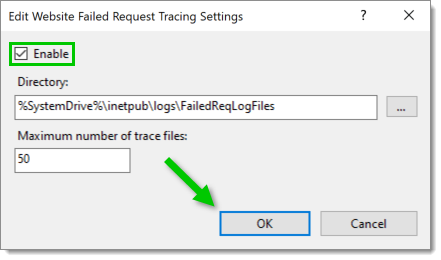
3. Aktivieren Sie das Kontrollkästchen ***Enable*** (erforderlich). Das Ziel ***Directory*** und die Option ***Maximum number of trace files*** können angepasst werden (optional). Klicken Sie anschließend auf ***OK***.
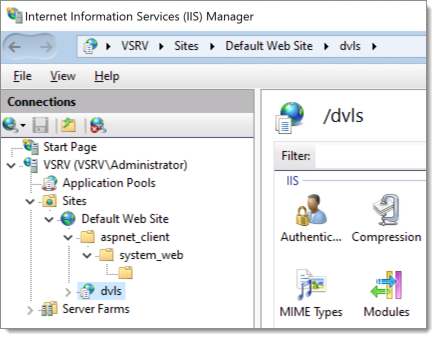
4. Erweitern Sie ***Default Web Site*** und wählen Sie dann die Website aus, die verfolgt werden soll.
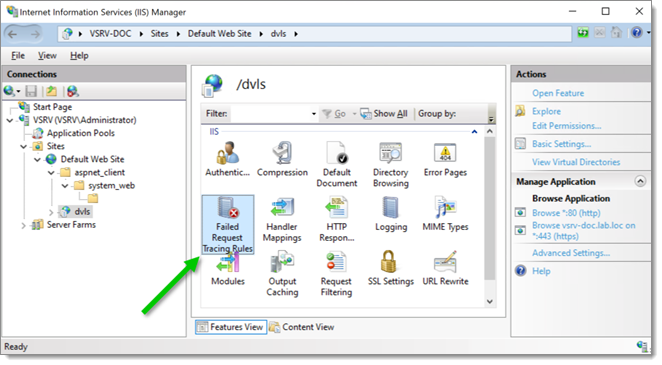
5. Doppelklicken Sie auf das Symbol ***Failed Request Tracing Rules*** der ausgewählten Website.
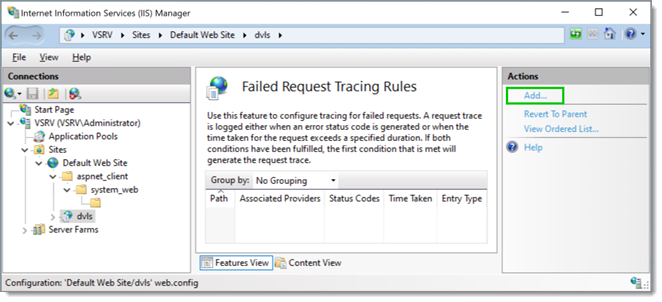
6. Klicken Sie im Bereich ***Actions*** auf der rechten Seite auf ***Add***, um eine neue Regel hinzuzufügen.
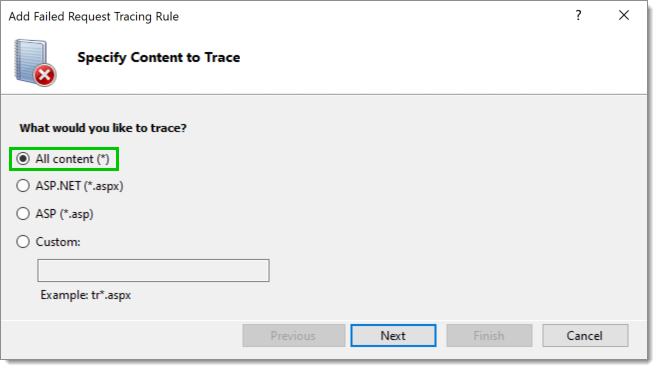
7. Wählen Sie ***All content (*****)**\* aus und klicken Sie dann auf ***Next***.
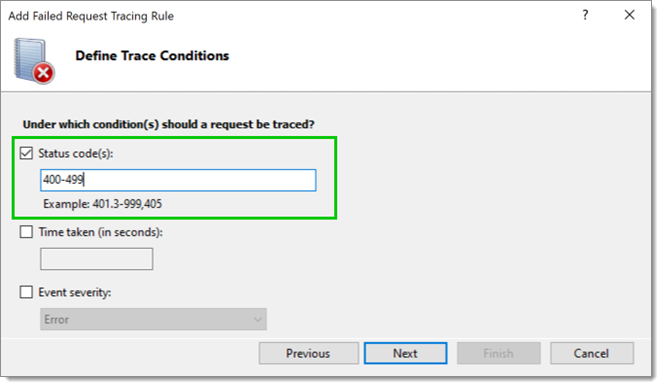
8. Aktivieren Sie das Kontrollkästchen ***Status Code(s)*** und geben Sie dann den Typ des zu verfolgenden Statuscodes ein. In diesem Fall ist ***Status code(s)*** so eingestellt, dass alles von Code 400 bis 599 überwacht wird. Klicken Sie anschließend auf ***Next***.
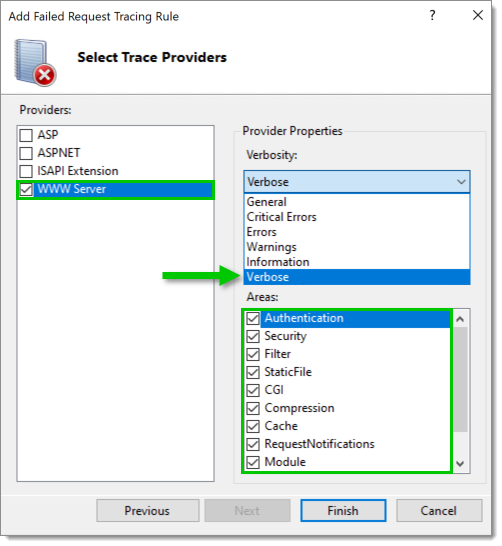
9. Wählen Sie die Anbieter der Ablaufverfolgung aus. Legen Sie für jeden Anbieter die ***Verbosity*** auf ***Verbose*** fest und wählen Sie alle ***Areas*** aus. In diesem Fall wurde der Anbieter ***WWW Server*** ausgewählt.
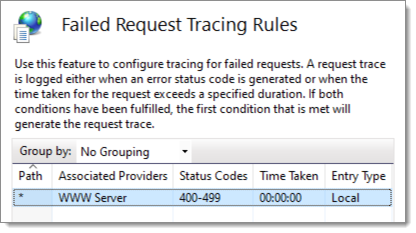
10. Klicken Sie auf ***Finish***. Die Ablaufverfolgungsregel ist nun definiert.
---
# Agent Instructions
This documentation is published with GitBook. GitBook is the documentation platform designed so that both humans and AI agents can read, navigate, and reason over technical content effectively. Learn more at gitbook.com.
## Querying This Documentation
If you need additional information that is not directly available in this page, you can query the documentation dynamically by asking a question.
Perform an HTTP GET request on the current page URL with the `ask` query parameter, and the optional `goal` query parameter:
```
GET https://docs.devolutions.net/server/de/knowledge-base/troubleshooting-articles/failed-request-tracing-with-iis/configuration.md?ask=&goal=
```
`ask` is the immediate question: it should be specific, self-contained, and written in natural language.
`goal` is optional and describes the broader end goal you are ultimately trying to accomplish on behalf of the user. GitBook uses it to tailor the answer towards what is most useful for that goal.
The response will contain a direct answer to the question and relevant excerpts and sources from the documentation.
Use this mechanism when the answer is not explicitly present in the current page, you need clarification or additional context, or you want to retrieve related documentation sections.