> For the complete documentation index, see [llms.txt](https://docs.devolutions.net/llms.txt). Markdown versions of documentation pages are available by appending `.md` to page URLs; this page is available as [Markdown](https://docs.devolutions.net/server/de/knowledge-base/how-to-articles/configure-ssl.md).
# SSL konfigurieren
Konfigurieren Sie SSL für Devolutions Server, indem Sie ein Zertifikat importieren, eine HTTPS-Bindung in IIS erstellen und die Einstellungen der Client-Anwendungen aktualisieren.
Führen Sie diese Schritte erst aus, nachdem Sie die Devolutions Server-Instanz konfiguriert haben und tatsächlich über eine Client-Anwendung verbunden waren. Diese Schritte gleich von Anfang an auszuführen, kann eine zusätzliche Komplexitätsebene hinzufügen, die Sie daran hindern könnte, bei der Erstkonfiguration erfolgreich zu sein.
### Zertifikat importieren oder selbstsigniertes Zertifikat erstellen
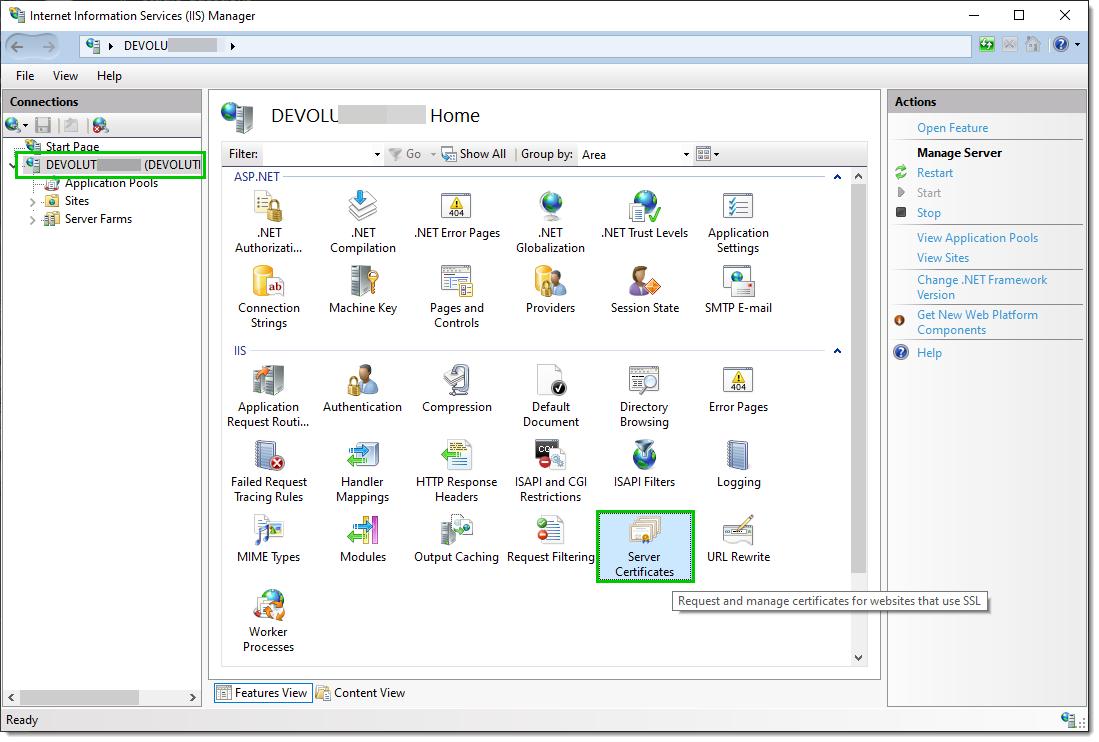
1. Wählen Sie den Serverknoten in der Baumansicht aus und doppelklicken Sie in der ***Listenansicht*** auf die Funktion ***Serverzertifikate***:
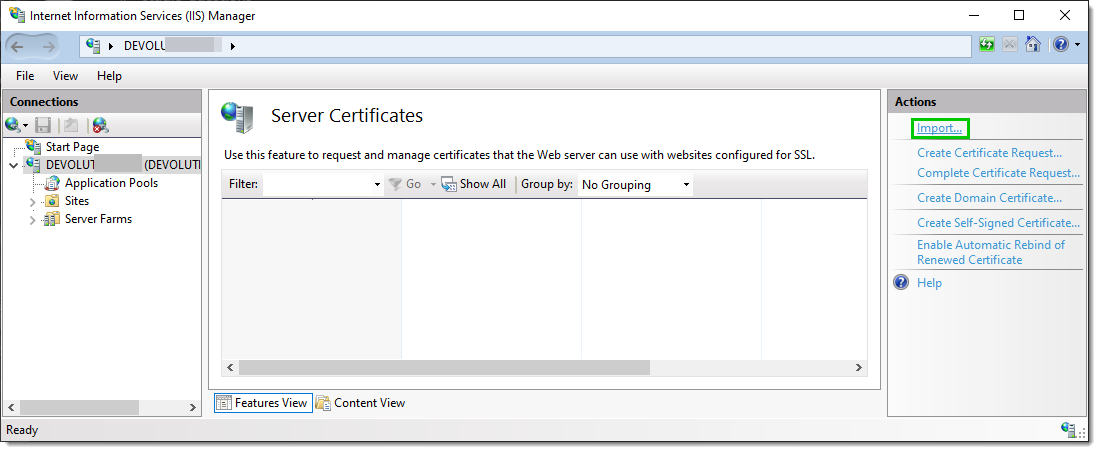
2. Klicken Sie im Bereich ***Aktionen*** auf ***Importieren...***.
### Eine SSL-Bindung erstellen
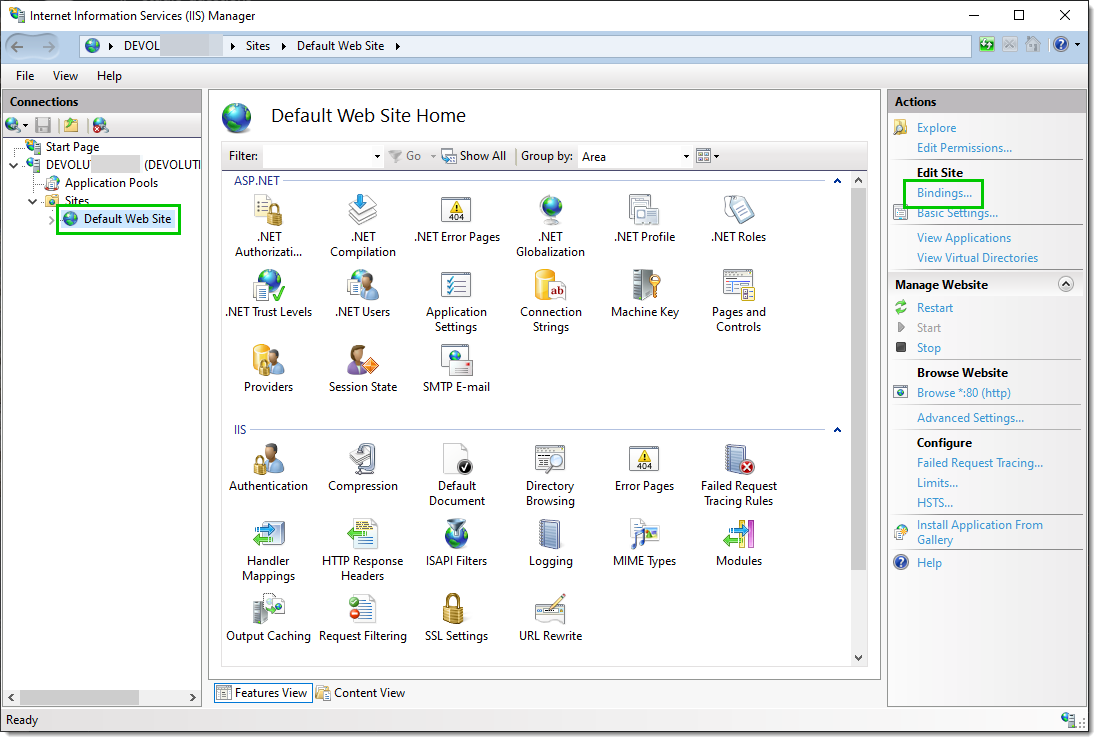
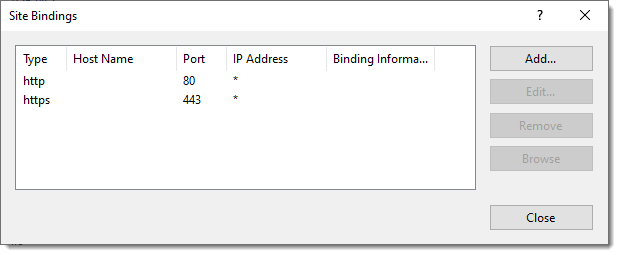
1. Wählen Sie die Website in der Baumansicht aus. Klicken Sie im Bereich ***Aktionen*** auf ***Bindungen...***. Dadurch wird der Bindungs-Editor aufgerufen, mit dem Sie Bindungen für Ihre Website erstellen, bearbeiten und löschen können.
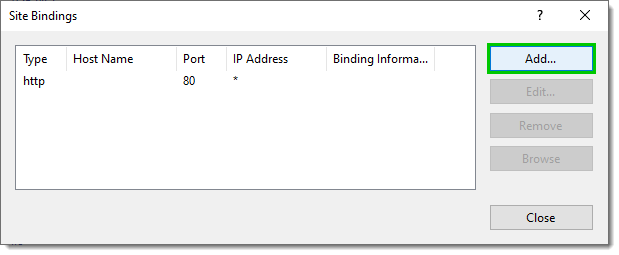
2. Klicken Sie auf ***Hinzufügen...***, um Ihre neue SSL-Bindung zur Website hinzuzufügen.
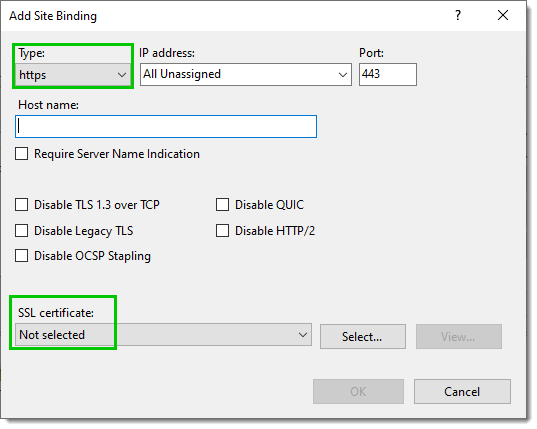
3. Wählen Sie in der Dropdown-Liste ***Typ*** den Eintrag ***https*** aus. Wählen Sie das von Ihnen importierte oder erstellte Zertifikat aus der Dropdown-Liste ***SSL-Zertifikat*** aus und klicken Sie dann auf ***OK***.
4. Nun haben Sie eine neue ***SSL***-Bindung auf Ihrer Website.
### Die Devolutions Server-Konfiguration ändern
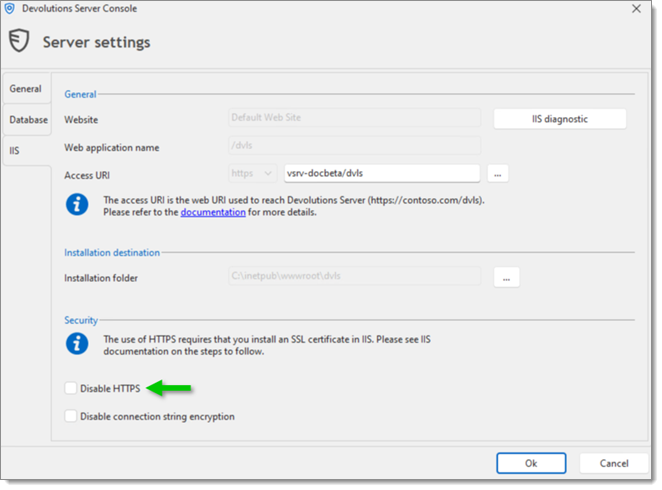
1. Bearbeiten Sie in der Devolutions Server Console die Devolutions Server-Instanz.
2. Gehen Sie zur Registerkarte IIS und deaktivieren Sie die Option ***HTTPS deaktivieren***.
3. Speichern Sie die Änderung mit der Schaltfläche ***Speichern***.
### SSL-Einstellungen in den Client-Anwendungen konfigurieren
1. Bearbeiten Sie die Devolutions Server-Datenquelle
2. Ändern Sie die Server-URL so, dass das Protokoll ***https\://*** verwendet wird.
#### Siehe auch
* [Devolutions Academy - Installing Devolutions Server](https://academy.devolutions.net/student/page/2942307-installing-devolutions-server?curriculum_activity_id=4493546\&path_id=2942210\&sid=1f0658ca-fdf5-4f74-a93f-a6a4b8853c09\&sid_i=0)
---
# Agent Instructions
This documentation is published with GitBook. GitBook is the documentation platform designed so that both humans and AI agents can read, navigate, and reason over technical content effectively. Learn more at gitbook.com.
## Querying This Documentation
If you need additional information that is not directly available in this page, you can query the documentation dynamically by asking a question.
Perform an HTTP GET request on the current page URL with the `ask` query parameter, and the optional `goal` query parameter:
```
GET https://docs.devolutions.net/server/de/knowledge-base/how-to-articles/configure-ssl.md?ask=&goal=
```
`ask` is the immediate question: it should be specific, self-contained, and written in natural language.
`goal` is optional and describes the broader end goal you are ultimately trying to accomplish on behalf of the user. GitBook uses it to tailor the answer towards what is most useful for that goal.
The response will contain a direct answer to the question and relevant excerpts and sources from the documentation.
Use this mechanism when the answer is not explicitly present in the current page, you need clarification or additional context, or you want to retrieve related documentation sections.