> For the complete documentation index, see [llms.txt](https://docs.devolutions.net/llms.txt). Markdown versions of documentation pages are available by appending `.md` to page URLs; this page is available as [Markdown](https://docs.devolutions.net/rdm/workspaces/multifactor-authentication/duo.md).
# Duo
Remote Desktop Manager allows you to configure a ***Duo*** authentication to provide an additional security layer when opening a workspace.
{% hint style="info" %}
Before you start the configuration, make sure you have created a Duo account and have also installed the Duo application on your compatible device.
{% endhint %}
{% tabs %}
{% tab title="Windows" %}
1. Log in to the ***Duo Admin Panel***.
2. In ***Applications***, click on ***Protect an Application***.
3. Protect the ***Partner Auth API*** app.
4. If not already done, follow these [multifactor authentication configuration steps](https://docs.devolutions.net/rdm/workspaces/multi-factor-authentication/).
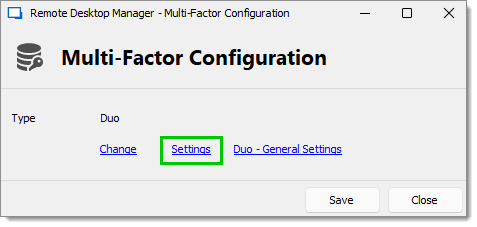
5. After having selected the ***Duo*** MFA type, click ***Duo – General Settings***.
6. All the information necessary to fill in the ***Duo settings*** fields in Remote Desktop Manager will be generated by the Duo account.
7. Copy and paste all the information in the corresponding fields in the ***Duo Settings*** window.
8. Click on ***Check*** to validate the information, then click ***OK*** when done.
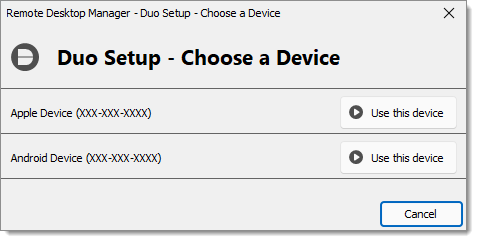
9. If there is more than one device connected to the Duo account, click on ***Settings***. If not, skip to step 10.
10. Select the device to use for the multifactor authentication by clicking on ***Use this device***.
11. Select the method by which to receive the Duo Passcode:
* ***Duo push***: The code is "pushed" to your Duo application.
* ***Send SMS***: The code is sent by SMS on the registered phone number.
* ***Phone***: The code is sent by phone call; a computer generated voice will dictate the code.
12. Click ***Save*** to authenticate yourself.
Once you have completed all the steps, you will be prompted with the Duo Authentication every time you connect to your secured workspace.
{% endtab %}
{% tab title="macOS" %}
1. Log in to the ***Duo Admin Panel***.
2. In ***Applications***, click on ***Protect an Application***.
3. Protect the ***Partner Auth API*** app.
4. If not already done, follow these [multifactor authentication configuration steps](https://docs.devolutions.net/rdm/workspaces/multi-factor-authentication/).
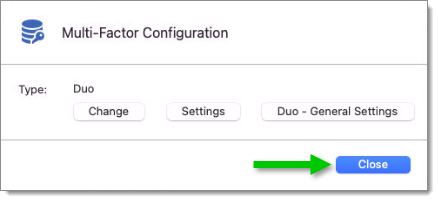
5. After having selected the ***Duo*** MFA type, click ***Apply***.
6. All the information necessary to fill in the ***Duo settings*** fields in Remote Desktop Manager will be generated by the Duo account.
7. Copy and paste all the information in the corresponding fields in the ***Duo Settings*** window.
8. Click on ***Check*** to validate the information, then click ***OK*** when done.
9. If there is more than one device connected to the Duo account, click on ***Settings***. If not, skip to step 10.
10. Select the device to use for the multifactor authentication by clicking on ***Use this device***.
11. Select the method by which to receive the Duo Passcode:
* ***Duo push***: The code is "pushed" to your Duo application.
* ***Send SMS***: The code is sent by SMS on the registered phone number.
* ***Phone***: The code is sent by phone call; a computer generated voice will dictate the code.
12. Click ***Save*** to authenticate yourself.
Once you have completed all the steps, you will be prompted with the Duo Authentication every time you connect to your secured workspace.
{% endtab %}
{% endtabs %}
#### See also
* [Configure Multi-factor-authentification in Remote Desktop Manager](https://academy.devolutions.net/student/page/2745736-configure-multi-factor-authentification-in-remote-desktop-manager?curriculum_activity_id=4146028\&path_id=2628397\&sid=6b463cb0-a447-42c1-89fa-4ac51e5a7eaa\&sid_i=0)
---
# Agent Instructions
This documentation is published with GitBook. GitBook is the documentation platform designed so that both humans and AI agents can read, navigate, and reason over technical content effectively. Learn more at gitbook.com.
## Querying This Documentation
If you need additional information that is not directly available in this page, you can query the documentation dynamically by asking a question.
Perform an HTTP GET request on the current page URL with the `ask` query parameter:
```
GET https://docs.devolutions.net/rdm/workspaces/multifactor-authentication/duo.md?ask=
```
The question should be specific, self-contained, and written in natural language.
The response will contain a direct answer to the question and relevant excerpts and sources from the documentation.
Use this mechanism when the answer is not explicitly present in the current page, you need clarification or additional context, or you want to retrieve related documentation sections.