For the complete documentation index, see llms.txt. This page is also available as Markdown.

File backup

The File backup allows you to back up your SQLite or XML workspaces in a local file with a master key.

  1. To enable the File backup, select an SQLite or XML workspace.

  2. Edit the workspace.

  3. Select the Backup tab.

  4. Set Backup to File backup.

  5. Specify the Folder where your file backup will be stored.

  6. Enter a Filename.

  7. Set a Master key to encrypt the backup file.

  8. Switch to the Triggers tab to define when the backups should occur. You can choose from various triggers such as:

    • On entry modification: Creates a backup each time you edit an entry in the workspace.

    • Backup interval: Schedules backups at a regular time interval (for example, every 10 minutes).

    • Before switching workspace: Backs up automatically when you switch from one workspace to another.

    • On application close: Creates a backup whenever you close Remote Desktop Manager.

  9. Click Save to close the window.

  10. Backup options are now available through the File – Backup menu.

ACTION
DESCRIPTION

Backup configuration

Opens the Backup configuration window.

Execute backup

Triggers an immediate manual backup.

View history

Displays a list of previous backups.

Restore

Restores your workspace from a previously created backup.

  1. To enable the File backup, select an SQLite or XML workspace.

  2. Edit the workspace.

  3. Select the Backup tab.

  4. Set Backup to File backup.

  5. Specify the Folder where your file backup will be stored.

  6. Enter a Filename.

  7. Set a Master key to encrypt the backup file.

  8. Choose an Export file version (Default, V1, V2).

  9. Switch to the Triggers tab to define when the backups should occur. You can choose from various triggers such as:

    • On entry modification: Creates a backup each time you edit an entry in the workspace.

    • Backup interval: Schedules backups at a regular time interval (for example, every 10 minutes).

    • Before switching workspace: Backs up automatically when you switch from one workspace to another.

    • On application close: Creates a backup whenever you close Remote Desktop Manager macOS.

  10. Click Ok to save and close the window.

  11. Backup options are now available through the File – Backup menu.

ACTION
DESCRIPTION

Backup configuration

Opens the Backup configuration window.

Execute backup

Triggers an immediate manual backup.

View history

Displays a list of previous backups.

Restore

Restores your workspace from a previously created backup.

  1. To enable the file backup, select an SQLite or XML workspace.

  2. Edit the workspace.

  3. Select the Backup tab.

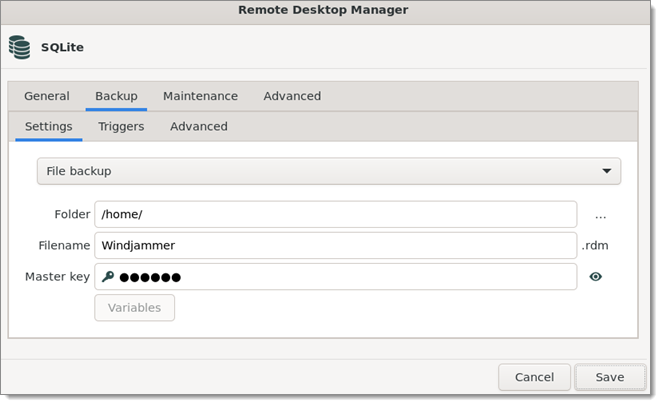
  4. Go the Settings tab.

  5. Set Backup to File backup.

  6. Specify the Folder where your file backup will be stored.

  7. Enter a Filename.

  8. Set a Master key to encrypt the backup file.

  9. Switch to the Triggers tab to define when the backups should occur. You can choose from various triggers such as:

    • On entry modification: Creates a backup each time you edit an entry in the workspace.

    • Backup interval: Schedules backups at a regular time interval (for example, every 10 minutes).

    • Before switching workspace: Backs up automatically when you switch from one workspace to another.

    • On application close: Creates a backup whenever you close Remote Desktop Manager macOS.

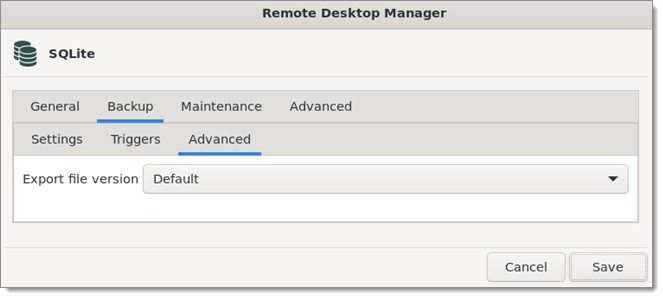
  10. Go to the Advanced tab and select an Export file version (Default, V1, V2).

  11. Click Save to close the window.

  12. Backup options are now available through the File – Backup menu.

ACTION
DESCRIPTION

Backup configuration

Opens the Backup configuration window.

Execute backup

Triggers an immediate manual backup.

View history

Displays a list of previous backups.

Restore

Restores your workspace from a previously created backup.

  1. To enable the File backup, select a XML workspace.

  2. Edit the workspace.

  3. Select the Backup tab.

  4. Set Backup to File backup.

  5. Enter a Filename.

  6. Set a Master key to encrypt the backup file.

  7. Choose an Export file version (Default, V1, V2).

  8. The Triggers section defines when the backups should occur. You can choose from various triggers such as:

    • On entry modification: Creates a backup each time you edit an entry in the workspace.

    • Before switching workspace: Backs up automatically when you switch from one workspace to another.

    • Backup interval: Schedules backups at a regular time interval (for example, every 10 minutes).

  9. Click Done to save.

  10. Backup options are available through the Backup manager in the actions list.

ACTION
DESCRIPTION

Execute backup

Triggers an immediate manual backup.

Restore

Restores your workspace from a previously created backup.

Backup configuration

Opens the Backup configuration window.

  1. To enable the File backup, select a XML workspace.

  2. Edit the workspace.

  3. Select the Backup tab.

  4. Set Backup to File backup.

  5. Enter a Filename.

  6. Set a Master key to encrypt the backup file.

  7. Choose an Export file version (Default, V1, V2).

  8. The Triggers section defines when the backups should occur. You can choose from various triggers such as:

    • On entry modification: Creates a backup each time you edit an entry in the workspace.

    • Before switching workspace: Backs up automatically when you switch from one workspace to another.

    • Backup interval: Schedules backups at a regular time interval (for example, every 10 minutes).

  9. Click Done to save.

  10. Backup options are available through the Backup manager in the actions list.

ACTION
DESCRIPTION

Execute backup

Triggers an immediate manual backup.

View history

Displays a list of previous backups.

Restore

Restores your workspace from a previously created backup.

Backup configuration

Opens the Backup configuration window.

See also

Last updated

Was this helpful?