> For the complete documentation index, see [llms.txt](https://docs.devolutions.net/llms.txt). Markdown versions of documentation pages are available by appending `.md` to page URLs; this page is available as [Markdown](https://docs.devolutions.net/rdm/it/knowledge-base/how-to-articles/turn-off-the-built-in-password-manager-in-your-browser.md).
# Disattivare il gestore di password integrato nel browser
Disattivi passo dopo passo la richiesta del gestore di password integrato in Chrome, Firefox, Edge, Safari e Internet Explorer.
Ecco i passaggi per impedire al gestore di password integrato nel browser di chiedere di salvare le sue password.
### Chrome
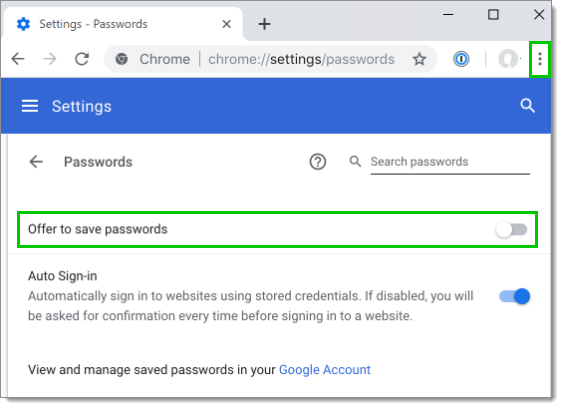
1. Clicchi sul menu di Chrome nella barra degli strumenti e scelga ***Impostazioni***.
2. In ***Compilazione automatica***, clicchi su ***Password***.
3. Disattivi ***Chiedi di salvare le password***.
### Firefox
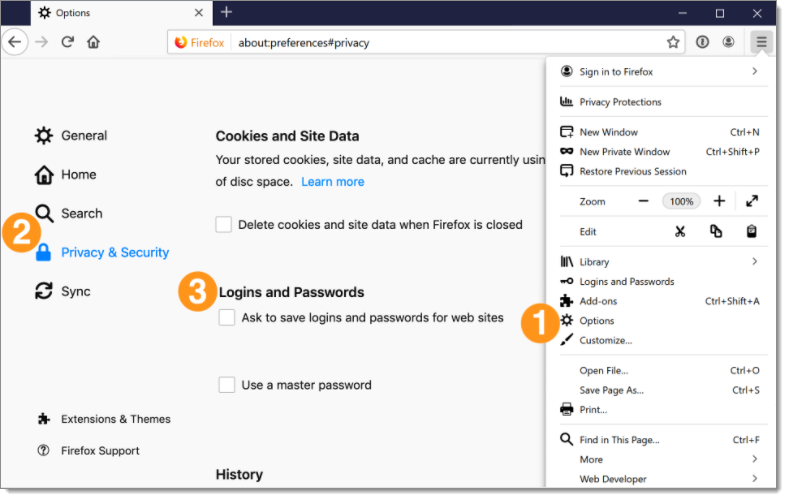
1. Clicchi sul menu di Firefox nella barra degli strumenti e scelga ***Opzioni*** (***Preferenze*** in macOS).
2. Clicchi su ***Privacy e sicurezza***.
3. Disattivi ***Chiedi di salvare le credenziali e le password dei siti web***.
### Microsoft Edge
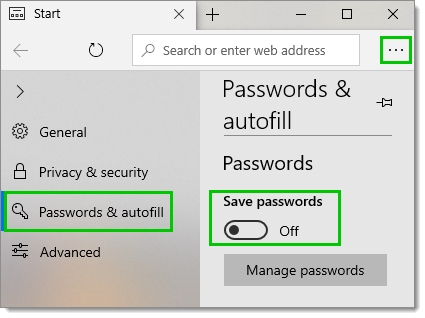
1. Clicchi sul menu di Edge nella barra degli strumenti e scelga ***Impostazioni***.
2. Clicchi su ***Password e compilazione automatica***.
3. Disattivi ***Salva password***.
### Safari
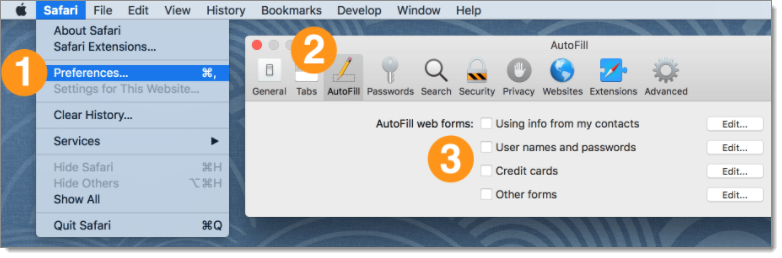
1. Clicchi sul menu di Safari e scelga ***Preferenze***.
2. Clicchi sull'icona ***Riempimento automatico***.
3. Disattivi tutte le impostazioni di riempimento automatico dei moduli web: ***Utilizzando le info dai miei contatti***, ***Nomi utente e password***, ***Carte di credito*** e ***Altri moduli***.
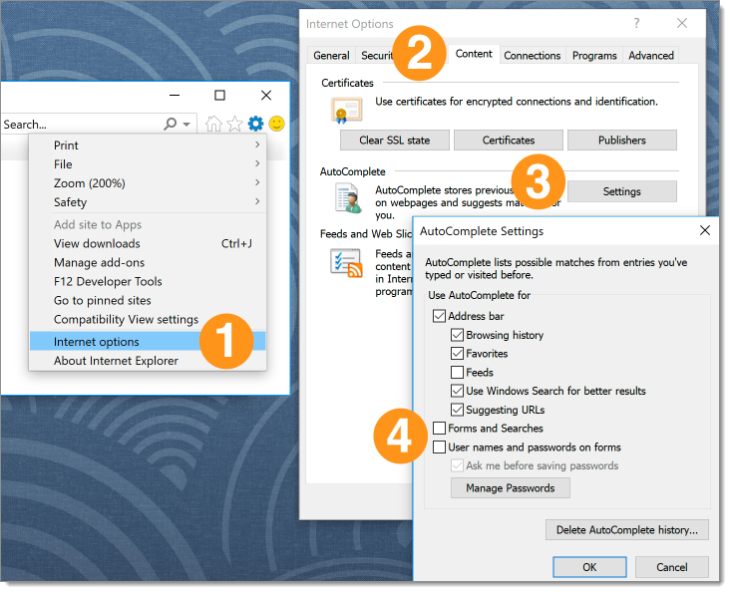
### Internet Explorer
1. Clicchi sul menu Impostazioni e scelga ***Opzioni Internet***.
2. Clicchi sulla scheda ***Contenuto***.
3. Nella sezione ***Completamento automatico***, clicchi su ***Impostazioni***.
4. Disattivi ***Moduli e ricerche*** e ***Nomi utente e password nei moduli***, quindi clicchi su ***OK***.
---
# Agent Instructions
This documentation is published with GitBook. GitBook is the documentation platform designed so that both humans and AI agents can read, navigate, and reason over technical content effectively. Learn more at gitbook.com.
## Querying This Documentation
If you need additional information that is not directly available in this page, you can query the documentation dynamically by asking a question.
Perform an HTTP GET request on the current page URL with the `ask` query parameter, and the optional `goal` query parameter:
```
GET https://docs.devolutions.net/rdm/it/knowledge-base/how-to-articles/turn-off-the-built-in-password-manager-in-your-browser.md?ask=&goal=
```
`ask` is the immediate question: it should be specific, self-contained, and written in natural language.
`goal` is optional and describes the broader end goal you are ultimately trying to accomplish on behalf of the user. GitBook uses it to tailor the answer towards what is most useful for that goal.
The response will contain a direct answer to the question and relevant excerpts and sources from the documentation.
Use this mechanism when the answer is not explicitly present in the current page, you need clarification or additional context, or you want to retrieve related documentation sections.