> For the complete documentation index, see [llms.txt](https://docs.devolutions.net/llms.txt). Markdown versions of documentation pages are available by appending `.md` to page URLs; this page is available as [Markdown](https://docs.devolutions.net/rdm/it/knowledge-base/how-to-articles/running-the-remote-desktop-manager-synchronizer-from-a-centralized-server.md).
# Esecuzione del sincronizzatore di Remote Desktop Manager da un server centralizzato
Esegua il Synchronizer di Remote Desktop Manager da un server centralizzato utilizzando un'installazione portatile e un'attività pianificata di Windows.
Per evitare che il computer venga sovraccaricato da attività in background, come Synchronizer, esegua queste attività su server centralizzati.
{% hint style="info" %}
Queste istruzioni sono valide per gli spazi di lavoro del team
{% endhint %}
1. Installi una [versione portatile](/rdm/it/getting-started/installation/client/portable-usb.md) di Remote Desktop Manager.
2. Aggiunga il suo spazio di lavoro Devolutions Server o Devolutions Cloud configurato. Consigliamo ***Autenticazione Windows*** come tipo di autenticazione.
3. Elimini lo ***Spazio di lavoro locale*** dall'elenco degli spazi di lavoro.
4. Crei una voce synchronizer. Per testare la voce, clicchi su ***Apri sessione***.
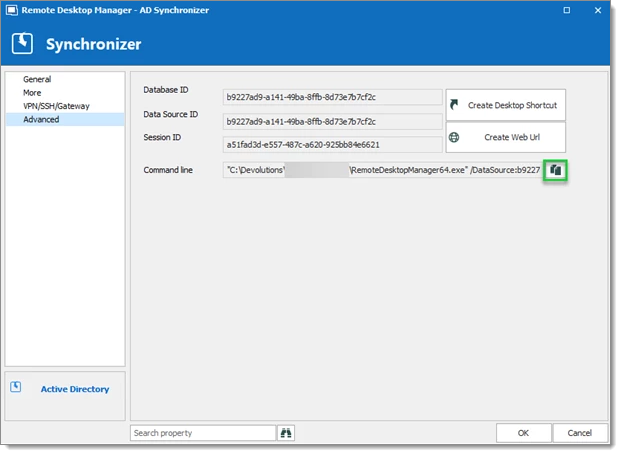
5. Vada su ***Avanzate*** in ***Proprietà del Synchronizer*** e copi la ***Riga di comando*** La incolleremo al passaggio 12.
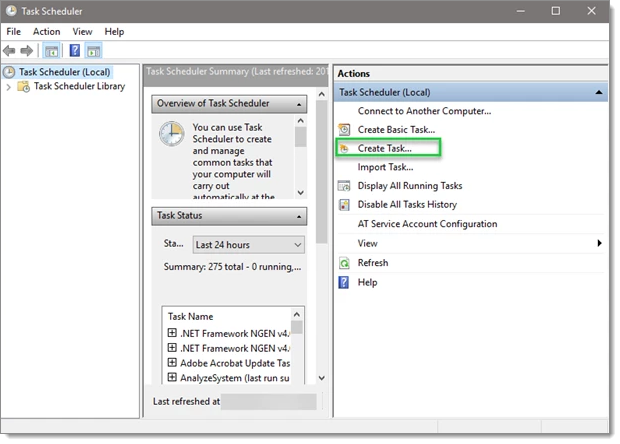
6. Apra l'***Utilità di pianificazione di Windows***.
7. Selezioni ***Crea attività***.
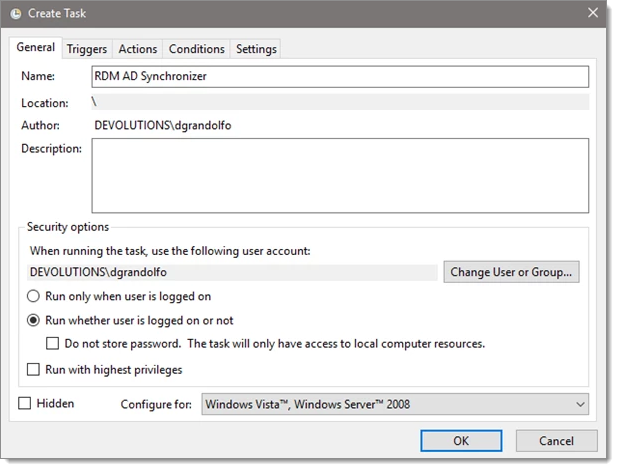
8. Inserisca un nome per l'attività e selezioni ***Esegui indipendentemente dalla connessione degli utenti***.
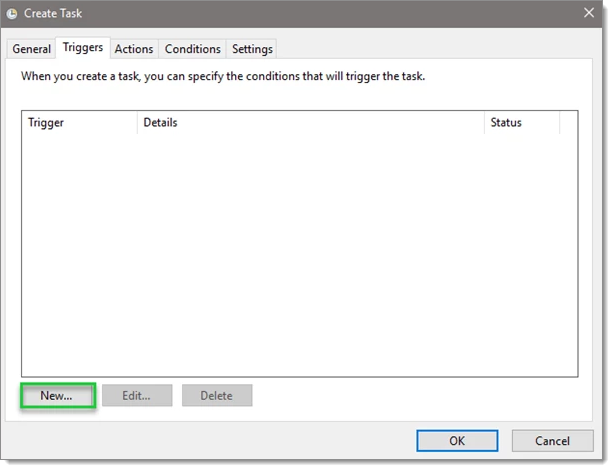
9. Nella scheda ***Trigger***, selezioni ***Nuovo***.
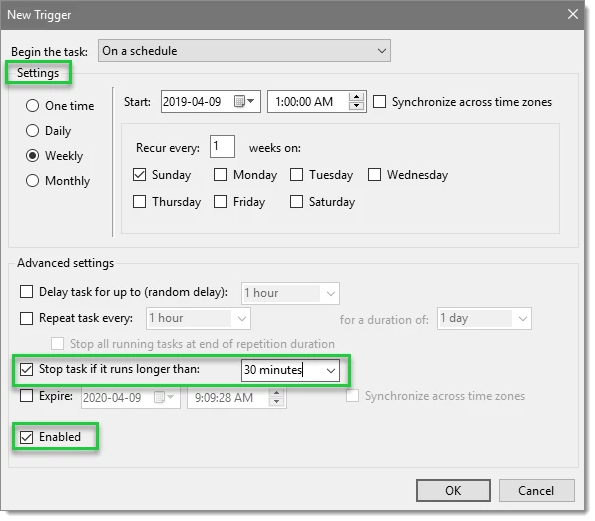
10. Configuri le ***Impostazioni*** come desidera.
1. Imposti la pianificazione per il trigger. Nel nostro esempio, abbiamo usato Settimanalmente, ogni domenica, all'1:00:00.
2. Selezioni ***Interrompi l'attività se in esecuzione da più di*** e imposti il valore su 30 minuti.
3. Selezioni ***Abilitato***, quindi clicchi su ***OK***.
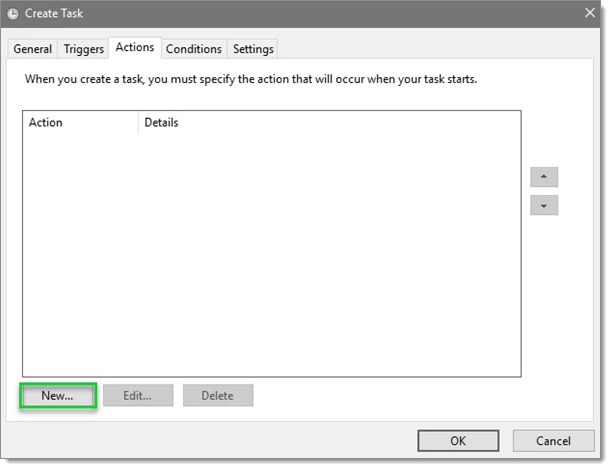
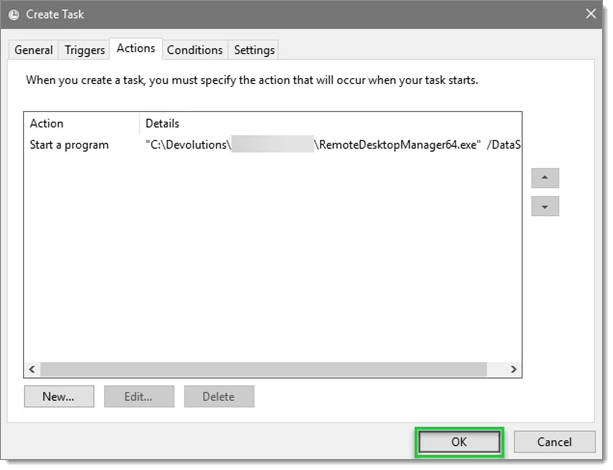
11. Nella ***scheda Azioni***, clicchi su ***Nuovo***.
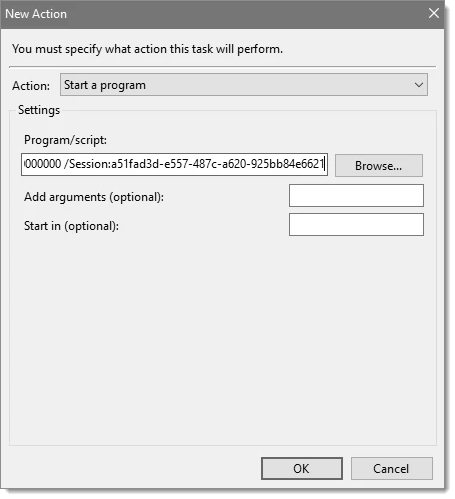
12. Incolli la riga di comando copiata al passaggio 5 in ***Programma o script*** e clicchi su ***OK***.
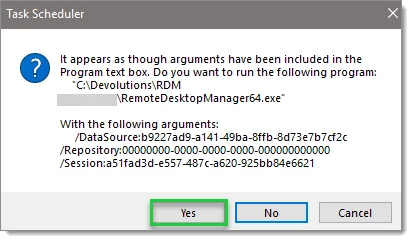
13. Nella finestra pop-up, clicchi su ***Sì***.
14. Clicchi su ***OK***.
La configurazione dell'attività è completata e verrà eseguita automaticamente. Può monitorare lo stato delle attività nel Visualizzatore eventi di Windows.
---
# Agent Instructions
This documentation is published with GitBook. GitBook is the documentation platform designed so that both humans and AI agents can read, navigate, and reason over technical content effectively. Learn more at gitbook.com.
## Querying This Documentation
If you need additional information that is not directly available in this page, you can query the documentation dynamically by asking a question.
Perform an HTTP GET request on the current page URL with the `ask` query parameter, and the optional `goal` query parameter:
```
GET https://docs.devolutions.net/rdm/it/knowledge-base/how-to-articles/running-the-remote-desktop-manager-synchronizer-from-a-centralized-server.md?ask=&goal=
```
`ask` is the immediate question: it should be specific, self-contained, and written in natural language.
`goal` is optional and describes the broader end goal you are ultimately trying to accomplish on behalf of the user. GitBook uses it to tailor the answer towards what is most useful for that goal.
The response will contain a direct answer to the question and relevant excerpts and sources from the documentation.
Use this mechanism when the answer is not explicitly present in the current page, you need clarification or additional context, or you want to retrieve related documentation sections.