> For the complete documentation index, see [llms.txt](https://docs.devolutions.net/llms.txt). Markdown versions of documentation pages are available by appending `.md` to page URLs; this page is available as [Markdown](https://docs.devolutions.net/rdm/it/knowledge-base/how-to-articles/convert-virtual-folders-in-remote-desktop-manager.md).
# Convertire le cartelle virtuali in Remote Desktop Manager
Converta le cartelle virtuali in cartelle reali in Remote Desktop Manager manualmente o in blocco utilizzando uno script PowerShell.
### Metodo manuale
L'eliminazione delle cartelle virtuali può essere effettuata modificando manualmente ogni cartella virtuale, salvando le modifiche e convertendole in cartelle reali. Tuttavia, questo processo diventa dispendioso in termini di tempo quando si ha a che fare con un numero significativo di cartelle virtuali, poiché richiede la conversione manuale di ciascuna di esse.
### Metodo PowerShell
{% hint style="danger" %}
Prima di procedere con il metodo PowerShell, prenda nota di quanto segue:
* Questo metodo elimina tutte le cartelle virtuali nelle casseforti dello spazio di lavoro.
* Elimini le cartelle duplicate prima di eseguire lo script PowerShell dalla nuova voce.
{% endhint %}
1. Avvii Remote Desktop Manager come amministratore facendo clic con il pulsante destro del mouse sull'applicazione e scegliendo ***Esegui come amministratore***.
2. Selezioni le casseforti dello spazio di lavoro da cui desidera convertire tutte le cartelle virtuali nel ***riquadro di navigazione***.
3. Aggiunga una nuova voce.
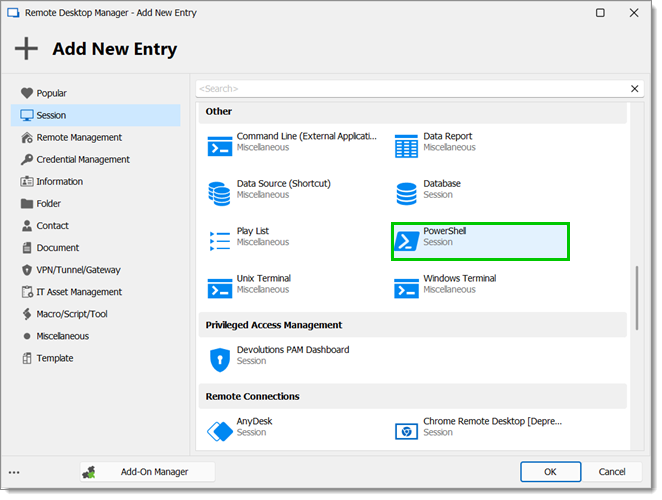
4. Vada su ***Session – PowerShell*** per creare una voce di sessione PowerShell.
5. Assegni un nome alla voce e scelga la cartella in cui desidera crearla.
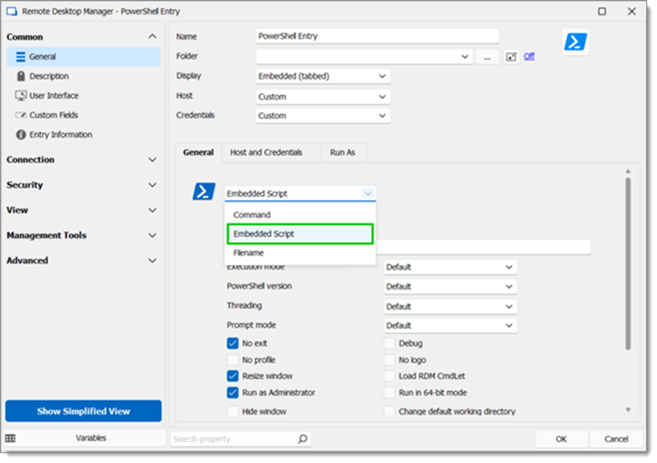
6. Imposti la voce su ***Embedded Script***.
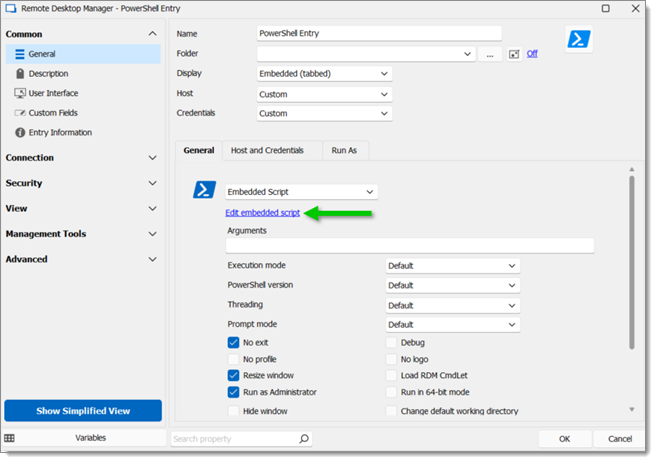
7. Clicchi su ***Edit embedded script***.
8. Aggiunga il seguente script:
```powershell
# Check if Remote Desktop Manager PS module is installed
if (-not (Get-Module Devolutions.PowerShell -ListAvailable)) {
Install-Module Devolutions.PowerShell -Scope CurrentUser
}
$beforeAllGroups = Get-Date
$vaults = Get-RDMVault
foreach ($vault in $vaults) {
Set-RDMCurrentRepository -Repository $vault
$vaultname = $vault.Name
Write-Host "Current Vault is $vaultname"
# Get all entries' folder path
$sessions = Get-RDMSession
$allGroups = @()
foreach ($session in $sessions) {
# Split the group folder location for each shortcut
$tempFolder = $session.Group
$shortcuts = $tempFolder.split(';')
foreach ($shortcut in $shortcuts) {
$folder = $shortcut
if ($folder) {
$levels = $folder.split('\')
$nblevels = 1
$Groupfolder = ""
foreach ($level in $levels) {
$name = $level
if ($nblevels -eq 1) {
$Groupfolder = $name
} else {
$Groupfolder = "$Groupfolder\$name"
}
$item = New-Object PSObject -Property @{
Name = $name
Group = $Groupfolder
Levels = $nbLevels
}
$allGroups += $item
$nblevels++
}
}
}
}
# Get all folders that exist in the database
$groups = Get-RDMSession | Where-Object { $_.ConnectionType -eq "Group" }
$realGroups = @()
foreach ($group in $groups) {
# Split the group folder location for each shortcut
$tempFolder = $group.Group
$shortcuts = $tempFolder.split(';')
foreach ($shortcut in $shortcuts) {
$folder = $group.Group
if ($folder) {
$levels = $folder.split('\')
$nbLevels = $levels.Count
$name = $group.Name
$item = New-Object PSObject -Property @{
Name = $name
Group = $folder
Levels = $nbLevels
}
$realGroups += $item
}
}
}
# Sort arrays and extract virtual folders
$realGroups = $realGroups | Sort-Object -Property Levels, Name, Group -Unique
$allGroups = $allGroups | Sort-Object -Property Levels, Name, Group -Unique
$results = $allGroups | Where-Object { $realGroups.Group -notcontains $_.Group }
$results = $results | Sort-Object -Property Levels, Name, Group -Unique
# Convert virtual folders in the database
foreach ($group in $results) {
$name = $group.Name
$folder = $group.Group
try {
$session = New-RDMSession -Name $name -Group $folder -Type Group -SetSession -ErrorAction Stop
Update-RDMUI
} catch {
# Split the parent folder
$tempFolder = $folder.Replace("\$name", '')
$parents = $tempFolder.split('\')
foreach ($parent in $parents) {
try {
$exist = Get-RDMSession -Name $parent -ErrorAction Stop
} catch {
$name = $parent
$index = $parents.IndexOf($parent)
$folder = ""
for ($item = 0; $item -le $index; $item++) {
if ($item -gt 0) {
$folder += "\"
}
$folder += $parents[$item]
}
$session = New-RDMSession -Name $name -Group $folder -Type Group -SetSession
Update-RDMUI
Write-Host "Virtual folder $name has been successfully created in the database!"
}
}
$name = $group.Name
$folder = $group.Group
$session = New-RDMSession -Name $name -Group $folder -Type Group -SetSession
Update-RDMUI
}
Write-Host "Virtual folder $name has been successfully created in the database!"
}
}
$afterCreatingGroups = Get-Date
Write-Host "Time taken to convert virtual folders: $(($afterCreatingGroups).Subtract($beforeAllGroups).Seconds) second(s)"
```
9. Clicchi su ***OK*** per applicare lo script.
10. Clicchi su ***OK*** per salvare le impostazioni della voce e chiudere la finestra.
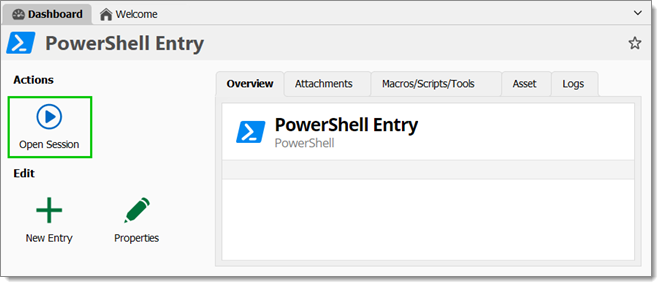
11. Clicchi su ***Open Session*** per eseguire la voce.
Lo script convertirà ora tutte le cartelle virtuali nelle casseforti dello spazio di lavoro.
---
# Agent Instructions
This documentation is published with GitBook. GitBook is the documentation platform designed so that both humans and AI agents can read, navigate, and reason over technical content effectively. Learn more at gitbook.com.
## Querying This Documentation
If you need additional information that is not directly available in this page, you can query the documentation dynamically by asking a question.
Perform an HTTP GET request on the current page URL with the `ask` query parameter, and the optional `goal` query parameter:
```
GET https://docs.devolutions.net/rdm/it/knowledge-base/how-to-articles/convert-virtual-folders-in-remote-desktop-manager.md?ask=&goal=
```
`ask` is the immediate question: it should be specific, self-contained, and written in natural language.
`goal` is optional and describes the broader end goal you are ultimately trying to accomplish on behalf of the user. GitBook uses it to tailor the answer towards what is most useful for that goal.
The response will contain a direct answer to the question and relevant excerpts and sources from the documentation.
Use this mechanism when the answer is not explicitly present in the current page, you need clarification or additional context, or you want to retrieve related documentation sections.