> For the complete documentation index, see [llms.txt](https://docs.devolutions.net/llms.txt). Markdown versions of documentation pages are available by appending `.md` to page URLs; this page is available as [Markdown](https://docs.devolutions.net/rdm/it/knowledge-base/how-to-articles/configure-a-report-entry-in-remote-desktop-manager.md).
# Configurare una voce report in Remote Desktop Manager
Configuri una voce Report in Remote Desktop Manager per generare report HTML personalizzati a partire da elenchi di connessioni o da dati di campi personalizzati.
La ***voce Report*** genera un report personalizzato con le proprietà appropriate e, se necessario, criteri specifici per selezionare le voci da includere nel report.
1. Per recuperare i nomi delle proprietà delle sue voci, vada su Remote Desktop Manager.
2. Selezioni le sue voci e faccia clic su ***Home*** – ***Appunti*** – ***Copia*** nella barra multifunzione. In alternativa, può fare clic con il pulsante destro del mouse sulla selezione di voci e scegliere ***Appunti*** – ***Copia***.
3. Nella finestra ***Opzioni di copia***, vada alla ***scheda Anteprima***.
4. Selezioni tutto il contenuto della casella, quindi lo copi e lo incolli in un editor di testo.
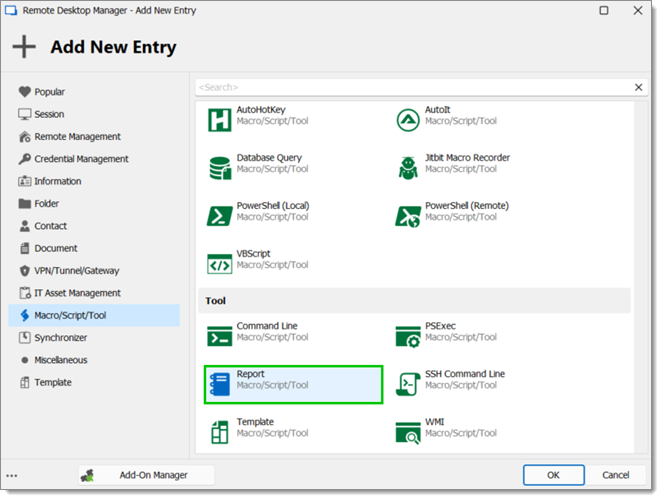
5. In Remote Desktop Manager vada su ***Nuova voce*** – ***Macro/Script/Strumento*** – ***Report***.
6. Faccia clic su ***OK***.
7. Inserisca un ***Nome*** e scelga una ***Cartella***.
8. Nella scheda ***Generale***, selezioni ***Elenco connessioni*** o ***Report campi personalizzati*** sotto ***Tipo***.
Elenco connessioni contiene un elenco di proprietà predefinite che non possono essere modificate.
9. In ***Origine script***, selezioni ***Power Shell*** o ***Voce collegata***.
Power Shell è incorporato nella voce Report. Voce collegata è collegata a una voce PowerShell che contiene lo script per selezionare l'elenco delle voci.
10. Vada su ***Campi*** e copi/incolli i nomi delle proprietà salvati in precedenza.
11. Vada alla ***scheda Script*** e scriva il suo script. Un esempio è disponibile nella parte inferiore della finestra.
Noti che questo esempio di script elenca solo le voci RDP in base a questa istruzione if: if ($connection.ConnectionType -eq 'RDPConfigured')
La scheda ***Parametri*** serve per inviare i valori da utilizzare con le variabili $PARAMETER1$, $PARAMETER2$ e così via.
12. Faccia clic su ***OK*** per salvare e chiudere la finestra.
13. Selezioni la ***voce Report*** appena creata e faccia clic su ***Esegui***.
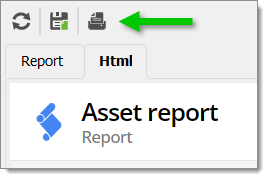
Il report è disponibile in formato HTML. Nella parte superiore del report vengono inoltre visualizzate tre opzioni: ***Aggiorna***, ***Salva con nome*** e ***Stampa***.
#### Vedere anche
* [Devolutions Academy – Breaking down common scenarios: automated asset and inventory tracking](https://academy.devolutions.net/student/activity/3380802)
* [Devolutions Academy – Building and managing reports](https://academy.devolutions.net/student/activity/3380519)
---
# Agent Instructions
This documentation is published with GitBook. GitBook is the documentation platform designed so that both humans and AI agents can read, navigate, and reason over technical content effectively. Learn more at gitbook.com.
## Querying This Documentation
If you need additional information that is not directly available in this page, you can query the documentation dynamically by asking a question.
Perform an HTTP GET request on the current page URL with the `ask` query parameter, and the optional `goal` query parameter:
```
GET https://docs.devolutions.net/rdm/it/knowledge-base/how-to-articles/configure-a-report-entry-in-remote-desktop-manager.md?ask=&goal=
```
`ask` is the immediate question: it should be specific, self-contained, and written in natural language.
`goal` is optional and describes the broader end goal you are ultimately trying to accomplish on behalf of the user. GitBook uses it to tailor the answer towards what is most useful for that goal.
The response will contain a direct answer to the question and relevant excerpts and sources from the documentation.
Use this mechanism when the answer is not explicitly present in the current page, you need clarification or additional context, or you want to retrieve related documentation sections.