> For the complete documentation index, see [llms.txt](https://docs.devolutions.net/llms.txt). Markdown versions of documentation pages are available by appending `.md` to page URLs; this page is available as [Markdown](https://docs.devolutions.net/rdm/it/knowledge-base/how-to-articles/configure-a-credential-redirection-entry-in-remote-desktop-manager.md).
# Configurare una voce di reindirizzamento delle credenziali in Remote Desktop Manager
Configuri una voce Reindirizzamento delle credenziali in Remote Desktop Manager per compilare automaticamente le credenziali da qualsiasi gestore di password in una sessione del browser web.
La ***voce Reindirizzamento delle credenziali*** consente la compilazione automatica da qualsiasi gestore di password e con il browser Web preferito.
### Creare una voce Reindirizzamento delle credenziali
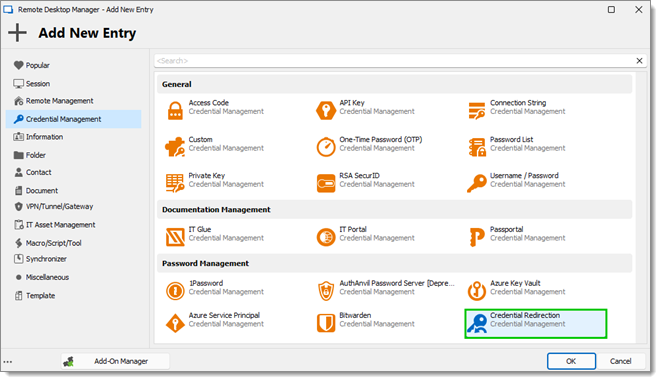
1. Vada su ***Nuova voce*** – ***Gestione delle credenziali*** – ***Gestione delle password*** – ***Reindirizzamento delle credenziali*** per creare una nuova ***voce Reindirizzamento delle credenziali***.
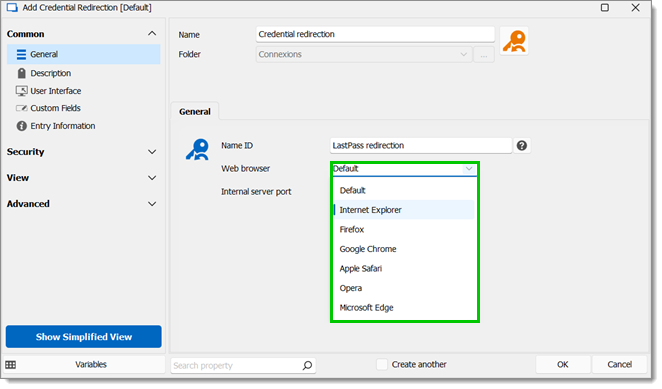
2. Inserisca un ***Nome*** e scelga una ***Cartella***.
3. Inserisca un ***ID nome*** (sensibile alle maiuscole). Deve essere univoco all'interno del suo repository. Sarà utilizzato per identificare le credenziali e sarà esposto come sottodirectory dell'URL usato per intercettare le credenziali.
4. Selezioni un browser specifico oppure utilizzi quello predefinito.
5. Clicchi su ***OK*** per salvare.
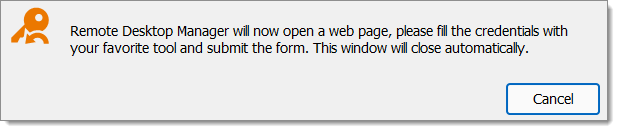
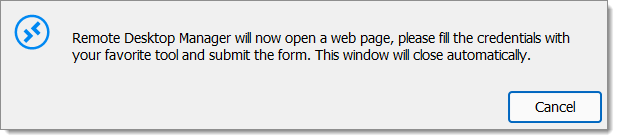
6. Apra la sua nuova ***voce Reindirizzamento delle credenziali***. Remote Desktop Manager mostra la seguente finestra di dialogo informativa: "Remote Desktop Manager will now open a web page, please fill the credentials with your favorite tool and submit the form. This window will close automatically."
Il browser selezionato viene avviato con un URL simile a questo: `http://127.0.0.1:9999/LastPass%20redirection/login.aspx`.
Noti che la parte centrale è l'***ID nome*** inserito in precedenza. A seconda della sua configurazione, le credenziali vengono inserite automaticamente oppure deve premere una combinazione di tasti per avviare il suo strumento. Consulti la documentazione del suo strumento per maggiori informazioni.
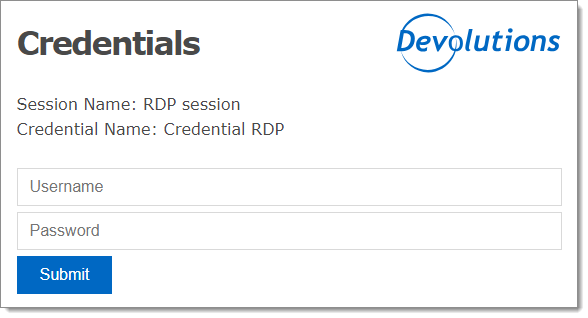
7. Inserisca le credenziali da salvare nel browser. Remote Desktop Manager elaborerà ora le sue credenziali.
### Aprire una sessione utilizzando la voce Reindirizzamento delle credenziali
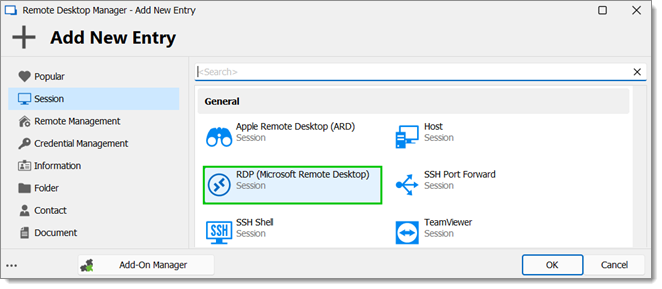
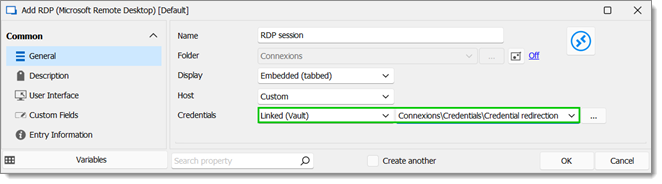
1. Crei una nuova voce; per questo esempio utilizzeremo una voce RDP.
2. Inserisca un ***Nome*** e scelga una ***Cartella***.
3. Per le ***Credenziali***, selezioni ***Collegate (cassaforte)*** e quindi la ***voce Reindirizzamento delle credenziali*** appena creata.
4. Selezioni la sua sessione, quindi la avvii. Remote Desktop Manager mostrerà questa finestra di dialogo informativa: "Remote Desktop Manager will now open a web page, please fill the credentials with your favorite tool and submit the form. This window will close automatically".
5. Nel browser web, inserisca le sue credenziali e prema ***Invia***. La pagina si chiuderà dopo un breve intervallo.
La sessione RDP viene avviata e l'autenticazione ha esito positivo.
---
# Agent Instructions
This documentation is published with GitBook. GitBook is the documentation platform designed so that both humans and AI agents can read, navigate, and reason over technical content effectively. Learn more at gitbook.com.
## Querying This Documentation
If you need additional information that is not directly available in this page, you can query the documentation dynamically by asking a question.
Perform an HTTP GET request on the current page URL with the `ask` query parameter, and the optional `goal` query parameter:
```
GET https://docs.devolutions.net/rdm/it/knowledge-base/how-to-articles/configure-a-credential-redirection-entry-in-remote-desktop-manager.md?ask=&goal=
```
`ask` is the immediate question: it should be specific, self-contained, and written in natural language.
`goal` is optional and describes the broader end goal you are ultimately trying to accomplish on behalf of the user. GitBook uses it to tailor the answer towards what is most useful for that goal.
The response will contain a direct answer to the question and relevant excerpts and sources from the documentation.
Use this mechanism when the answer is not explicitly present in the current page, you need clarification or additional context, or you want to retrieve related documentation sections.