> For the complete documentation index, see [llms.txt](https://docs.devolutions.net/llms.txt). Markdown versions of documentation pages are available by appending `.md` to page URLs; this page is available as [Markdown](https://docs.devolutions.net/rdm/it/getting-started/workspaces/multifactor-authentication/duo.md).
# Duo
Configuri l'autenticazione a più fattori Duo in Remote Desktop Manager collegando il Duo Admin Panel per richiedere la verifica tramite push, SMS o telefono.
Remote Desktop Manager le consente di configurare un'autenticazione ***Duo*** per fornire un livello di sicurezza aggiuntivo all'apertura di uno spazio di lavoro.
{% hint style="info" %}
Prima di iniziare la configurazione, si assicuri di aver creato un account Duo e di aver installato l'applicazione Duo sul suo dispositivo compatibile.
{% endhint %}
{% tabs %}
{% tab title="Windows" %}
1. Acceda al ***Duo Admin Panel***.
2. In ***Applications***, clicchi su ***Protect an Application***.
3. Protegga l'app ***Partner Auth API***.
4. Se non è già stato fatto, segua questi [passaggi di configurazione dell'autenticazione a più fattori](/rdm/it/getting-started/workspaces/multifactor-authentication.md).
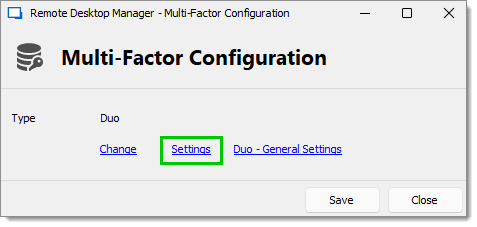
5. Dopo aver selezionato il tipo di MFA ***Duo***, clicchi su ***Duo – General Settings***.
6. Tutte le informazioni necessarie per compilare i campi delle ***impostazioni Duo*** in Remote Desktop Manager saranno generate dall'account Duo.
7. Copi e incolli tutte le informazioni nei campi corrispondenti nella finestra ***Duo Settings***.
8. Clicchi su ***Check*** per convalidare le informazioni, poi clicchi su ***OK*** al termine.
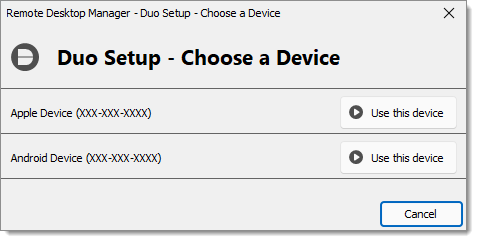
9. Se al proprio account Duo è collegato più di un dispositivo, clicchi su ***Settings***. In caso contrario, passi al punto 10.
10. Selezioni il dispositivo da utilizzare per l'autenticazione a più fattori cliccando su ***Use this device***.
11. Selezioni il metodo con cui ricevere il Duo Passcode:
* ***Duo push***: il codice viene "inviato" alla sua applicazione Duo.
* ***Send SMS***: il codice viene inviato tramite SMS al numero di telefono registrato.
* ***Phone***: il codice viene inviato tramite chiamata telefonica; una voce generata dal computer detterà il codice.
12. Clicchi su ***Save*** per autenticarsi.
Una volta completati tutti i passaggi, le verrà richiesta l'autenticazione Duo ogni volta che si connette al suo spazio di lavoro protetto.
{% endtab %}
{% tab title="macOS" %}
1. Acceda al ***Duo Admin Panel***.
2. In ***Applications***, clicchi su ***Protect an Application***.
3. Protegga l'app ***Partner Auth API***.
4. Se non è già stato fatto, segua questi [passaggi di configurazione dell'autenticazione a più fattori](/rdm/it/getting-started/workspaces/multifactor-authentication.md).
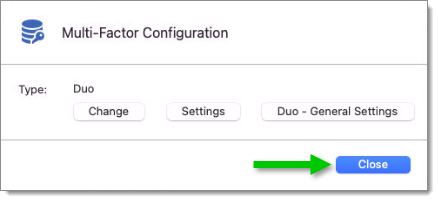
5. Dopo aver selezionato il tipo di MFA ***Duo***, clicchi su ***Apply***.
6. Tutte le informazioni necessarie per compilare i campi delle ***impostazioni Duo*** in Remote Desktop Manager saranno generate dall'account Duo.
7. Copi e incolli tutte le informazioni nei campi corrispondenti nella finestra ***Duo Settings***.
8. Clicchi su ***Check*** per convalidare le informazioni, poi clicchi su ***OK*** al termine.
9. Se al proprio account Duo è collegato più di un dispositivo, clicchi su ***Settings***. In caso contrario, passi al punto 10.
10. Selezioni il dispositivo da utilizzare per l'autenticazione a più fattori cliccando su ***Use this device***.
11. Selezioni il metodo con cui ricevere il Duo Passcode:
* ***Duo push***: il codice viene "inviato" alla sua applicazione Duo.
* ***Send SMS***: il codice viene inviato tramite SMS al numero di telefono registrato.
* ***Phone***: il codice viene inviato tramite chiamata telefonica; una voce generata dal computer detterà il codice.
12. Clicchi su ***Save*** per autenticarsi.
Una volta completati tutti i passaggi, le verrà richiesta l'autenticazione Duo ogni volta che si connette al suo spazio di lavoro protetto.
{% endtab %}
{% endtabs %}
#### Vedere anche
* [Configure Multi-factor-authentification in Remote Desktop Manager](https://academy.devolutions.net/student/page/2745736-configure-multi-factor-authentification-in-remote-desktop-manager?curriculum_activity_id=4146028\&path_id=2628397\&sid=6b463cb0-a447-42c1-89fa-4ac51e5a7eaa\&sid_i=0)
---
# Agent Instructions
This documentation is published with GitBook. GitBook is the documentation platform designed so that both humans and AI agents can read, navigate, and reason over technical content effectively. Learn more at gitbook.com.
## Querying This Documentation
If you need additional information that is not directly available in this page, you can query the documentation dynamically by asking a question.
Perform an HTTP GET request on the current page URL with the `ask` query parameter, and the optional `goal` query parameter:
```
GET https://docs.devolutions.net/rdm/it/getting-started/workspaces/multifactor-authentication/duo.md?ask=&goal=
```
`ask` is the immediate question: it should be specific, self-contained, and written in natural language.
`goal` is optional and describes the broader end goal you are ultimately trying to accomplish on behalf of the user. GitBook uses it to tailor the answer towards what is most useful for that goal.
The response will contain a direct answer to the question and relevant excerpts and sources from the documentation.
Use this mechanism when the answer is not explicitly present in the current page, you need clarification or additional context, or you want to retrieve related documentation sections.