> For the complete documentation index, see [llms.txt](https://docs.devolutions.net/llms.txt). Markdown versions of documentation pages are available by appending `.md` to page URLs; this page is available as [Markdown](https://docs.devolutions.net/rdm/getting-started/workspaces/offline-mode/devolutions-server-offline-mode.md).

# Devolutions Server offline mode

Follow the steps to lean how to enable [offline mode](https://docs.devolutions.net/rdm/data-sources/offline-mode/) for a [Devolutions Server workspace](https://docs.devolutions.net/rdm/data-sources/data-sources-types/advanced-data-sources/server/).

{% hint style="info" %}
Some features of Remote Desktop Manager are unavailable while offline. Even with the read/write access mode, you may not be able to perform all actions, such as adding attachments or managing users, since these features are not cached locally. On the other hand, the [user vault](https://docs.devolutions.net/rdm/user-interface/navigation-pane/user-vault/) is still available in offline mode.
{% endhint %}

{% tabs %}
{% tab title="Windows" %}

### Configuration <a href="#configuration" id="configuration"></a>

1. Open Remote Desktop Manager.
2. Go to the ***properties*** of the workspace.
3. Click ***Edit workspace*** and navigate to the ***advanced*** tab.
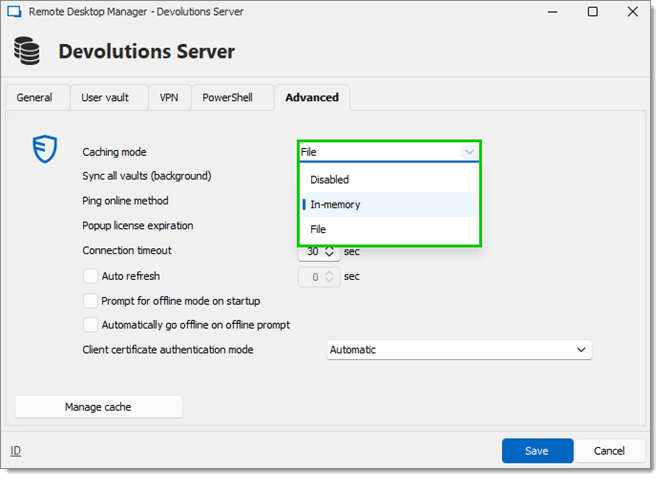
4. Select ***In-memory*** or ***File*** in the ***Caching mode*** drop-down menu.
5. Click ***Save*** to close the window.

{% hint style="warning" %}
This step cannot be modified remotely once you have exported your workspace settings.
{% endhint %}

<figure><img src="https://cdnweb.devolutions.net/docs/DVLS6009_2024_3.png" alt=""><figcaption></figcaption></figure>

<table data-header-hidden><thead><tr><th width="128"></th><th></th></tr></thead><tbody><tr><td><strong>OPTION</strong></td><td><strong>DESCRIPTION</strong></td></tr><tr><td><strong>Disabled</strong></td><td>Prevents offline cache from being used.</td></tr><tr><td><strong>In-Memory</strong></td><td>Uses the offline cache only for recent changes, but prevents it from writing on the disk</td></tr><tr><td><strong>File</strong></td><td>Uses the offline cache only for recent changes. The cache will write on the disk.</td></tr></tbody></table>

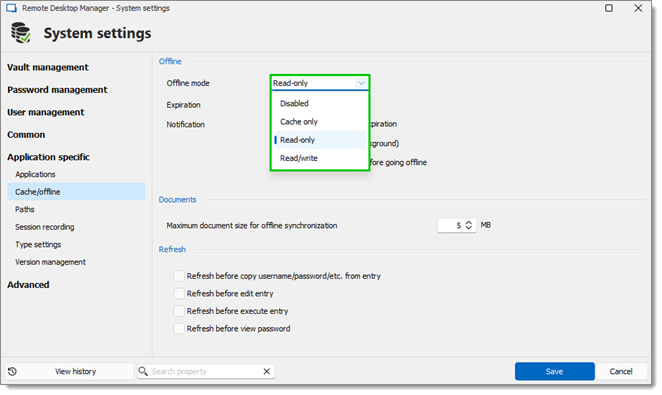
6. In the ribbon of Remote Desktop Manager, navigate to ***Administration*** – ***System settings*** – ***Cache/offline***, and set ***Offline mode*** to ***Cache-only***, ***Read-only*** or ***Read/write***.
7. Click ***Save*** to close the window.

<figure><img src="https://cdnweb.devolutions.net/docs/DVLS6008_2024_3.png" alt=""><figcaption></figcaption></figure>

<table data-header-hidden><thead><tr><th width="140"></th><th></th></tr></thead><tbody><tr><td><strong>OPTION</strong></td><td><strong>DESCRIPTION</strong></td></tr><tr><td><strong>Disabled</strong></td><td>Prevents an offline cache from being used.</td></tr><tr><td><strong>Cache only</strong></td><td>Allows to save a cache of the workspace to improve loading performance. This option disallows the use of the offline mode.</td></tr><tr><td><strong>Read-only</strong></td><td>Allows to view and use entries only. The content of the workspace cannot be modified.</td></tr><tr><td><a href="https://docs.devolutions.net/rdm/data-sources/offline-mode/offline-read-write/"><strong>Read/Write</strong></a></td><td>Allows to view, use, and edit entries. Conflicts caused by offline modifications are managed when back online.</td></tr></tbody></table>

#### Offline vault <a href="#offline-vault" id="offline-vault"></a>

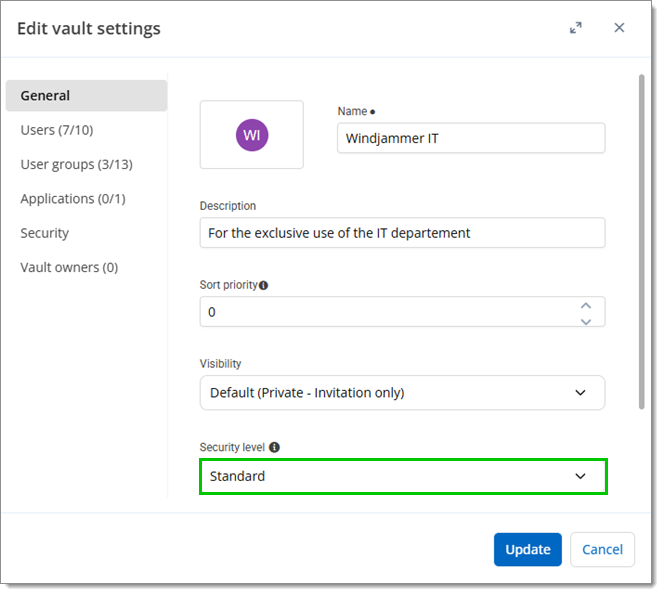
For each vault, go to ***Administration – Vault settings – Security settings***, and set ***Allow offline*** to ***Yes***.

This setting is not available in Remote Desktop Manager if the vault security level is set to [***High***](https://docs.devolutions.net/server/web-interface/administration/security-management/vaults/general/).

<figure><img src="https://cdnweb.devolutions.net/docs/DVLS4262_2026_1.png" alt=""><figcaption></figcaption></figure>

#### Enable offline user account <a href="#enable-offline-user-account" id="enable-offline-user-account"></a>

1. Go to the ribbon of Remote Desktop Manager.
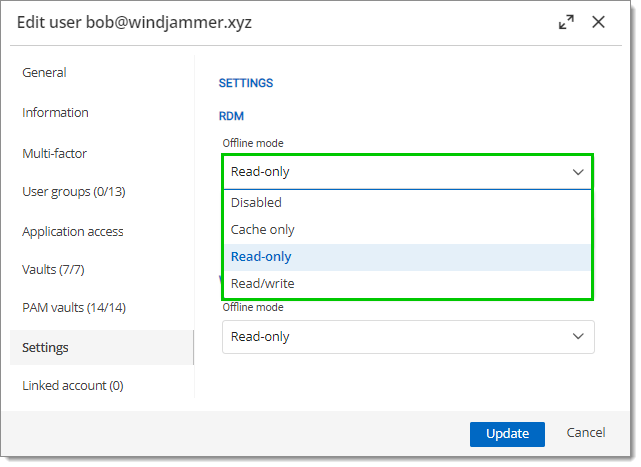
2. Select ***Administration*** – ***Users*** – ***Edit*** – ***Settings***, and set the ***Offline mode*** setting to ***Cache-only***, ***Read-only*** or ***Read/write*** to enable a user account to use offline mode.

{% hint style="info" %}
A user must be granted [***Read/Write*** at all levels](https://docs.devolutions.net/rdm/data-sources/offline-mode/devolutions-server-offline-mode/?tab=windows#grant-and-deny-offline) to allow read/write privileges.
{% endhint %}

<figure><img src="https://cdnweb.devolutions.net/docs/DVLS6007_2024_3.png" alt=""><figcaption></figcaption></figure>

3. Click ***Update*** to close the window.

#### Enable offline user groups <a href="#enable-offline-user-groups" id="enable-offline-user-groups"></a>

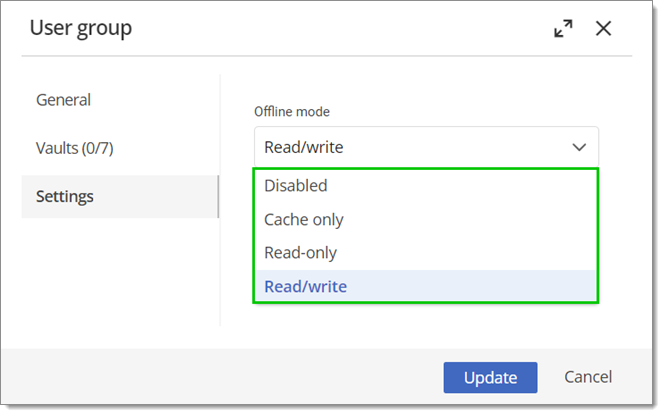
User groups policies (only for Devolutions Server data sources) must be set to ***Cache-only***, ***Read-only*** or ***Read/write***. Go to ***Administration*** – ***User groups*** – ***Edit*** – ***Settings.***

<figure><img src="https://cdnweb.devolutions.net/docs/RDMW4084_2024_2.png" alt=""><figcaption></figcaption></figure>

<table data-header-hidden><thead><tr><th width="135"></th><th></th></tr></thead><tbody><tr><td><strong>OPTION</strong></td><td><strong>DESCRIPTION</strong></td></tr><tr><td><strong>Disabled</strong></td><td>Prevents an offline cache from being used.</td></tr><tr><td><strong>Cache only</strong></td><td>Allows to save a cache of the workspace to improve loading performance. This option disallows the use of the offline mode.</td></tr><tr><td><strong>Read-only</strong></td><td>Allows to view and use entries only. The content of the workspace cannot be modified.</td></tr><tr><td><a href="https://docs.devolutions.net/rdm/data-sources/offline-mode/offline-read-write/"><strong>Read/Write</strong></a></td><td>Allows to view, use, and edit entries. Conflicts caused by offline modifications are managed when back online.</td></tr></tbody></table>

#### Workspace information <a href="#data-source-information" id="data-source-information"></a>

To have a overview of the workspace configuration, open the [workspace information](https://docs.devolutions.net/rdm/commands/file/my-data-source-information/) by going to ***File - My workspace information*** in Remote Desktop Manager. It displays the size of the offline cache file along with the effective modes.

#### Going offline <a href="#going-offline" id="going-offline"></a>

Once the user, user groups (for Devolutions Server workspaces), vault, and workspace settings allow for offline mode, Remote Desktop Manager will prompt for offline mode when the application is unable to reach the workspace. The offline mode can also be toggled manually via ***File*** – ***Go offline*** or by clicking the ***Go offline*** button located in the bottom pane.

#### Grant and deny offline <a href="#grant-and-deny-offline" id="grant-and-deny-offline"></a>

A user must be granted ***Read/Write*** at all levels to allow read/write privileges. Here is a table recapitulating all the settings/permissions along with the effective access they grant:

<table data-header-hidden><thead><tr><th width="183"></th><th width="177"></th><th width="161"></th><th></th></tr></thead><tbody><tr><td><strong>USER PERMISSIONS</strong></td><td><strong>SYSTEM SETTINGS</strong></td><td><strong>VAULT SETTINGS</strong></td><td><strong>EFFECTIVE ACCESS</strong></td></tr><tr><td>Disabled or Read-only or Read/write</td><td>Disabled or Read-only or Read/write</td><td>Allow offline disabled</td><td>Disabled</td></tr><tr><td>Disabled or Read-only or Read/write</td><td>Disabled or Read-only or Read/write</td><td>Allow offline enabled</td><td>Disabled</td></tr><tr><td>Disabled or Read-only or Read/write</td><td>Disabled</td><td>Allow offline enabled</td><td>Disabled</td></tr><tr><td>Disabled</td><td>Disabled or Read-only or Read/write</td><td>Allow offline enabled</td><td>Disabled</td></tr><tr><td>Read-only or Read/write</td><td>Read-only or Read/write</td><td>Allow offline disabled</td><td>Disabled</td></tr><tr><td>Read-only or Read/write</td><td>Read-only or Read/write</td><td>Allow offline enabled</td><td>Read-only</td></tr><tr><td>Read-only or Read/write</td><td>Read-only</td><td>Allow offline enabled</td><td>Read-only</td></tr><tr><td>Read-only</td><td>Read-only or Read/write</td><td>Allow offline enabled</td><td>Read-only</td></tr><tr><td>Read/write</td><td>Read/write</td><td>Allow offline enabled</td><td>Read/write</td></tr></tbody></table>
{% endtab %}

{% tab title="macOS" %}

### Configuration <a href="#configuration-1" id="configuration-1"></a>

1. Open Remote Desktop Manager macOS.
2. Go to the ***properties*** of the workspace.
3. Click ***edit data source*** and navigate to the ***advanced*** tab.
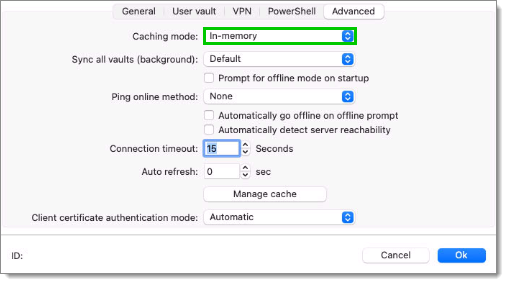
4. Select ***In-memory*** or ***File*** in the ***Caching mode*** drop-down menu.
5. Click ***Ok*** to close the window.

{% hint style="warning" %}
This step cannot be modified remotely once you have exported your workspace settings.
{% endhint %}

<figure><img src="https://cdnweb.devolutions.net/docs/RDMM6011_2024_3.png" alt=""><figcaption></figcaption></figure>

<table data-header-hidden><thead><tr><th width="121"></th><th></th></tr></thead><tbody><tr><td><strong>OPTION</strong></td><td><strong>DESCRIPTION</strong></td></tr><tr><td><strong>Disabled</strong></td><td>Prevents offline cache from being used.</td></tr><tr><td><strong>In-Memory</strong></td><td>Uses the offline cache only for recent changes, but prevents it from writing on the disk</td></tr><tr><td><strong>File</strong></td><td>Uses the offline cache only for recent changes. The cache will write on the disk.</td></tr></tbody></table>

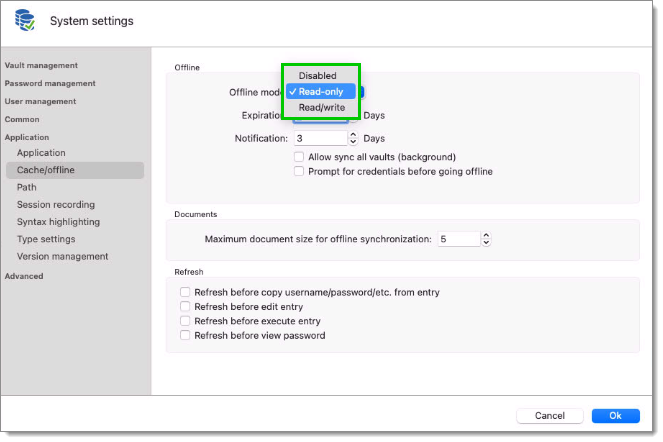
6. In the ribbon of Remote Desktop Manager macOS, navigate to ***Administration*** – ***System settings*** – ***Cache/offline***, and set ***Offline mode*** to ***Read-only*** or ***Read/write***.
7. Click ***Ok*** to close the window.

   <figure><img src="https://cdnweb.devolutions.net/docs/RDMM6009_2024_3.png" alt=""><figcaption></figcaption></figure>

   <table data-header-hidden><thead><tr><th width="133"></th><th></th></tr></thead><tbody><tr><td><strong>OPTION</strong></td><td><strong>DESCRIPTION</strong></td></tr><tr><td><strong>Disabled</strong></td><td>Prevents an offline cache from being used.</td></tr><tr><td><strong>Cache only</strong></td><td>Allows to save a cache of the workspace to improve loading performance. This option disallows the use of the offline mode.</td></tr><tr><td><strong>Read-only</strong></td><td>Allows to view and use entries only. The content of the workspace cannot be modified.</td></tr><tr><td><a href="https://docs.devolutions.net/rdm/data-sources/offline-mode/offline-read-write/"><strong>Read/Write</strong></a></td><td>Allows to view, use, and edit entries. Conflicts caused by offline modifications are managed when back online.</td></tr></tbody></table>

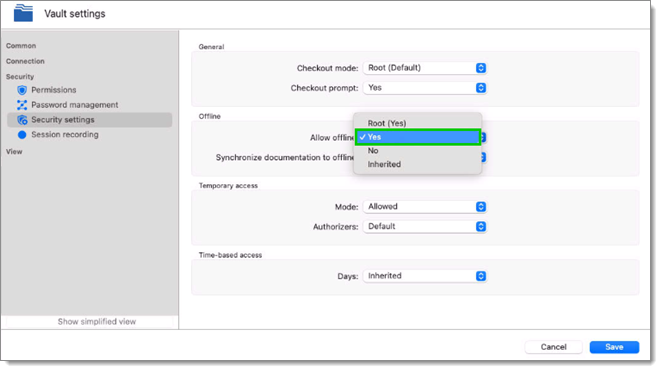
#### Offline vault <a href="#offline-vault-1" id="offline-vault-1"></a>

For each vault, go to ***Administration – Vault settings – Security settings***, and set ***Allow offline*** to ***Yes***.<br>

<figure><img src="https://cdnweb.devolutions.net/docs/RDMM6008_2024_3.png" alt=""><figcaption></figcaption></figure>

This setting is not available in Remote Desktop Manager if the vault security level is set to [***High***](https://docs.devolutions.net/server/web-interface/administration/security-management/vaults/general/).

<figure><img src="https://cdnweb.devolutions.net/docs/DVLS4262_2026_1.png" alt=""><figcaption></figcaption></figure>

#### Enable offline user account <a href="#enable-offline-user-account-1" id="enable-offline-user-account-1"></a>

1. Go to the ribbon of Remote Desktop Manager macOS.
2. Select ***Administration*** – ***Users*** – ***Edit*** – ***Settings***, and set the ***Offline mode*** setting to ***Cache-only***, ***Read-only*** or ***Read/write*** to enable a user account to use offline mode.

{% hint style="info" %}
A user must be granted [***Read/Write*** at all levels](https://docs.devolutions.net/rdm/data-sources/offline-mode/devolutions-server-offline-mode/?tab=macos#grant-and-deny-offline) to allow read/write privileges.
{% endhint %}

<figure><img src="https://cdnweb.devolutions.net/docs/DVLS6007_2024_3.png" alt=""><figcaption></figcaption></figure>

3. Click ***Update*** to close the window.

#### Enable offline user groups <a href="#enable-offline-user-groups-1" id="enable-offline-user-groups-1"></a>

User groups policies (only for Devolutions Server workspaces) must be set to ***Cache-only***, ***Read-only*** or ***Read/write***. Go to ***Administration*** – ***User groups*** – ***Edit*** – ***Settings.***

<figure><img src="https://cdnweb.devolutions.net/docs/RDMW4084_2024_2.png" alt=""><figcaption></figcaption></figure>

<table data-header-hidden><thead><tr><th width="122"></th><th></th></tr></thead><tbody><tr><td><strong>OPTION</strong></td><td><strong>DESCRIPTION</strong></td></tr><tr><td><strong>Disabled</strong></td><td>Prevents an offline cache from being used.</td></tr><tr><td><strong>Cache only</strong></td><td>Allows to save a cache of the workspace to improve loading performance. This option disallows the use of the offline mode.</td></tr><tr><td><strong>Read-only</strong></td><td>Allows to view and use entries only. The content of the workspace cannot be modified.</td></tr><tr><td><a href="https://docs.devolutions.net/rdm/data-sources/offline-mode/offline-read-write/"><strong>Read/Write</strong></a></td><td>Allows to view, use, and edit entries. Conflicts caused by offline modifications are managed when back online.</td></tr></tbody></table>

#### Workspace information <a href="#data-source-information-1" id="data-source-information-1"></a>

To have a overview of the workspace configuration, open the [workspace information](https://docs.devolutions.net/rdm/commands/file/my-data-source-information/) by going to ***File - My data source information*** in Remote Desktop Manager macOS.

#### Going offline <a href="#going-offline-1" id="going-offline-1"></a>

Once the user, user groups (for Devolutions Server workspaces), vault, and workspace settings allow for offline mode, Remote Desktop Manager macOS will prompt for offline mode when the application is unable to reach the workspace. The offline mode can also be toggled manually via ***File*** – ***Go offline*** or by clicking the ***Go offline*** button located in the bottom pane.

#### Grant and deny offline <a href="#grant-and-deny-offline-1" id="grant-and-deny-offline-1"></a>

A user must be granted ***Read/Write*** at all levels to allow read/write privileges. Here is a table recapitulating all the settings/permissions along with the effective access they grant:

| **USER PERMISSIONS**                | **SYSTEM SETTINGS**                 | **VAULT SETTINGS**     | **EFFECTIVE ACCESS** |
| ----------------------------------- | ----------------------------------- | ---------------------- | -------------------- |
| Disabled or Read-only or Read/write | Disabled or Read-only or Read/write | Allow offline disabled | Disabled             |
| Disabled or Read-only or Read/write | Disabled or Read-only or Read/write | Allow offline enabled  | Disabled             |
| Disabled or Read-only or Read/write | Disabled                            | Allow offline enabled  | Disabled             |
| Disabled                            | Disabled or Read-only or Read/write | Allow offline enabled  | Disabled             |
| Read-only or Read/write             | Read-only or Read/write             | Allow offline disabled | Disabled             |
| Read-only or Read/write             | Read-only or Read/write             | Allow offline enabled  | Read-only            |
| Read-only or Read/write             | Read-only                           | Allow offline enabled  | Read-only            |
| Read-only                           | Read-only or Read/write             | Allow offline enabled  | Read-only            |
| Read/write                          | Read/write                          | Allow offline enabled  | Read/write           |
| {% endtab %}                        |                                     |                        |                      |
| {% endtabs %}                       |                                     |                        |                      |


---

# Agent Instructions
This documentation is published with GitBook. GitBook is the documentation platform designed so that both humans and AI agents can read, navigate, and reason over technical content effectively. Learn more at gitbook.com.

## Querying This Documentation
If you need additional information that is not directly available in this page, you can query the documentation dynamically by asking a question.

Perform an HTTP GET request on the current page URL with the `ask` query parameter, and the optional `goal` query parameter:

```
GET https://docs.devolutions.net/rdm/getting-started/workspaces/offline-mode/devolutions-server-offline-mode.md?ask=<question>&goal=<endgoal>
```

`ask` is the immediate question: it should be specific, self-contained, and written in natural language.
`goal` is optional and describes the broader end goal you are ultimately trying to accomplish on behalf of the user. GitBook uses it to tailor the answer towards what is most useful for that goal.

The response will contain a direct answer to the question and relevant excerpts and sources from the documentation.

Use this mechanism when the answer is not explicitly present in the current page, you need clarification or additional context, or you want to retrieve related documentation sections.