> For the complete documentation index, see [llms.txt](https://docs.devolutions.net/llms.txt). Markdown versions of documentation pages are available by appending `.md` to page URLs; this page is available as [Markdown](https://docs.devolutions.net/rdm/de/ribbon-menu-bar/view/tab-groups.md).
# Registerkartengruppen
Durchsuchen Sie aktive Tab-Gruppen in einem angedockten Fenster mit der Funktion Tab-Gruppen in Remote Desktop Manager, um mehrere geöffnete Sitzungs-Tabs zu organisieren und zu verwalten.
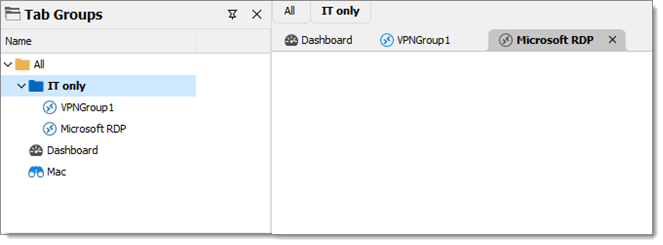
Die Funktion ***Tab-Gruppen*** öffnet ein angedocktes Fenster, das eine Baumansicht der verschiedenen Tab-Gruppen anzeigt. Es ist möglich, mehrere Tabs gleichzeitig auszuwählen, indem Sie mit gedrückter Shift-Taste klicken, oder alle mit der Tastenkombination Ctrl+A. Ein Rechtsklick auf einen oder mehrere Tabs zeigt weitere Optionen an.
Die anderen Tab-Gruppen erscheinen nur, wenn eine Sitzung aktiv ist, die Teil einer Tab-Gruppe ist (außer dem Tab ***Alle***).
Obwohl der Bereich ***Tab-Gruppen*** standardmäßig angedockt ist, kann er als Fenster dargestellt, gezogen und an beliebiger Stelle innerhalb von Remote Desktop Manager angedockt werden.
Um zu erfahren, wie Sie eine Tab-Gruppe erstellen, siehe [***Tab-Gruppenleiste***](/rdm/de/ribbon-menu-bar/view/tab-groups/tab-group-bar.md).
#### Siehe auch
* [Devolutions Academy – Tabs mit Tab-Gruppen verwalten](https://academy.devolutions.net/student/page/2641980-manage-tabs-using-tab-groups?sid=5e1ad270-9ecb-41cb-9d9d-6de6d80f4a3b\&sid_i=3)
---
# Agent Instructions
This documentation is published with GitBook. GitBook is the documentation platform designed so that both humans and AI agents can read, navigate, and reason over technical content effectively. Learn more at gitbook.com.
## Querying This Documentation
If you need additional information that is not directly available in this page, you can query the documentation dynamically by asking a question.
Perform an HTTP GET request on the current page URL with the `ask` query parameter, and the optional `goal` query parameter:
```
GET https://docs.devolutions.net/rdm/de/ribbon-menu-bar/view/tab-groups.md?ask=&goal=
```
`ask` is the immediate question: it should be specific, self-contained, and written in natural language.
`goal` is optional and describes the broader end goal you are ultimately trying to accomplish on behalf of the user. GitBook uses it to tailor the answer towards what is most useful for that goal.
The response will contain a direct answer to the question and relevant excerpts and sources from the documentation.
Use this mechanism when the answer is not explicitly present in the current page, you need clarification or additional context, or you want to retrieve related documentation sections.