> For the complete documentation index, see [llms.txt](https://docs.devolutions.net/llms.txt). Markdown versions of documentation pages are available by appending `.md` to page URLs; this page is available as [Markdown](https://docs.devolutions.net/rdm/de/knowledge-base/how-to-articles/enable-debug-webview-for-embedded-safari-in-remote-desktop-manager-macos.md).
# Debug-WebView für eingebettetes Safari in Remote Desktop Manager macOS aktivieren
Aktivieren Sie die Safari-Debug-WebView in Remote Desktop Manager macOS, um eingebettete Webseiten zu untersuchen und JavaScript-Probleme direkt zu beheben.
Das Debuggen einer in einer WebView gerenderten Webseite kann eine äußerst wertvolle Maßnahme sein, insbesondere wenn es darum geht, deren Layout sorgfältig zu untersuchen, in die Feinheiten des Designs einzutauchen oder verwirrende JavaScript-Komplikationen zu beheben. Befolgen Sie diese Schritte, um die Debug-WebView für eingebettetes Safari in Remote Desktop Manager macOS zu aktivieren.
### Safari-Entwicklerwerkzeuge aktivieren
1. Öffnen Sie ***Safari***.
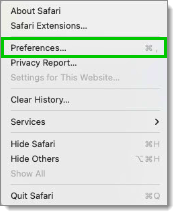
2. Wählen Sie ***Safari – Einstellungen***.
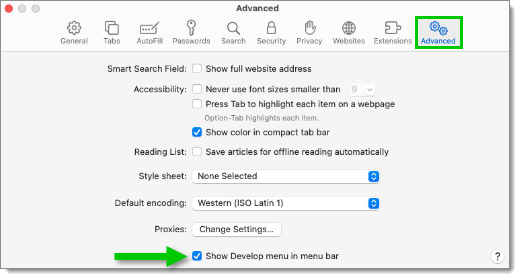
3. Gehen Sie zu ***Erweitert***.
4. Aktivieren Sie ***Menü „Entwickler“ in der Menüleiste anzeigen***. Die ***Safari-Entwicklerwerkzeuge*** sind nun über das ***Menü „Entwickler“ in der Menüleiste*** verfügbar.
### Debug-WebView für eingebettetes Safari aktivieren
1. Schließen Sie Remote Desktop Manager.
2. Führen Sie im Terminal (Terminal.app) den folgenden Befehl aus: `defaults write com.devolutions.remotedesktopmanager WebKitDeveloperExtras -bool true`
3. Öffnen Sie Remote Desktop Manager und navigieren Sie im eingebetteten Browser zur Website.
4. Gehen Sie zurück in Safari zu ***Entwickler – Name Ihres lokalen Rechners***. Die Website ist nun unter dem lokalen Rechner aufgeführt.
5. Klicken Sie auf den Namen der Website, um die ***Safari-Entwicklerwerkzeuge*** zu öffnen.
---
# Agent Instructions
This documentation is published with GitBook. GitBook is the documentation platform designed so that both humans and AI agents can read, navigate, and reason over technical content effectively. Learn more at gitbook.com.
## Querying This Documentation
If you need additional information that is not directly available in this page, you can query the documentation dynamically by asking a question.
Perform an HTTP GET request on the current page URL with the `ask` query parameter, and the optional `goal` query parameter:
```
GET https://docs.devolutions.net/rdm/de/knowledge-base/how-to-articles/enable-debug-webview-for-embedded-safari-in-remote-desktop-manager-macos.md?ask=&goal=
```
`ask` is the immediate question: it should be specific, self-contained, and written in natural language.
`goal` is optional and describes the broader end goal you are ultimately trying to accomplish on behalf of the user. GitBook uses it to tailor the answer towards what is most useful for that goal.
The response will contain a direct answer to the question and relevant excerpts and sources from the documentation.
Use this mechanism when the answer is not explicitly present in the current page, you need clarification or additional context, or you want to retrieve related documentation sections.