> For the complete documentation index, see [llms.txt](https://docs.devolutions.net/llms.txt). Markdown versions of documentation pages are available by appending `.md` to page URLs; this page is available as [Markdown](https://docs.devolutions.net/rdm/de/getting-started/installation/client/custom-installer-service/custom-installer-manager.md).
# Benutzerdefinierter Installations-Manager
Verwenden Sie den Custom installer manager in Remote Desktop Manager, um MSI-Installationsprogramme mit vordefinierten Konfigurationen und Datenquellen zu erstellen und bereitzustellen.
{% hint style="info" %}
Remote Desktop Manager für macOS unterstützt das benutzerdefinierte Installationsprogramm nicht. Die Alternative wäre, [eine `Default.cfg`-Datei zu exportieren](https://docs.devolutions.net/rdm/de/getting-started/installation/client/custom-installer-service/rdi-file-generation-options?tab=macos) und sie auf neue Installationen anzuwenden.
{% endhint %}
1. Gehen Sie in Remote Desktop Manager zu ***Tools*** – ***All tools*** und führen Sie das Tool ***Custom installer manager*** aus.
2. Wählen Sie dann ***Generate custom installer***.
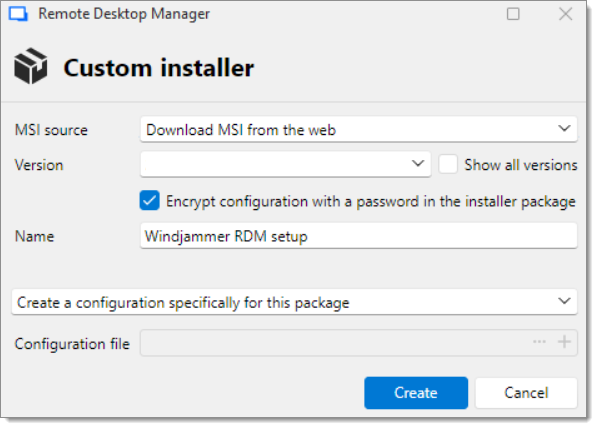
3. Wählen Sie, ob Sie ***Download MSI from the web*** oder ***Use pre-downloaded MSI*** verwenden möchten.
4. Legen Sie eine ***Version*** und einen ***Name*** für die Konfiguration fest.
5. Wählen Sie bei Bedarf, die Konfiguration im Installationspaket mit einem Passwort zu verschlüsseln.
6. [Erstellen Sie eine Konfiguration nur für dieses Paket](#create-a-configuration) oder [verwenden Sie eine bestehende Remote Desktop Installer (RDI)-Datei](#use-an-existing-file).
#### Eine Konfiguration erstellen
1. Wählen Sie ***Create a configuration just for this package*** und klicken Sie dann auf ***Create***.
2. Weitere Informationen zu den verschiedenen zur Auswahl stehenden Optionen finden Sie unter [RDI-Dateigenerierungsoptionen](/rdm/de/getting-started/installation/client/custom-installer-service/export-custom-installer-configuration.md). Klicken Sie anschließend auf ***Export***.
3. Speichern Sie die Installationspaketdatei lokal, wenn Sie dazu aufgefordert werden.
#### Eine bestehende Datei verwenden
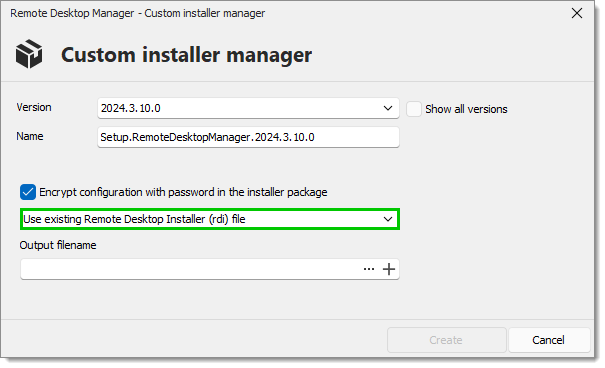
1. Wählen Sie ***Use existing Remote Desktop Installer (rdi) file***.
2. Im Feld ***Output filename*** können Sie entweder:
* nach einer bestehenden lokalen RDI-Datei suchen; oder
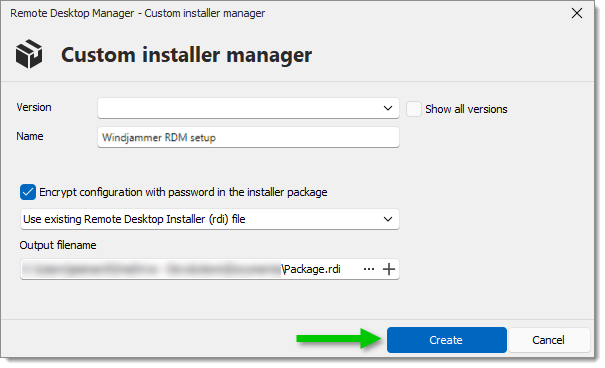
* eine erstellen, indem Sie die Konfiguration aus einer Datenquelle exportieren. Weitere Informationen zu den verschiedenen zur Auswahl stehenden Optionen finden Sie in unserem Leitfaden [RDI-Dateigenerierungsoptionen](/rdm/de/getting-started/installation/client/custom-installer-service/export-custom-installer-configuration.md). Klicken Sie anschließend auf ***Export***.
3. Klicken Sie auf ***Create***.
4. Speichern Sie die Installationspaketdatei lokal, wenn Sie dazu aufgefordert werden.
### Bereitstellung mit Endpoint-Management-Lösungen
Der ***Custom installer manager*** kann mit Endpoint-Management-Lösungen wie Microsoft Intune, Microsoft Configuration Manager (SCCM) oder anderen Bereitstellungsplattformen verwendet werden.
Durch das Generieren eines benutzerdefinierten Installationsprogramms, das die erforderliche Remote Desktop Manager-Konfiguration enthält, können Administratoren es über ihre Endpoint-Management-Lösung an mehrere Geräte verteilen. Dies ermöglicht Organisationen, Remote Desktop Manager in großem Umfang bereitzustellen und gleichzeitig sicherzustellen, dass Benutzer bei der Installation eine vordefinierte Konfiguration erhalten.
{% hint style="info" %}
Weitere Details finden Sie unter [Remote Desktop Manager mit Intune bereitstellen](/rdm/de/knowledge-base/knowledge-base-articles/deploy-remote-desktop-manager-using-microsoft-intune.md).
{% endhint %}
### Devolutions Launcher Custom Installer Generator
[Devolutions Launcher](https://devolutions.net/download-center/#launcher) bietet die Möglichkeit, benutzerdefinierte Installationsprogramme zu erstellen. Gehen Sie dazu zu ***Tools – All tools – Custom installer manager***. Die Schritte sind dann dieselben wie für Remote Desktop Manager (ab [Schritt #3](/rdm/de/getting-started/installation/client/custom-installer-service/custom-installer-manager.md) des vorliegenden Artikels).
**Siehe auch**
* [Devolutions Academy - How to use the custom installer](https://academy.devolutions.net/student/page/2397676-how-to-use-the-custom-installer?sid=2202ce15-ae72-4051-b6d9-0a203c58d229\&sid_i=0)
---
# Agent Instructions
This documentation is published with GitBook. GitBook is the documentation platform designed so that both humans and AI agents can read, navigate, and reason over technical content effectively. Learn more at gitbook.com.
## Querying This Documentation
If you need additional information that is not directly available in this page, you can query the documentation dynamically by asking a question.
Perform an HTTP GET request on the current page URL with the `ask` query parameter, and the optional `goal` query parameter:
```
GET https://docs.devolutions.net/rdm/de/getting-started/installation/client/custom-installer-service/custom-installer-manager.md?ask=&goal=
```
`ask` is the immediate question: it should be specific, self-contained, and written in natural language.
`goal` is optional and describes the broader end goal you are ultimately trying to accomplish on behalf of the user. GitBook uses it to tailor the answer towards what is most useful for that goal.
The response will contain a direct answer to the question and relevant excerpts and sources from the documentation.
Use this mechanism when the answer is not explicitly present in the current page, you need clarification or additional context, or you want to retrieve related documentation sections.