> For the complete documentation index, see [llms.txt](https://docs.devolutions.net/llms.txt). Markdown versions of documentation pages are available by appending `.md` to page URLs; this page is available as [Markdown](https://docs.devolutions.net/powershell-universal/apps/components/data-display/table.md). Agents can also search and read this documentation through its [MCP server](https://docs.devolutions.net/~gitbook/mcp).
# Table
Build data tables in PowerShell Universal apps with New-UDTable, covering custom columns, filtering, sorting, paging, exporting, and server-side loading.
Tables display sets of data. They can be fully customized.
Tables display information in a way that's easy to scan, so that users can look for patterns and insights. They can be embedded in primary content, such as cards.
## Simple Table

A simple example with no frills. Table columns are defined from the data.
```powershell
$TableData = @(
@{Dessert = 'Frozen yoghurt'; Calories = 159; Fat = 6.0; Carbs = 24; Protein = 4.0}
@{Dessert = 'Ice cream sandwich'; Calories = 159; Fat = 6.0; Carbs = 24; Protein = 4.0}
@{Dessert = 'Eclair'; Calories = 159; Fat = 6.0; Carbs = 24; Protein = 4.0}
@{Dessert = 'Cupcake'; Calories = 159; Fat = 6.0; Carbs = 24; Protein = 4.0}
@{Dessert = 'Gingerbread'; Calories = 159; Fat = 6.0; Carbs = 24; Protein = 4.0}
)
New-UDTable -Data $TableData
```
## Table with Custom Columns

Define custom columns for your table.
```powershell
$TableData = @(
@{Dessert = 'Frozen yoghurt'; Calories = 159; Fat = 6.0; Carbs = 24; Protein = 4.0}
@{Dessert = 'Ice cream sandwich'; Calories = 159; Fat = 6.0; Carbs = 24; Protein = 4.0}
@{Dessert = 'Eclair'; Calories = 159; Fat = 6.0; Carbs = 24; Protein = 4.0}
@{Dessert = 'Cupcake'; Calories = 159; Fat = 6.0; Carbs = 24; Protein = 4.0}
@{Dessert = 'Gingerbread'; Calories = 159; Fat = 6.0; Carbs = 24; Protein = 4.0}
)
$Columns = @(
New-UDTableColumn -Property Dessert -Title "A Dessert"
New-UDTableColumn -Property Calories -Title Calories
New-UDTableColumn -Property Fat -Title Fat
New-UDTableColumn -Property Carbs -Title Carbs
New-UDTableColumn -Property Protein -Title Protein
)
New-UDTable -Id 'customColumnsTable' -Data $TableData -Columns $Columns
```
## Table with Custom Column Rendering

Define column rendering. Sorting and exporting still work for the table.
```powershell
$TableData = @(
@{Dessert = 'Frozen yoghurt'; Calories = 1; Fat = 6.0; Carbs = 24; Protein = 4.0}
@{Dessert = 'Ice cream sandwich'; Calories = 159; Fat = 6.0; Carbs = 24; Protein = 4.0}
@{Dessert = 'Eclair'; Calories = 159; Fat = 6.0; Carbs = 24; Protein = 4.0}
@{Dessert = 'Cupcake'; Calories = 159; Fat = 6.0; Carbs = 24; Protein = 4.0}
@{Dessert = 'Gingerbread'; Calories = 200; Fat = 6.0; Carbs = 24; Protein = 4.0}
)
$Columns = @(
New-UDTableColumn -Property Dessert -Title Dessert -Render {
New-UDButton -Id "btn$($EventData.Dessert)" -Text "Click for Dessert!" -OnClick { Show-UDToast -Message $EventData.Dessert }
}
New-UDTableColumn -Property Calories -Title Calories
New-UDTableColumn -Property Fat -Title Fat
New-UDTableColumn -Property Carbs -Title Carbs
New-UDTableColumn -Property Protein -Title Protein
)
New-UDTable -Data $TableData -Columns $Columns -Sort -Export
```
## Table Column Width
Column width can be defined using the `-Width` parameter. You can also decide to truncate columns that extend past that width.
```powershell
$TableData = @(
@{Dessert = 'Frozen yoghurt'; Calories = 159; Fat = 6.0; Carbs = 24; Protein = 4.0}
@{Dessert = 'Ice cream sandwich'; Calories = 159; Fat = 6.0; Carbs = 24; Protein = 4.0}
@{Dessert = 'Eclair'; Calories = 159; Fat = 6.0; Carbs = 24; Protein = 4.0}
@{Dessert = 'Cupcake'; Calories = 159; Fat = 6.0; Carbs = 24; Protein = 4.0}
@{Dessert = 'Gingerbread'; Calories = 159; Fat = 6.0; Carbs = 24; Protein = 4.0}
)
$Columns = @(
New-UDTableColumn -Property Dessert -Title Dessert -Render {
New-UDButton -Id "btn$($EventData.Dessert)" -Text "Click for Dessert!" -OnClick { Show-UDToast -Message $EventData.Dessert }
}
New-UDTableColumn -Property Calories -Title Calories -Width 5 -Truncate
New-UDTableColumn -Property Fat -Title Fat
New-UDTableColumn -Property Carbs -Title Carbs
New-UDTableColumn -Property Protein -Title Protein
)
New-UDTable -Data $TableData -Columns $Columns -Sort
```
## Filters
You can configure custom filters per column. The table supports `text`, `select`, `fuzzy` , `slider`, `range`, `date` , `number`, `autocomplete` and `multiselect` filters. The default filter type is `text`. A filter is displayed under the header of each column that has the `-ShowFilter` parameter.
The `-Language` parameter of `New-UDTable` sets the language of the date filter. Valid values are `en` (default), `de`, `ru`, `fr` and `nl`.
```powershell
$TableData = @(
@{Dessert = 'Frozen yoghurt'; Calories = 159; Fat = 6.0; Carbs = 24; Protein = 4.0}
@{Dessert = 'Ice cream sandwich'; Calories = 159; Fat = 6.0; Carbs = 24; Protein = 4.0}
@{Dessert = 'Eclair'; Calories = 159; Fat = 6.0; Carbs = 24; Protein = 4.0}
@{Dessert = 'Cupcake'; Calories = 159; Fat = 6.0; Carbs = 24; Protein = 4.0}
@{Dessert = 'Gingerbread'; Calories = 159; Fat = 6.0; Carbs = 24; Protein = 4.0}
)
$Columns = @(
New-UDTableColumn -Property Dessert -Title "A Dessert" -Filter -FilterType AutoComplete
New-UDTableColumn -Property Calories -Title Calories -Filter -FilterType Range
New-UDTableColumn -Property Fat -Title Fat -Filter -FilterType Range
New-UDTableColumn -Property Carbs -Title Carbs -Filter -FilterType Range
New-UDTableColumn -Property Protein -Title Protein -Filter -FilterType Range
)
New-UDTable -Id 'customColumnsTable' -Data $TableData -Columns $Columns -ShowFilter
```

### Static Options for Select Filters
When using server-side processing, the available filters may not display the full range of options since the select dropdown only has access to the current page of results. To avoid this, you can use the `-Options` parameter on `New-UDTableColumn`.
```powershell
New-UDTableColumn -Property Dessert -Title 'Dessert' -Filter -FilterType 'Select' -Options @('Frozen yoghurt', 'Eclair', 'Cupcake')
```
## Search
To enable search, use the `-ShowSearch` parameter on `New-UDTable`.
```powershell
$TableData = @(
@{Dessert = 'Frozen yoghurt'; Calories = 159; Fat = 6.0; Carbs = 24; Protein = 4.0}
@{Dessert = 'Ice cream sandwich'; Calories = 159; Fat = 6.0; Carbs = 24; Protein = 4.0}
@{Dessert = 'Eclair'; Calories = 159; Fat = 6.0; Carbs = 24; Protein = 4.0}
@{Dessert = 'Cupcake'; Calories = 159; Fat = 6.0; Carbs = 24; Protein = 4.0}
@{Dessert = 'Gingerbread'; Calories = 159; Fat = 6.0; Carbs = 24; Protein = 4.0}
)
New-UDTable -Data $TableData -ShowSearch
```
When using custom columns, you will need to add the `-IncludeInSearch` parameter to the columns you'd like to include in the search.
```powershell
$TableData = @(
@{Dessert = 'Frozen yoghurt'; Calories = 159; Fat = 6.0; Carbs = 24; Protein = 4.0}
@{Dessert = 'Ice cream sandwich'; Calories = 159; Fat = 6.0; Carbs = 24; Protein = 4.0}
@{Dessert = 'Eclair'; Calories = 159; Fat = 6.0; Carbs = 24; Protein = 4.0}
@{Dessert = 'Cupcake'; Calories = 159; Fat = 6.0; Carbs = 24; Protein = 4.0}
@{Dessert = 'Gingerbread'; Calories = 159; Fat = 6.0; Carbs = 24; Protein = 4.0}
)
$Columns = @(
New-UDTableColumn -Property Dessert -Title "A Dessert" -IncludeInSearch
New-UDTableColumn -Property Calories -Title Calories
New-UDTableColumn -Property Fat -Title Fat
New-UDTableColumn -Property Carbs -Title Carbs
New-UDTableColumn -Property Protein -Title Protein
)
New-UDTable -Id 'customColumnsTable' -Data $TableData -Columns $Columns -ShowSearch
```
## Table with server-side processing
Process data on the server so you can perform paging, filtering, sorting and searching in systems like SQL. To implement a server-side table, you will use the `-LoadData` parameter. This parameter accepts a `ScriptBlock`. The `$EventData` variable includes information about the state of the table. You can use cmdlets to process the data based on this information.
### $EventData Structure
The `$EventData` object contains the following properties.
| Property Name | Type | Description |
| -------------- | ---------------------------------------------------------------------------------- | ----------------------------------------------------------------------------------------------------------------------------- |
| Filters |
Hashtable\[]
@{ id = 'fieldName'
value = 'filterValue' }
| A list of filter values. Each hashtable has an `Id` and a `Value` property. |
| OrderBy |
Hashtable
@{ field = "fieldName" }
| Property name to sort by. Empty when the table is not sorted or `-ShowSort` is not set. Only the first sorted column is sent. |
| OrderDirection | string | `asc` or `desc` depending on the sort order. |
| Page | int | The current page (starting with 0). |
| PageSize | int | The selected page size. |
| Properties | string\[] | An array of properties being shown in the table. |
| Search | string | A search string provided by the user. |
| Columns | object\[] | The columns of the table. |
| SelectedRowIds | Hashtable | The IDs of the selected rows. |
The script block must return the rows with `Out-UDTableData`. Only the properties listed in `-Properties` are returned to the table, and the `-Render` script blocks of the columns, `-OnRowStyle` and `-OnRowExpand` run for each returned row. When `-ShowPagination` is not set and `-PageSize` is not changed, all the rows are displayed on a single page.
### Example
```powershell
$Columns = @(
New-UDTableColumn -Property Name -Title "Name" -ShowFilter
New-UDTableColumn -Property Value -Title "Value" -ShowFilter
)
$TableData = 1..1000 | ForEach-Object {
[PSCustomObject]@{
Name = "Record-$_"
Value = $_
}
}
New-UDTable -Columns $Columns -LoadData {
foreach($Filter in $EventData.Filters)
{
$TableData = $TableData | Where-Object -Property $Filter.Id -Match -Value $Filter.Value
}
if ($EventData.Search)
{
$TableData = $TableData | Where-Object { $_.Name -match $EventData.Search -or $_.Value -match $EventData.Search }
}
$TotalCount = $TableData.Count
if (-not [string]::IsNullOrEmpty($EventData.OrderBy.Field))
{
$Descending = $EventData.OrderDirection -ne 'asc'
$TableData = $TableData | Sort-Object -Property ($EventData.orderBy.Field) -Descending:$Descending
}
$TableData = $TableData | Select-Object -First $EventData.PageSize -Skip ($EventData.Page * $EventData.PageSize)
$TableData | Out-UDTableData -Page $EventData.Page -TotalCount $TotalCount -Properties $EventData.Properties
} -ShowFilter -ShowSort -ShowPagination
```
### Retrieving Displayed Data
You may want to allow the user to take action on the current set of displayed data. To do so, use `Get-UDElement` in the input object you want to retrieve the data from and get the table by Id. Once you have the element, you can use the `currentData` property of the element to get an array of currently displayed rows. When `-ShowSelection` is set, the element contains the `selectedRows` property instead.
```powershell
$Columns = @(
New-UDTableColumn -Property Name -Title "Name" -ShowFilter
New-UDTableColumn -Property Value -Title "Value" -ShowFilter
)
$TableData = 1..1000 | ForEach-Object {
@{
Name = "Record-$_"
Value = $_
}
}
New-UDButton -Text 'Get Filtered Data' -OnClick {
$Element = Get-UDElement -Id 'filteredTable'
Show-UDModal -Content {
New-UDElement -Tag 'pre' -Content {
$Element | ConvertTo-Json
}
}
}
New-UDTable -Id 'filteredTable' -Columns $Columns -LoadData {
foreach($Filter in $EventData.Filters)
{
$TableData = $TableData | Where-Object -Property $Filter.Id -Match -Value $Filter.Value
}
$TotalCount = $TableData.Count
if (-not [string]::IsNullOrEmpty($EventData.OrderBy))
{
$Descending = $EventData.OrderDirection -ne 'asc'
$TableData = $TableData | Sort-Object -Property $EventData.orderBy -Descending:$Descending
}
$TableData = $TableData | Select-Object -First $EventData.PageSize -Skip ($EventData.Page * $EventData.PageSize)
$TableData | Out-UDTableData -Page $EventData.Page -TotalCount $TotalCount -Properties $EventData.Properties
} -ShowFilter -ShowSort -ShowPagination
```
## Paging
By default, paging is disable and tables will grow based on how many rows of data you provide. You can enable paging by using the `-ShowPagination` cmdlet (alias `-Paging`). You can configure the page size using the `-PageSize` cmdlet.
```powershell
$TableData = @(
@{Dessert = 'Frozen yoghurt'; Calories = 159; Fat = 6.0; Carbs = 24; Protein = 4.0}
@{Dessert = 'Ice cream sandwich'; Calories = 159; Fat = 6.0; Carbs = 24; Protein = 4.0}
@{Dessert = 'Eclair'; Calories = 159; Fat = 6.0; Carbs = 24; Protein = 4.0}
@{Dessert = 'Cupcake'; Calories = 159; Fat = 6.0; Carbs = 24; Protein = 4.0}
@{Dessert = 'Gingerbread'; Calories = 159; Fat = 6.0; Carbs = 24; Protein = 4.0}
)
New-UDTable -Data $TableData -Paging -PageSize 2
```
### Disable Page Size All
By default, the page size selector provides an option to show all rows (**All**). If you want to prevent users from doing this, use the `-DisablePageSizeAll` cmdlet.
### Pagination Location
You can change the location of the pagination control by using the `-PaginationLocation` parameter. It accepts top, bottom and both.

### Page Sizes
The page size, by default, is set to 5. Users can adjust the number of rows per page by using the Rows per page drop down. You can adjust the default page size by using the `-PageSize` parameter. To adjust the values available within the Rows per page drop down, you can use an array of integers pass to the `-PageSizeOptions` parameter. The default options are 5, 10, 20 and 50.
```powershell
$TableData = @(
@{Dessert = 'Frozen yoghurt'; Calories = 159; Fat = 6.0; Carbs = 24; Protein = 4.0}
@{Dessert = 'Ice cream sandwich'; Calories = 159; Fat = 6.0; Carbs = 24; Protein = 4.0}
@{Dessert = 'Eclair'; Calories = 159; Fat = 6.0; Carbs = 24; Protein = 4.0}
@{Dessert = 'Cupcake'; Calories = 159; Fat = 6.0; Carbs = 24; Protein = 4.0}
@{Dessert = 'Gingerbread'; Calories = 159; Fat = 6.0; Carbs = 24; Protein = 4.0}
)
New-UDTable -Data $TableData -Paging -PageSize 2 -PageSizeOptions @(2, 4, 6)
```
## Sorting
To enable sorting for a table, use the `-ShowSort` parameter. When you enable sorting, you will be able to click the table headers to sort the table by clicking the headers. By default, multi-sort is enabled. To multi-hold shift and click a column header.
```powershell
$TableData = @(
@{Dessert = 'Frozen yoghurt'; Calories = 159; Fat = 6.0; Carbs = 24; Protein = 4.0}
@{Dessert = 'Ice cream sandwich'; Calories = 159; Fat = 6.0; Carbs = 24; Protein = 4.0}
@{Dessert = 'Eclair'; Calories = 159; Fat = 6.0; Carbs = 24; Protein = 4.0}
@{Dessert = 'Cupcake'; Calories = 159; Fat = 6.0; Carbs = 24; Protein = 4.0}
@{Dessert = 'Gingerbread'; Calories = 159; Fat = 6.0; Carbs = 24; Protein = 4.0}
)
New-UDTable -Data $TableData -ShowSort
```
You can control which columns can be sorted by using `New-UDTableColumn` and `-ShowSort` parameter.
```powershell
$TableData = @(
@{Dessert = 'Frozen yoghurt'; Calories = 159; Fat = 6.0; Carbs = 24; Protein = 4.0}
@{Dessert = 'Ice cream sandwich'; Calories = 159; Fat = 6.0; Carbs = 24; Protein = 4.0}
@{Dessert = 'Eclair'; Calories = 159; Fat = 6.0; Carbs = 24; Protein = 4.0}
@{Dessert = 'Cupcake'; Calories = 159; Fat = 6.0; Carbs = 24; Protein = 4.0}
@{Dessert = 'Gingerbread'; Calories = 159; Fat = 6.0; Carbs = 24; Protein = 4.0}
)
$Columns = @(
New-UDTableColumn -Property Dessert -Title "A Dessert" -ShowSort
New-UDTableColumn -Property Calories -Title Calories
New-UDTableColumn -Property Fat -Title Fat
New-UDTableColumn -Property Carbs -Title Carbs -ShowSort
New-UDTableColumn -Property Protein -Title Protein -ShowSort
)
New-UDTable -Id 'customColumnsTable' -Data $TableData -Columns $Columns
```
### Disable Sort Remove
By default, the sorting of a table has 3 states. Unsorted, ascending and descending. If you would like to disable the unsorted state, use the `-DisableSortRemove` parameter of `New-UDTable`.
```powershell
$TableData = @(
@{Dessert = 'Frozen yoghurt'; Calories = 159; Fat = 6.0; Carbs = 24; Protein = 4.0}
@{Dessert = 'Ice cream sandwich'; Calories = 159; Fat = 6.0; Carbs = 24; Protein = 4.0}
@{Dessert = 'Eclair'; Calories = 159; Fat = 6.0; Carbs = 24; Protein = 4.0}
@{Dessert = 'Cupcake'; Calories = 159; Fat = 6.0; Carbs = 24; Protein = 4.0}
@{Dessert = 'Gingerbread'; Calories = 159; Fat = 6.0; Carbs = 24; Protein = 4.0}
)
New-UDTable -Data $TableData -ShowSort -DisableSortRemove
```
### Default Sort
Use the `-DefaultSortColumn` parameter of `New-UDTableColumn` to sort the table by this column when it loads, and the `-DefaultSortDirection` parameter of `New-UDTable` to set the direction. Valid values are `ascending` (default) and `descending`.
Use the `-SortType` parameter of `New-UDTableColumn` to choose how the values of the column are compared. Valid values are `alphanumeric` (default), `basic`, `datetime` and `numeric`.
## Selection
### Static Table Data
Tables support selection of rows. You can create an event handler for the `OnRowSelection` parameter to receive when a new row is selected or unselected or you can use `Get-UDElement` to retrieve the current set of selected rows.
The following example creates a table with row selection enabled. A toast is show when clicking the row or when clicking the GET Rows button.
```powershell
$TableData = try { get-service -ea Stop | select Name,@{n = "Status";e={ $_.Status.ToString()}},@{n = "StartupType";e={ $_.StartupType.ToString()}},@{n = "StartType";e={ $_.StartType.ToString()}} } catch {}
$Columns = @(
New-UDTableColumn -Property Name -Title "Service Name" -ShowSort -IncludeInExport -IncludeInSearch -ShowFilter -FilterType text
New-UDTableColumn -Property Status -Title Status -ShowSort -DefaultSortColumn -IncludeInExport -IncludeInSearch -ShowFilter -FilterType select
New-UDTableColumn -Property StartupType -Title StartupType -IncludeInExport -ShowFilter -FilterType select
New-UDTableColumn -Property StartType -Title StartType -IncludeInExport -ShowFilter -FilterType select
)
New-UDTable -Id 'service_table' -Data $TableData -Columns $Columns -Title 'Services' -ShowSearch -ShowPagination -ShowSelection -Dense -OnRowSelection {
$Item = $EventData
Show-UDToast -Message "$($Item | out-string)"
}
New-UDButton -Text "GET Rows" -OnClick {
$value = Get-UDElement -Id "service_table"
Show-UDToast -Message "$( $value.selectedRows | Out-String )"
}
```

The `$EventData` variable for the `-OnRowSelection` event will include all the columns as properties and a selected property as to whether the row was selected or unselected.
For example, the service table data would look like this.
```powershell
@{
Id = 0
Name = 'AESMService'
Status = 'Running'
StartupType = 'AutomaticDelayedStart'
StartType = 'Automation'
selected = $true
}
```
### Dynamic (Server-Side) Tables
When using selection and `-LoadData`, the `-OnRowSelection` event data will be the IDs of the rows and not the entire row data. It will still indicate where the row has been selected or de-selected.
Use `-DisableMultiSelect` to allow the selection of a single row at a time, and `-HideToggleAllRowsSelected` to hide the checkbox that selects all the rows. Refreshing the table with `Sync-UDElement` clears the selection.
## Collapsible Rows
You can include additional information within the table by using the `-OnRowExpand` parameter of `New-UDTable`. It accepts a ScriptBlock that you can use to return additional components.
```powershell
New-UDTable -Data (Get-Service) -OnRowExpand {
New-UDAlert -Text $EventData.DisplayName
} -Columns @(
New-UDTableColumn -Title 'Name' -Property 'Name'
New-UDTableColumn -Title 'Status' -Property 'Status'
)
```

## Exporting
Tables support exporting the data within the table. You can export as CSV, XLSX, JSON or PDF. You can define which columns to include in an export and choose to export just the current page or all the data within the table.
Use the `-ShowExport` parameter (alias `-Export`) of `New-UDTable` to show the export button. Only the columns that have the `-IncludeInExport` parameter are exported. When you do not define columns, every column is included in the export when `-ShowExport` is set. The name of the exported file defaults to the title of the table, or `data` when the table has no title.
Starting with PowerShell Universal 2027.1.0, use the `-ExportCurrentPageOnly` parameter of `New-UDTable` to limit **Export Current View as XLSX** to the displayed page. It does not affect the other formats, the export of all the data or the rows returned by `-OnExport`.
```powershell
$TableData = try { get-service -ea Stop | select Name,@{n = "Status";e={ $_.Status.ToString()}},@{n = "StartupType";e={ $_.StartupType.ToString()}},@{n = "StartType";e={ $_.StartType.ToString()}} } catch {}
$Columns = @(
New-UDTableColumn -Property Name -Title "Service Name" -IncludeInExport
New-UDTableColumn -Property Status -Title Status
New-UDTableColumn -Property StartupType
New-UDTableColumn -Property StartType -IncludeInExport
)
New-UDTable -Id 'service_table' -Data $TableData -Columns $Columns -Title 'Services' -ShowSearch -ShowPagination -Dense -Export
```

### Hidden Columns
Hidden columns allow you to include data that is not displayed in the table but is included in the exported data.
The following hides the StartType column from the user but includes it in the export.
```powershell
$TableData = try { get-service -ea Stop | select Name,@{n = "Status";e={ $_.Status.ToString()}},@{n = "StartupType";e={ $_.StartupType.ToString()}},@{n = "StartType";e={ $_.StartType.ToString()}} } catch {}
$Columns = @(
New-UDTableColumn -Property Name -Title "Service Name" -IncludeInExport
New-UDTableColumn -Property Status -Title Status
New-UDTableColumn -Property StartupType
New-UDTableColumn -Property StartType -IncludeInExport -Hidden
)
New-UDTable -Id 'service_table' -Data $TableData -Columns $Columns -Title 'Services' -ShowSearch -ShowPagination -Dense -Export
```
## Server-Side Exporting
You can control the export functionality with a PowerShell script block. This is useful when exporting from server-side sources like SQL server tables.
In this example, I have a SQL table that contains podcasts. When exporting, you will receive information about the current state of the table to allow you to customize what data is exported. The `allRows` property is `$true` when the user selects an **Export all** option and `$false` when the user exports the current view. The script block returns the rows to export, and the table creates the file in the format selected by the user, with the columns that have `-IncludeInExport`.
```powershell
$Columns = @(
New-UDTableColumn -Property Name -Title "Name" -ShowFilter -IncludeInExport
New-UDTableColumn -Property Value -Title "Value" -ShowFilter -IncludeInExport
)
$TableData = 1..1000 | ForEach-Object {
[PSCustomObject]@{
Name = "Record-$_"
Value = $_
}
}
New-UDTable -Columns $Columns -LoadData {
foreach($Filter in $EventData.Filters)
{
$TableData = $TableData | Where-Object -Property $Filter.Id -Match -Value $Filter.Value
}
$TotalCount = $TableData.Count
if (-not [string]::IsNullOrEmpty($EventData.OrderBy.Field))
{
$Descending = $EventData.OrderDirection -ne 'asc'
$TableData = $TableData | Sort-Object -Property ($EventData.orderBy.Field) -Descending:$Descending
}
$TableData = $TableData | Select-Object -First $EventData.PageSize -Skip ($EventData.Page * $EventData.PageSize)
$TableData | Out-UDTableData -Page $EventData.Page -TotalCount $TotalCount -Properties $EventData.Properties
} -ShowFilter -ShowSort -ShowPagination -Export -OnExport {
$Query = $Body | ConvertFrom-Json
<# Query will contain
filters: []
orderBy: undefined
orderDirection: ""
page: 0
pageSize: 5
properties: (5) ["dessert", "calories", "fat", "carbs", "protein"]
search: ""
allRows: true
#>
$TableData | ConvertTo-Json
}
```
## Customizing Export Options
You can decide which export options to present to your users using the `-ExportOption` cmdlet. The following example would only show the CSV export option.
```powershell
$TableData = try { get-service -ea Stop | select Name,@{n = "Status";e={ $_.Status.ToString()}},@{n = "StartupType";e={ $_.StartupType.ToString()}},@{n = "StartType";e={ $_.StartType.ToString()}} } catch {}
$Columns = @(
New-UDTableColumn -Property Name -Title "Service Name" -IncludeInExport
New-UDTableColumn -Property Status -Title Status
New-UDTableColumn -Property StartupType
New-UDTableColumn -Property StartType -IncludeInExport
)
New-UDTable -Id 'service_table' -Data $TableData -Columns $Columns -Title 'Services' -ShowSearch -ShowPagination -Dense -Export -ExportOption "csv"
```
## Customizing Labels
You can use the `-TextOption` parameter along with the `New-UDTableTextOption` cmdlet to set text fields within the table.
```powershell
$TableData = @(
@{Dessert = 'Frozen yoghurt'; Calories = 159; Fat = 6.0; Carbs = 24; Protein = 4.0}
@{Dessert = 'Ice cream sandwich'; Calories = 159; Fat = 6.0; Carbs = 24; Protein = 4.0}
@{Dessert = 'Eclair'; Calories = 159; Fat = 6.0; Carbs = 24; Protein = 4.0}
@{Dessert = 'Cupcake'; Calories = 159; Fat = 6.0; Carbs = 24; Protein = 4.0}
@{Dessert = 'Gingerbread'; Calories = 159; Fat = 6.0; Carbs = 24; Protein = 4.0}
)
$Option = New-UDTableTextOption -Search "Search all these records"
New-UDTable -Data $TableData -TextOption $Option -ShowSearch
```
## Refresh with a button
### Data Parameter
You can externally refresh a table by putting the table within a dynamic region and using `Sync-UDElement`.
This example creates a button to refresh the table.
```powershell
New-UDDynamic -Id 'table' -Content {
$TableData = @(
@{ Random = Get-Random }
@{ Random = Get-Random }
@{ Random = Get-Random }
@{ Random = Get-Random }
@{ Random = Get-Random }
)
# Store in the page so we can get the current ID.
# Using the same ID fails to update when the dynamic reloads.
$Page:Table = New-UDTable -Data $TableData -Paging -ShowSelection
$Page:Table
}
New-UDButton -Text 'Refresh Table' -OnClick {
Sync-UDElement -Id 'table'
}
New-UDButton -Text 'Get Data' -OnClick {
Show-UDToast (Get-UDElement -Id $Page:Table.Id | ConvertTo-Json)
}
```
### LoadData Parameter
If you use the `-LoadData` parameter, you can sync the table directly. This has the benefit of maintaining the table state, such as the page and filtering, after the refresh.
```powershell
New-UDButton -Text 'Table1' -OnClick { Sync-UDElement -Id 'Table1' }
$Columns = @(
New-UDTableColumn -Property Name -Title "Name" -ShowFilter -Render { $EventData.Name }
New-UDTableColumn -Property Value -Title "Value" -ShowFilter
)
New-UDTable -Columns $Columns -LoadData {
$TableData = 1..1000 | ForEach-Object {
@{
Name = "Record-$_"
Value = $_
}
}
foreach($Filter in $EventData.Filters)
{
$TableData = $TableData | Where-Object -Property $Filter.Id -Match -Value $Filter.Value
}
$TotalCount = $TableData.Count
if (-not [string]::IsNullOrEmpty($EventData.OrderBy))
{
$Descending = $EventData.OrderDirection -ne 'asc'
$TableData = $TableData | Sort-Object -Property $EventData.orderBy -Descending:$Descending
}
$TableData = $TableData | Select-Object -First $EventData.PageSize -Skip ($EventData.Page * $EventData.PageSize)
$TableData | Out-UDTableData -Page $EventData.Page -TotalCount $TotalCount -Properties $EventData.Properties
} -ShowFilter -ShowSort -ShowPagination -Id 'Table1'
```
## Show Refresh Button
You can use the `-ShowRefresh` parameter to provide a refresh button for server-side tables.
```powershell
$Columns = @(
New-UDTableColumn -Property Dessert -Title "A Dessert"
New-UDTableColumn -Property Calories -Title Calories
New-UDTableColumn -Property Fat -Title Fat
New-UDTableColumn -Property Carbs -Title Carbs
New-UDTableColumn -Property Protein -Title Protein
)
New-UDTable -ShowRefresh -Columns $Columns -LoadData {
$Query = $Body | ConvertFrom-Json
<# Query will contain
filters: []
orderBy: undefined
orderDirection: ""
page: 0
pageSize: 5
properties: (5) ["dessert", "calories", "fat", "carbs", "protein"]
search: ""
#>
@(
@{Dessert = 'Frozen yoghurt'; Calories = (Get-Random); Fat = 6.0; Carbs = 24; Protein = 4.0}
@{Dessert = 'Ice cream sandwich'; Calories = (Get-Random); Fat = 6.0; Carbs = 24; Protein = 4.0}
@{Dessert = 'Eclair'; Calories = (Get-Random); Fat = 6.0; Carbs = 24; Protein = 4.0}
@{Dessert = 'Cupcake'; Calories = (Get-Random); Fat = 6.0; Carbs = 24; Protein = 4.0}
@{Dessert = 'Gingerbread'; Calories = (Get-Random); Fat = 6.0; Carbs = 24; Protein = 4.0}
) | Out-UDTableData -Page 0 -TotalCount 5 -Properties $Query.Properties
}
```
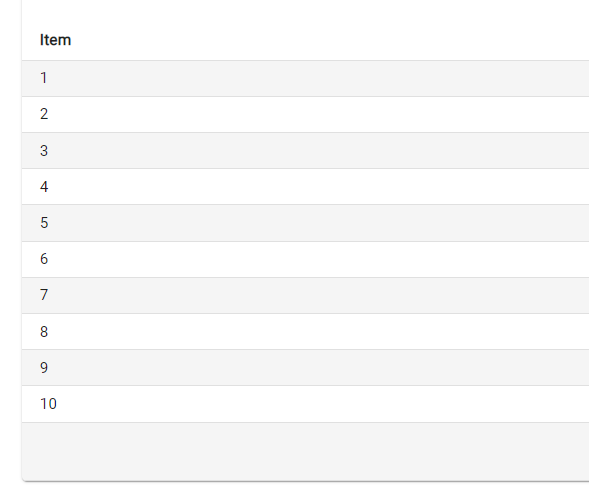
## Alternating Row Colors
You can use a theme to create a table with alternating row colors.
```powershell
$Theme = @{
overrides = @{
MuiTableRow = @{
root = @{
'&:nth-of-type(odd)' = @{
backgroundColor = "rgba(0,0,0,0.04)"
}
}
head = @{
backgroundColor = "rgb(255,255,255) !important"
}
}
}
}
New-UDDashboard -Content {
$TableData = 1..10 | % { [PSCustomObject]@{ Item = $_}}
New-UDTable -ShowPagination -PageSize 10 -PageSizeOptions @(10, 10) -DisablePageSizeAll -Columns @(
New-UDTableColumn -Property 'Item' -Title 'Item' -Width 180 -Truncate
) -Data $TableData -Dense -ShowSearch
} -Theme $Theme
```
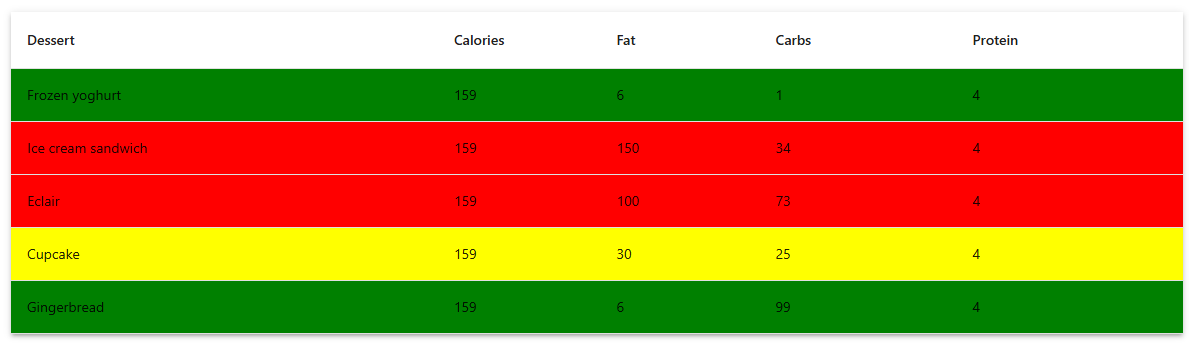
## Custom Row Styles
Table Custom Row Style
Use the `-OnRowStyle`parameter to style the rows based on the row content. Return a hashtable with CSS styles for the row.
```powershell
$Data = @(
@{Dessert = 'Frozen yoghurt'; Calories = 159; Fat = 6.0; Carbs = 1; Protein = 4.0 }
@{Dessert = 'Ice cream sandwich'; Calories = 159; Fat = 150.0; Carbs = 34; Protein = 4.0 }
@{Dessert = 'Eclair'; Calories = 159; Fat = 100.0; Carbs = 73; Protein = 4.0 }
@{Dessert = 'Cupcake'; Calories = 159; Fat = 30.0; Carbs = 25; Protein = 4.0 }
@{Dessert = 'Gingerbread'; Calories = 159; Fat = 6.0; Carbs = 99; Protein = 4.0 }
)
$Columns = @(
New-UDTableColumn -Property Dessert -Title "Dessert"
New-UDTableColumn -Property Calories -Title "Calories"
New-UDTableColumn -Property Fat -Title "Fat"
New-UDTableColumn -Property Carbs -Title "Carbs" -DefaultSortColumn
New-UDTableColumn -Property Protein -Title "Protein"
)
New-UDTable -Data $Data -Id 'table14' -Columns $Columns -OnRowStyle {
if ($EventData.Fat -lt 10) { $Color = 'green' }
elseif ($EventData.Fat -ge 10 -and $EventData.Fat -lt 50) { $Color = 'Yellow' }
else { $Color = 'Red' }
@{ backgroundColor = $Color }
}
```
## Row Click
Starting with PowerShell Universal 2027.1.0, use the `-OnRowClick` parameter of `New-UDTable` to run a script block when a row is clicked. `$EventData` contains the values of the clicked row, keyed by column name. Clicks on interactive content within the row, such as the selection checkbox, the row expand button, links, buttons and inputs, do not run the script block.
```powershell
New-UDTable -Data $TableData -OnRowClick {
Show-UDToast -Message "Clicked $($EventData.Dessert)"
}
```
## Parameters
### New-UDTable
| Name | Type | Description |
| ------------------------- | ------------ | --------------------------------------------------------------------------------------------------------------------------------------------------------------------------------- |
| Id | String | The ID of the component. Defaults to a random GUID. |
| Title | String | The title displayed at the top of the table. |
| Icon | Hashtable | An icon displayed next to the title. Use `New-UDIcon` to create it. |
| Data | Object\[] | The rows of a static table. Cannot be used with `-LoadData`. |
| LoadData | Endpoint | The script block that returns the rows of a server-side table with `Out-UDTableData`. Alias of `-LoadRows`. |
| Columns | Hashtable\[] | The columns, created with `New-UDTableColumn`. When not set, the properties of the first row become the columns. |
| ShowSort | Switch | Enables sorting. Alias: `-Sort`. |
| DisableSortRemove | Switch | Removes the unsorted state: columns are always sorted ascending or descending. |
| DefaultSortDirection | String | The direction of the default sort column. Valid values: `ascending`, `descending`. Defaults to `ascending`. |
| ShowFilter | Switch | Enables column filters. Alias: `-Filter`. |
| ShowSearch | Switch | Shows a search box that searches the columns that have `-IncludeInSearch`. Alias: `-Search`. |
| ShowPagination | Switch | Shows the pagination controls. Alias: `-Paging`. |
| PageSize | Integer | The initial number of rows per page. Defaults to `5`. |
| PageSizeOptions | Integer\[] | The page sizes the user can choose. Defaults to `5`, `10`, `20`, `50`. |
| DisablePageSizeAll | Switch | Removes the **All** page size option. |
| PaginationLocation | String | Where the pagination controls are displayed. Valid values: `top`, `bottom`, `both`. Defaults to `bottom`. |
| ShowSelection | Switch | Shows a checkbox on each row to select it. Alias: `-Select`. |
| OnRowSelection | Endpoint | A script block to run when a row is selected or unselected. |
| DisableMultiSelect | Switch | Allows the selection of a single row at a time. |
| HideToggleAllRowsSelected | Switch | Hides the checkbox that selects all the rows. |
| OnRowClick | Endpoint | Starting with PowerShell Universal 2027.1.0. A script block to run when a row is clicked. |
| OnRowExpand | ScriptBlock | A script block that returns the content displayed when a row is expanded. `$EventData` contains the row. |
| OnRowStyle | ScriptBlock | A script block that returns a hashtable of CSS styles for each row. `$EventData` contains the row. |
| ShowExport | Switch | Shows the export button. Alias: `-Export`. |
| ExportOption | String\[] | The export formats offered to the user. Valid values: `XLSX`, `PDF`, `JSON`, `CSV` (not case-sensitive). Defaults to all four. |
| ExportCurrentPageOnly | Switch | Starting with PowerShell Universal 2027.1.0. Limits **Export Current View as XLSX** to the displayed page. |
| OnExport | Endpoint | A script block that returns the rows to export. `$EventData` contains the state of the table and `allRows`. |
| ShowRefresh | Switch | Shows a refresh button. |
| AutoRefresh | Switch | Reloads the rows of a server-side table on an interval. |
| AutoRefreshInterval | Integer | The interval, in seconds, used by `-AutoRefresh`. Defaults to `10`. |
| InitialState | Hashtable | The initial state of the table, with the `pageIndex`, `pageSize`, `search`, `orderBy` (for example `@{ field = 'name' }`), `orderDirection` (`asc` or `desc`) and `filters` keys. |
| ToolbarContent | ScriptBlock | Components displayed in the toolbar of the table. |
| TextOption | Hashtable | Custom texts for the table, created with `New-UDTableTextOption`. |
| Language | String | The language of the date filter. Valid values: `en`, `de`, `ru`, `fr`, `nl`. Defaults to `en`. Alias: `-Locale`. |
| Dense | Switch | Reduces the white space of the table. |
| Size | String | The size of the table. Valid values: `small`, `medium`. Defaults to `medium`. |
| Padding | String | The padding of the cells. Valid values: `default`, `checkbox`, `none`. Defaults to `default`. |
| StickyHeader | Switch | Keeps the header visible when the table scrolls. |
| MaxHeight | Integer | The maximum height of the table, in pixels. |
| RemoveCard | Switch | Displays the table without the card (paper) and its margin. |
| HeaderStyle | Hashtable | CSS styles to apply to the header. |
| ClassName | String | A CSS class to apply to the table. |
### New-UDTableColumn
| Name | Type | Description |
| ----------------- | ----------- | ---------------------------------------------------------------------------------------------------------------------------------------------------- |
| Id | String | The ID of the column. Defaults to a random GUID. |
| Property | String | Mandatory. The property of the row displayed in the column. Not case-sensitive. |
| Title | String | The text of the column header. Defaults to the value of `-Property`. |
| Header | ScriptBlock | Components displayed in the column header instead of the title. |
| Render | ScriptBlock | A script block that returns the components displayed in the cells. `$EventData` contains the row. Alias of `-OnRender`. |
| ShowSort | Switch | Allows sorting by this column. Alias: `-Sort`. |
| SortType | String | How the values are compared when sorting. Valid values: `basic`, `datetime`, `alphanumeric`, `numeric`. Defaults to `alphanumeric`. |
| DefaultSortColumn | Switch | Sorts the table by this column when it loads. |
| ShowFilter | Switch | Shows a filter for this column. Alias: `-Filter`. |
| FilterType | String | The type of filter. Valid values: `text`, `select`, `fuzzy`, `slider`, `range`, `date`, `number`, `autocomplete`, `multiselect`. Defaults to `text`. |
| Options | String\[] | The options of a `select` filter. |
| IncludeInSearch | Switch | Includes the column in the table search. Alias: `-Search`. |
| IncludeInExport | Switch | Includes the column in the export. Alias: `-Export`. |
| Hidden | Switch | Hides the column but keeps it for filtering and exporting. |
| Width | Integer | The width of the column, in pixels. |
| Truncate | Switch | Truncates the text that does not fit in the column with an ellipsis. Use it with `-Width`. |
| Align | String | The alignment of the column. Valid values: `center`, `inherit`, `justify`, `left`, `right`. Defaults to `inherit`. |
| Style | Hashtable | CSS styles to apply to the column. |
### Out-UDTableData
| Name | Type | Description |
| ---------- | --------- | -------------------------------------------------------------------------------------------------- |
| Data | Object | Mandatory. The rows of the current page, usually passed through the pipeline. |
| Page | Integer | Mandatory. The current page. Use `$EventData.Page`. |
| TotalCount | Integer | Mandatory. The total number of rows after filtering, used by the pagination. |
| Properties | String\[] | Mandatory. The properties to return for each row. Use `$EventData.Properties`. Alias: `-Property`. |
### New-UDTableTextOption
| Name | Default |
| --------------------- | -------------------------------------------------------------------------------------------------------------------------------------------------------------------------------------------- |
| ExportAllCsv | `Export all as CSV` |
| ExportCurrentViewCsv | `Export Current View as CSV` |
| ExportAllXLSX | `Export all as XLSX` |
| ExportCurrentViewXLSX | `Export Current View as XLSX` |
| ExportAllPDF | `Export all as PDF` |
| ExportCurrentViewPDF | `Export Current View as PDF` |
| ExportAllJson | `Export all as JSON` |
| ExportCurrentViewJson | `Export Current View as JSON` |
| ExportFileName | `File Name` |
| Search | `Search {0} records...` (`{0}` is replaced by the number of rows) |
| FilterSearch | `Search {0} records...` (`{0}` is replaced by the number of rows) |
| Export | Empty |
| FilterDate | `Filter Date` |
| NoData | `No Data` |
| Loading | `Loading...` |
| RowsPerPage | `Rows per page:` |
| CountDescription | Empty. A format for the row count of the pagination, with `%s` placeholders for the first row, the last row and the total number of rows. When empty, the count is displayed as `1–5 of 20`. |
| ExportError | Starting with PowerShell Universal 2027.1.0. `The export callback failed.` |
| ExportInvalidResult | Starting with PowerShell Universal 2027.1.0. `The export callback must return an array of rows.` |
## API
* [New-UDTable](https://docs.devolutions.net/powershell-universal/powershell-commands/new-udtable.md)
* [New-UDTableColumn](https://docs.devolutions.net/powershell-universal/powershell-commands/new-udtablecolumn.md)
* [Out-UDTableData](https://docs.devolutions.net/powershell-universal/powershell-commands/out-udtabledata.md)
* [New-UDTableTextOption](https://docs.devolutions.net/powershell-universal/powershell-commands/new-udtabletextoption.md)
#### See also
* [Devolutions Academy – Adding data tables](https://academy.devolutions.net/student/page/3466031-adding-data-tables?curriculum_activity_id=5612258\&path_id=3465905\&sid=1b852f65-706e-452f-a2b6-96b76149ddb2\&sid_i=0)
* [Devolutions Academy – Server side data tables](https://academy.devolutions.net/student/page/3466033-server-side-data-tables?curriculum_activity_id=5612259\&path_id=3465905\&sid=aa0a98ab-11ef-4ae6-83f0-e28f268d8343\&sid_i=0)
---
# Agent Instructions
This documentation is published with GitBook. GitBook is the documentation platform designed so that both humans and AI agents can read, navigate, and reason over technical content effectively. Learn more at gitbook.com.
## Querying This Documentation
If you need additional information that is not directly available in this page, you can query the documentation by asking a question.
Perform an HTTP GET request on the following URL with the `ask` and `goal` query parameters:
```
GET https://docs.devolutions.net/powershell-universal/apps/components/data-display/table.md?ask=&goal=
```
`ask` is the immediate question: it should be specific, self-contained, and written in natural language.
`goal` is what the user is ultimately trying to achieve, the reason they need the answer. Sharing it helps GitBook give you a better, more relevant answer. A goal is most helpful when it describes the outcome the user wants rather than restating the question. For example, with `ask=how do I create an API token`, a goal like `automate deployments from our CI pipeline` lets GitBook tailor the answer to that use case.
The response will contain a direct answer to the question and relevant excerpts and sources from the documentation.
Use this mechanism when the answer is not explicitly present in the current page, you need clarification or additional context, or you want to retrieve related documentation sections.