> For the complete documentation index, see [llms.txt](https://docs.devolutions.net/llms.txt). Markdown versions of documentation pages are available by appending `.md` to page URLs; this page is available as [Markdown](https://docs.devolutions.net/password-manager/es/browser-extension/devolutions-password-manager-browser-extension-with-devolutions-server/first-login-to-devolutions-server-with-the-devolutions-password-manager-browser-extension.md).

# Primer inicio de sesión en Devolutions Server con la extensión de navegador de Devolutions Password Manager

Siga estos pasos para conectar Devolutions Server a la extensión de navegador Devolutions Password Manager:

1. Haga clic en la extensión de navegador Devolutions Password Manager en la esquina superior derecha de su navegador.

   <div data-gb-custom-block data-tag="hint" data-style="success" class="hint hint-success"><p>Se requiere un acceso a Devolutions Server para continuar.</p></div>
2. Elija ***Devolutions Server*** en la lista y, a continuación, haga clic en ***Guardar***.
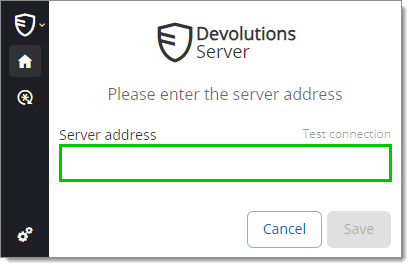
3. Introduzca la dirección de su servidor. Debe introducir la misma información que utilizaría para conectarse a la interfaz web de su Devolutions Server. Pruebe la conexión para validarla y, a continuación, haga clic en ***Guardar***.

   <figure><img src="https://cdnweb.devolutions.net/docs/WEBX4048_2024_2.png" alt=""><figcaption></figcaption></figure>
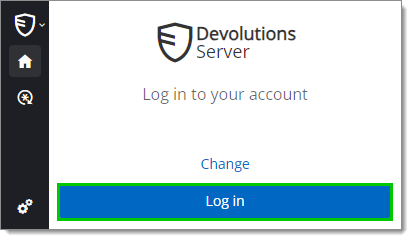
4. ***Inicie sesión*** en su cuenta.

   <figure><img src="https://cdnweb.devolutions.net/docs/WEBX4049_2024_2.png" alt=""><figcaption></figcaption></figure>
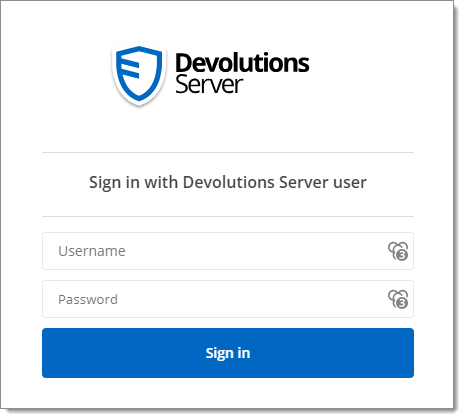
5. Introduzca sus credenciales de Devolutions Server y haga clic en ***Iniciar sesión***.

   <figure><img src="https://cdnweb.devolutions.net/docs/WEBX4050_2024_2.png" alt=""><figcaption></figcaption></figure>
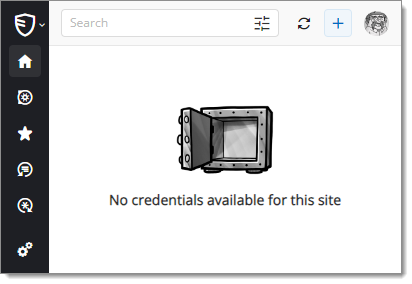
6. Si hace clic en el icono de la extensión de navegador Devolutions Password Manager en su navegador web, podrá comprobar que la extensión de navegador Devolutions Password Manager ya está conectada a su Devolutions Server.

   <figure><img src="https://cdnweb.devolutions.net/docs/WEBX4052_2024_2.png" alt=""><figcaption></figcaption></figure>
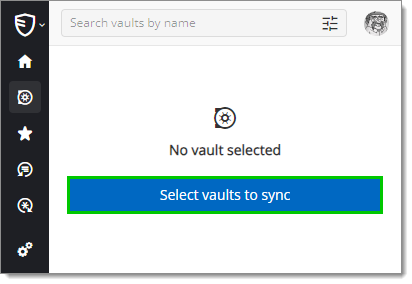
7. Para seleccionar las bóvedas que se sincronizarán, haga clic en la pestaña ***Bóvedas*** y, a continuación, en el botón ***Seleccionar bóvedas para sincronizar***.

   <figure><img src="https://cdnweb.devolutions.net/docs/WEBX4053_2024_2.png" alt=""><figcaption></figcaption></figure>
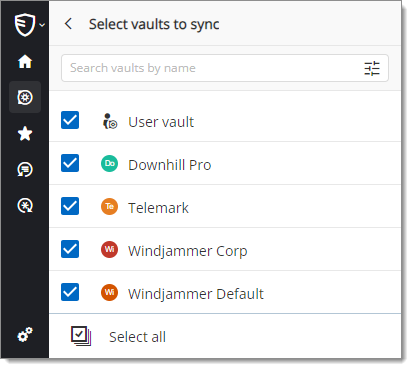
8. Haga clic en ***Seleccionar todo*** o marque individualmente las bóvedas que desea sincronizar.

   <figure><img src="https://cdnweb.devolutions.net/docs/WEBX4054_2024_2.png" alt=""><figcaption></figcaption></figure>
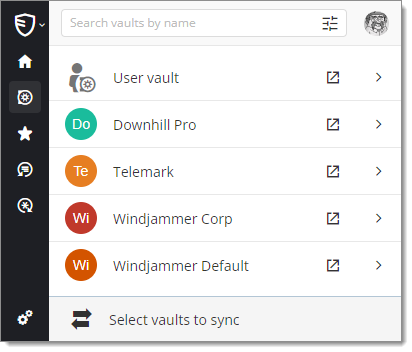
9. Cuando haya seleccionado sus bóvedas, haga clic en ***Seleccionar bóvedas para sincronizar*** en la parte superior del panel para ver sus bóvedas sincronizadas.

   <figure><img src="https://cdnweb.devolutions.net/docs/WEBX4055_2024_2.png" alt=""><figcaption></figcaption></figure>


---

# Agent Instructions
This documentation is published with GitBook. GitBook is the documentation platform designed so that both humans and AI agents can read, navigate, and reason over technical content effectively. Learn more at gitbook.com.

## Querying This Documentation
If you need additional information that is not directly available in this page, you can query the documentation dynamically by asking a question.

Perform an HTTP GET request on the current page URL with the `ask` query parameter, and the optional `goal` query parameter:

```
GET https://docs.devolutions.net/password-manager/es/browser-extension/devolutions-password-manager-browser-extension-with-devolutions-server/first-login-to-devolutions-server-with-the-devolutions-password-manager-browser-extension.md?ask=<question>&goal=<endgoal>
```

`ask` is the immediate question: it should be specific, self-contained, and written in natural language.
`goal` is optional and describes the broader end goal you are ultimately trying to accomplish on behalf of the user. GitBook uses it to tailor the answer towards what is most useful for that goal.

The response will contain a direct answer to the question and relevant excerpts and sources from the documentation.

Use this mechanism when the answer is not explicitly present in the current page, you need clarification or additional context, or you want to retrieve related documentation sections.