> For the complete documentation index, see [llms.txt](https://docs.devolutions.net/llms.txt). Markdown versions of documentation pages are available by appending `.md` to page URLs; this page is available as [Markdown](https://docs.devolutions.net/password-manager/de/browser-extension/devolutions-password-manager-browser-extension-with-devolutions-server/first-login-to-devolutions-server-with-the-devolutions-password-manager-browser-extension.md).

# Erste Anmeldung bei Devolutions Server mit der Devolutions Password Manager Browsererweiterung

Führen Sie diese Schritte aus, um Devolutions Server mit der Devolutions Password Manager-Browsererweiterung zu verbinden:

1. Klicken Sie auf die Devolutions Password Manager-Browsererweiterung in der oberen rechten Ecke Ihres Browsers.

   <div data-gb-custom-block data-tag="hint" data-style="success" class="hint hint-success"><p>Ein Devolutions Server-Zugang ist erforderlich, um fortzufahren.</p></div>
2. Wählen Sie ***Devolutions Server*** in der Liste aus und klicken Sie dann auf ***Speichern***.
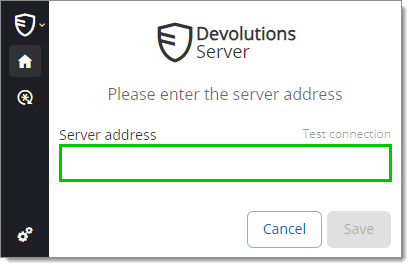
3. Geben Sie die Adresse Ihres Servers ein. Sie müssen dieselben Informationen eingeben, die Sie für die Verbindung zur Weboberfläche Ihres Devolutions Server verwenden würden. Testen Sie die Verbindung, um sie zu validieren, und klicken Sie dann auf ***Speichern***.

   <figure><img src="https://cdnweb.devolutions.net/docs/WEBX4048_2024_2.png" alt=""><figcaption></figcaption></figure>
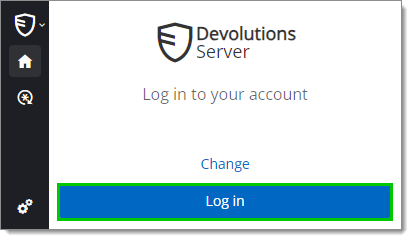
4. ***Melden Sie sich*** bei Ihrem Konto an.

   <figure><img src="https://cdnweb.devolutions.net/docs/WEBX4049_2024_2.png" alt=""><figcaption></figcaption></figure>
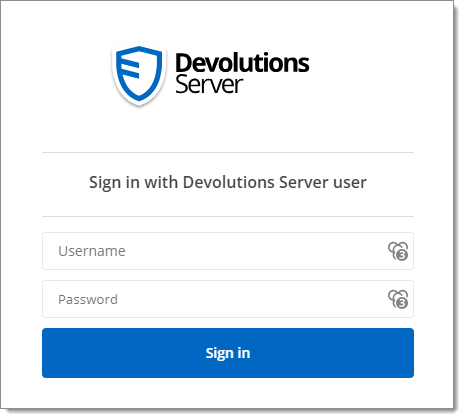
5. Geben Sie Ihre Devolutions Server-Anmeldeinformationen ein und klicken Sie auf ***Anmelden***.

   <figure><img src="https://cdnweb.devolutions.net/docs/WEBX4050_2024_2.png" alt=""><figcaption></figcaption></figure>
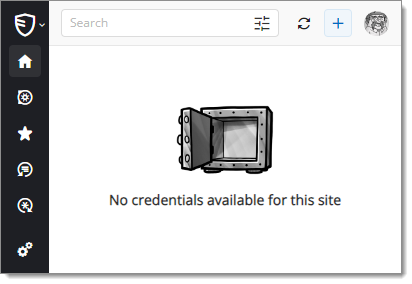
6. Wenn Sie in Ihrem Webbrowser auf das Symbol der Devolutions Password Manager-Browsererweiterung klicken, können Sie überprüfen, ob die Devolutions Password Manager-Browsererweiterung nun mit Ihrem Devolutions Server verbunden ist.

   <figure><img src="https://cdnweb.devolutions.net/docs/WEBX4052_2024_2.png" alt=""><figcaption></figcaption></figure>
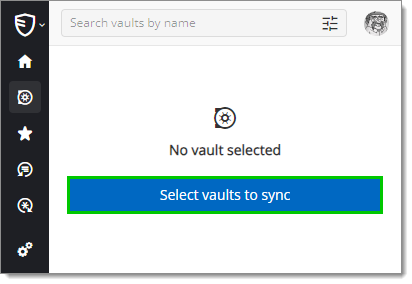
7. Um die zu synchronisierenden Tresore auszuwählen, klicken Sie auf die Registerkarte ***Tresore*** und dann auf die Schaltfläche ***Select vaults to Sync***.

   <figure><img src="https://cdnweb.devolutions.net/docs/WEBX4053_2024_2.png" alt=""><figcaption></figcaption></figure>
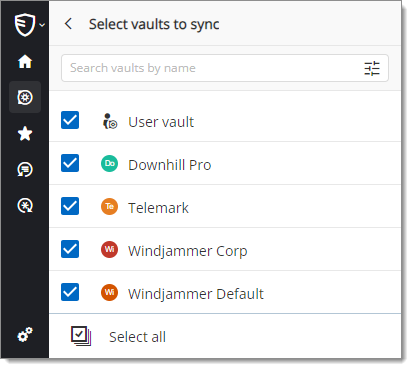
8. Klicken Sie auf ***Select All*** oder markieren Sie die zu synchronisierenden Tresore einzeln.

   <figure><img src="https://cdnweb.devolutions.net/docs/WEBX4054_2024_2.png" alt=""><figcaption></figcaption></figure>
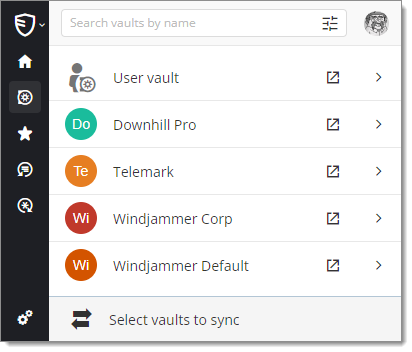
9. Wenn Ihre Tresore ausgewählt wurden, klicken Sie oben im Bereich auf ***Select vaults to Sync***, um Ihre synchronisierten Tresore anzuzeigen.

   <figure><img src="https://cdnweb.devolutions.net/docs/WEBX4055_2024_2.png" alt=""><figcaption></figcaption></figure>


---

# Agent Instructions
This documentation is published with GitBook. GitBook is the documentation platform designed so that both humans and AI agents can read, navigate, and reason over technical content effectively. Learn more at gitbook.com.

## Querying This Documentation
If you need additional information that is not directly available in this page, you can query the documentation dynamically by asking a question.

Perform an HTTP GET request on the current page URL with the `ask` query parameter, and the optional `goal` query parameter:

```
GET https://docs.devolutions.net/password-manager/de/browser-extension/devolutions-password-manager-browser-extension-with-devolutions-server/first-login-to-devolutions-server-with-the-devolutions-password-manager-browser-extension.md?ask=<question>&goal=<endgoal>
```

`ask` is the immediate question: it should be specific, self-contained, and written in natural language.
`goal` is optional and describes the broader end goal you are ultimately trying to accomplish on behalf of the user. GitBook uses it to tailor the answer towards what is most useful for that goal.

The response will contain a direct answer to the question and relevant excerpts and sources from the documentation.

Use this mechanism when the answer is not explicitly present in the current page, you need clarification or additional context, or you want to retrieve related documentation sections.