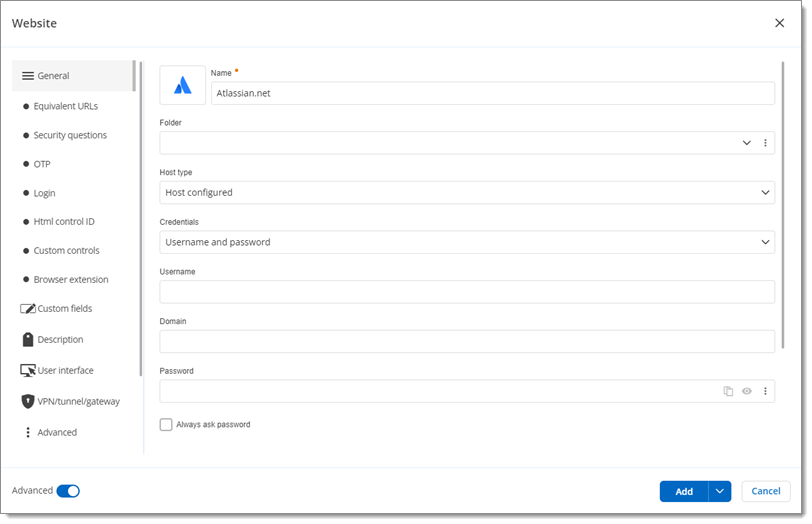
Select an option from the drop-down list between:
This option is only used when opened in Remote Desktop Manager, with Devolutions Launcher, or via the Navigate URL button.
| #### Equivalent URLs | FIELD/SETTING | DESCRIPTION | | ---------------- | ---------------------------------------------------------------------------------------------------------------------------------------------------------------------------------------------------------------------------------------------------------- | | **Add** | Add a new equivalent URL. | | **Website** | Enter a URL that leads to the same page or is equivalent to the one in the ***URL*** field. | | **Compare type** | Select how the entered URL is compared and matched to the website URL. Choose between ***Default***, ***Base domain***, ***Compare regex with URL domain***, ***Compare regex with full URL***, ***Host***, ***Start with***, ***Exact***, or ***Never***. | #### OTP | FIELD/SETTING | DESCRIPTION | | ------------------------- | ---------------------------------------------------------------------------------------------------------------------------------------------------------------------------------------------------------------------------------------------------------------------------------------------------------------------------------- | | **Source** | Select the OTP ***Source*** in the drop-down list between ***None***, ***Username and password***, ***Linked (vault)***, ***Current session***, ***Prompt***, or ***Inherited***. Selecting***Username and password*** gives access to the other settings in this table. | | **Key** | Enter the OTP ***Key***. This field is only available if***Username and password*** is selected in the ***Source*** drop-down list. | | **Reveal/Hide password** | Reveal or hide the OTP key entered in the ***Key*** field. This button is only available next to the ***Key*** field if ***Username and password*** is selected in the ***Source*** drop-down list. | | **Account** | Enter the ***Account*** information. This field is only available if***Username and password*** is selected in the ***Source*** drop-down list. | | **QR Code - Application** | Enter the OTP ***QR Code***. This field is only available if ***Username and password*** is selected in the ***Source*** drop-down list. | | **Time step** | Set the duration of validity of each password (in seconds). This value must be set to at least 15 seconds. This field is only available if ***Username and password*** is selected in the ***Source*** drop-down list. | | **Code size** | Select the size of the code, between ***6 Digits*** or ***8 Digits***. This drop-down list is only available if ***Username and password*** is selected in the ***Source*** drop-down list. | | **Hash algorithm** | Select the secure hash algorithm (SHA) between ***SHA-1***, ***SHA-256***, or ***SHA-512***. This drop-down list is only available if ***Custom*** is selected in the ***Source*** drop-down list. To learn about secure hash algorithm, visit [SHA-256](https://docs.devolutions.net/resources/other-resources/what-is-sha-256/). | | **Usage** | Affix the OTP code. See [OTP usage with entries](https://docs.devolutions.net/rdm/kb/how-to-articles/otp-usage-entries/#usage) for more details about each setting. | #### Login | FIELD/SETTING | DESCRIPTION | | -------------------------- | ----------------------------------------------------------------------------------------------------------------------------------------------------------------------------------------------------------------------------------------------------------------------------------------------------------------------------------------------------------------------------------------------------------------------------------------------------------------------------------------------------------------------------------------------------------------------------------------------------------------------------------------------------------------------------------- | | **Authentication** | Select between ***Form*** or ***Basic*** authentication depending on the website. The default value is ***Form*** and, in most cases, it does not need to be modified. | | **Autofill login** | Enable this option to allow the Devolutions Password Manager browser extension to automatically fill in credentials when loading the website login page. This only applies to that specific entry. ***Autofill login*** is similar to the ***Automatically fill in credentials on load*** feature in the Devolutions Password Manager browser extension [***Settings***](https://docs.devolutions.net/password-manager/browser-extension/settings/), with the difference that the former applies only to the specific entry and the latter applies to all entries. Note that the Devolutions Password Manager browser extension setting overrides the ***Autofill login*** setting. | | **Auto submit** | Enable this option to make the Devolutions Password Manager browser extension automatically submit the credentials after they are filled in. This only applies to that specific entry. ***Auto submit*** is similar to the ***Automatically submit the form after filling*** feature in the Devolutions Password Manager browser extension [***Settings***](https://docs.devolutions.net/password-manager/browser-extension/settings/), with the difference that the former applies only to the specific entry and the latter applies to all entries. Note that the Devolutions Password Manager browser extension setting overrides the ***Auto submit*** setting. | | **URL encode credentials** | Enable this option to encode the credentials in the website URL. This option is only available if ***Basic*** is selected in the ***Authentication*** drop-down list. | | **Autofill delay** | Enable this option to apply a delay before the Devolutions Password Manager browser extension automatically fills in credentials. This option is only available if ***Form*** is selected in the ***Authentication*** drop-down list. | #### Html Control ID | FIELD/SETTING | DESCRIPTION | | ------------------------ | ---------------------------------------------------------- | | **Form ID** | Enter the ***Form ID*** of the login website. | | **Username ID** | Enter the ***Username ID*** of the login website. | | **Domain ID** | Enter the ***Domain ID*** of the login website. | | **Password ID** | Enter the ***Password ID*** of the login website. | | **One time password ID** | Enter the ***One time password ID*** of the login website. | | **Login button ID** | Enter the ***Login button ID*** of the login website. | #### Custom Controls | FIELD/SETTING | DESCRIPTION | | --------------------------- | ---------------------------------------------------------------------------------------------------------------------------------------------------------------------- | | **Add** | Add a new ***Custom Control***. | | **Form ID** | Enter the ***Form ID*** of the login website. | | **Control ID** | Enter the ***Control ID*** of the login website. | | **Input type** | Select the ***Input type*** between ***text***, ***email***, or ***password***. | | **Value** | Enter the ***Value*** for the ***Custom Control***. | | **Mask information** | Enable this option to hide the information in the ***Value*** field. This also makes the ***Reveal/Hide password*** button and the password strength indicator appear. | | **Reveal/Hide password** | Reveal or hide the password that was entered. This field is only available next to the ***Value*** field if the ***Mask information*** option is enabled. | | **Always prompt for value** | Enable this option to be asked to enter the value each time instead of filling in the ***Value*** field above. | #### Browser extension | FIELD/SETTING | DESCRIPTION | | ----------------------------------------------------------------- | --------------------------------------------------------------------------------------------------------------------------------------------------------------------------------------------------------------------------------------------------------------------------------------------------------------------------------------------------------------------------------------- | | **Allow Devolutions Password Manager browser extension autofill** |Select from the drop-down list between:
Choose from the drop-down list between:
See URLs comparing types for more details on each setting.
| #### Custom Fields | FIELD/SETTING | DESCRIPTION | | --------------- | --------------------------------------------------------------------------------------------------------------------------------------------------------------------------------------------------------------------------------------------------------------------------------------------------------------------- | | **Custom #1-5** | Enter a name for the custom field. | | **Value** | Enter a value for the custom field. | | **Hide/Reveal** | Hide or reveal the value of the custom field. This button is only available for ***Hidden Custom Fields*** (see below). The value of a hidden custom field is encrypted and protected with the ***View sensitive*** permission. | | **Add** | Create a new custom field using this button. Select between ***Text*** or ***Hidden***. Both of them allow to enter a value for a custom field. Selecting ***Text*** gives more text options in the ***Value*** field, while selecting ***Hidden*** gives access to the ***Hide/Reveal*** option (see setting above). | #### Description | FIELD/SETTING | DESCRIPTION | | ------------------ | ------------------------------------------------------------------------------------------------------------------------------------------------------ | | **Description** | Enter a description for the new entry. | | **Tags** | Add keywords (tags) to find the entry more easily or to better categorize it. Press the Enter key after entering each tag to separate them. | | **Expires after** | Enable this option to set an expiration date for the entry. The date can be selected in the field next to this setting. | | **Host** | Enter the host name. | | **Alternate host** |Select from the drop-down list between: