> For the complete documentation index, see [llms.txt](https://docs.devolutions.net/llms.txt). Markdown versions of documentation pages are available by appending `.md` to page URLs; this page is available as [Markdown](https://docs.devolutions.net/password-manager/browser-extension/devolutions-password-manager-browser-extension-with-devolutions-cloud/devolutions-password-manager-browser-extension-user-interface-with-devolutions-cloud/side-menu.md).
# Side menu
Using the ***Side menu*** tabs, you can access various Devolutions Password Manager browser extension features. Each tab displays a different view in the ***Content area***.
When using the Devolutions Password Manager browser extension with Devolutions Cloud, the available tabs are the ***Matching*** tab, the ***Vaults*** tab, the ***User vault*** tab, the ***Password generator*** tab, and the ***Settings*** tab.
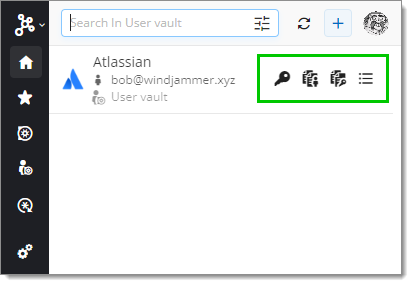
In all tabs except the ***Password generator*** tab, when hovering over an entry, three new options appear: the ***Copy username***, ***Copy password***, and ***View*** buttons. Go to the Entries functionalities section for more information.
### Side menu Tabs
#### Matching tab
The extension opens on the ***Matching*** tab. This is where you will see the list of credentials available for the particular website you are on.
{% hint style="info" %}
For methods of retrieving your credentials, visit [Retrieve credentials from Devolutions Cloud with the Devolutions Password Manager browser extension](https://docs.devolutions.net/password-manager/browser-extension/devolutions-password-manager-browser-extension-with-devolutions-cloud/using-the-devolutions-password-manager-browser-extension-with-devolutions-cloud/retrieve-credentials/).
{% endhint %}
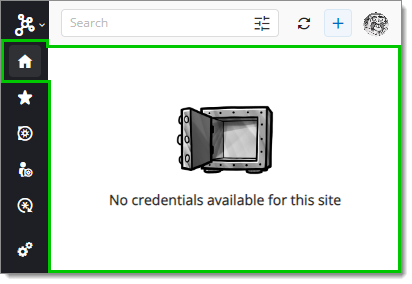
At the top, you can use the ***Search*** bar to filter through all your credentials, not just those applicable to the website. You can also use the ***Refresh*** button next to it to update the search results.
The ***Add Website*** button (+) opens a new browser tab that allows you to manually add a website entry in Devolutions Cloud through the Devolutions Password Manager browser extension.
{% hint style="info" %}
For a complete list of the available fields in the ***Add website*** window, visit [Add Website](https://docs.devolutions.net/password-manager/browser-extension/devolutions-password-manager-browser-extension-with-devolutions-cloud/user-interface/side-menu/add-website/). You can also consult our step-by-step guide on [how to add a website entry](https://docs.devolutions.net/password-manager/browser-extension/devolutions-password-manager-browser-extension-with-devolutions-cloud/using-the-devolutions-password-manager-browser-extension-with-devolutions-cloud/add-website/).
{% endhint %}
#### Favorites tab
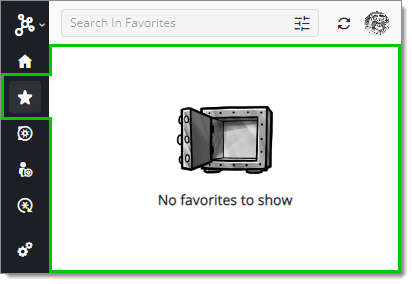
The ***Favorites*** tab contains all favorited entries. To search for a particular entry, use the filter option located in the ***Top menu***.
#### Vaults tab
{% hint style="info" %}
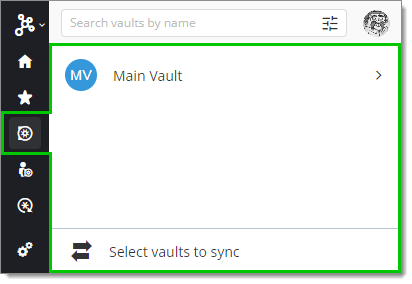
When accessing the ***Vaults*** tab for the first time, you need to select the Devolutions Cloud vaults you want to synchronize with the Devolutions Password Manager browser extension. Learn more about it in [First login with the Devolutions Password Manager browser extension](https://docs.devolutions.net/password-manager/browser-extension/devolutions-password-manager-browser-extension-with-devolutions-cloud/first-login/).
{% endhint %}
The ***Vaults*** tab allows you to browse through all your synchronized vaults for your entries.
At the top, you can use the ***Filter*** bar to search through all your vaults for entries.
To access a vault in the Devolutions Password Manager browser extension, click on it and navigate through the folders to manually find the entry you are looking for. The folder structure is identical to that of your Devolutions Cloud.
#### User vault tab
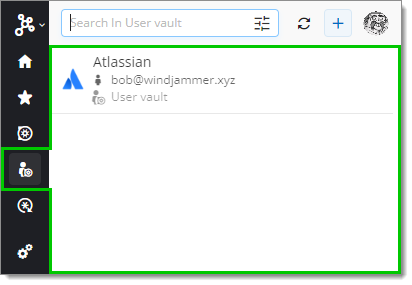
The ***user vault*** tab works the same way as the ***Vaults*** tab, except that you navigate through your ***user vault*** instead of your other vaults. You also do not have to select vaults to synchronize as the only vault available in this tab is your own ***user vault***.
At the top, you can use the ***Filter*** bar to search through all your folders and entries.
To access an entry in the Devolutions Password Manager browser extension, navigate through the folders to manually find the entry you are looking for. The folder structure is identical to that of your Devolutions Cloud.
When navigating in the folders, the [***Add Website***](https://docs.devolutions.net/password-manager/browser-extension/devolutions-password-manager-browser-extension-with-devolutions-cloud/user-interface/side-menu/add-website/) button will appear at the bottom of the ***Content area***.
#### Password generator tab
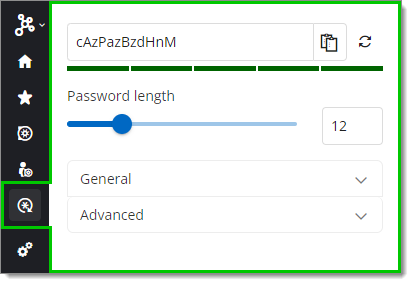
The ***Password generator*** tab assists you in creating a strong and secure password adapted to your needs and to website requirements for your new account.
Your custom password is generated at the top of the ***Content area*** with a strenght indicator below it. You can copy it or generate a new one using the ***Copy to clipboard*** and ***Generate password*** buttons respectively. The ***Password lenght***, which is set to 12 by default, can also be adjusted.
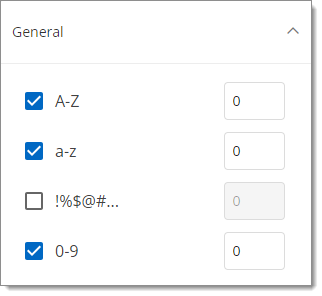
In the ***General*** drop-down section, you are able to select the types of characters that your password must contain as well as the minimum number of characters of each type that must be included.
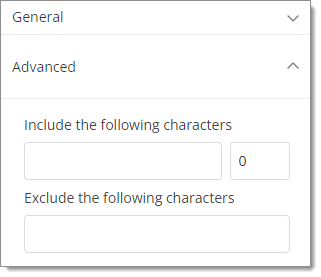
In the ***Advanced*** drop-down section, you are able to further customize your password by entering characters you want included in your password, followed by the minimum number of times they must appear. In the second field, you can also enter characters you want excluded from your password.
{% hint style="info" %}
To learn how to use the ***Password Generator*** when creating an account on a website, visit [Create an account for a website in Devolutions Cloud with the Devolutions Password Manager browser extension](https://docs.devolutions.net/password-manager/browser-extension/devolutions-password-manager-browser-extension-with-devolutions-cloud/using-the-devolutions-password-manager-browser-extension-with-devolutions-cloud/create-an-account-for-a-website/).
{% endhint %}
#### Entry functionalities
No matter what tab you are in (except the ***Password Generator*** tab), when hovering over an entry, three new options appear: the ***Copy Username***, ***Copy Password***, and ***Overview*** buttons.
The ***Copy username*** and ***Copy password*** buttons copy the username/password of the entry to your clipboard.
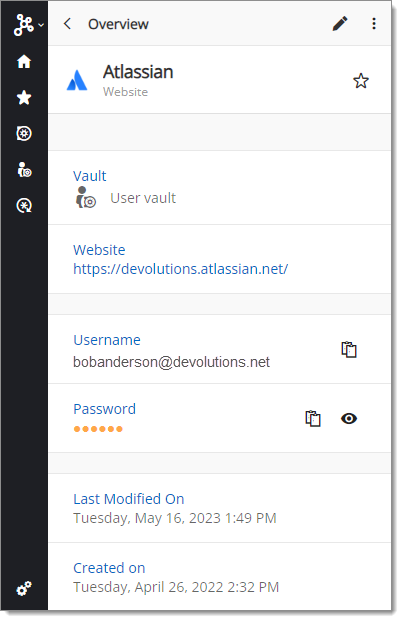
The ***Overview*** button gives you an overview of the entry as well as additional functionalities. The availability of information and functionalities depends on the type of entry and the information provided in the entry, although some of them are always available:
* ***Edit***/***Delete*** the entry with the ellipses button at the top right.
* View the location of your entry under the ***vault*** and ***folder*** (if it is located under a folder) sections.
* See when the entry was last modified and created under the ***Last Modified On*** and ***Created on*** sections respectively.
Other information and functionalities will depend on what you provided when creating the entry (username, password, tags, description, etc.).
---
# Agent Instructions
This documentation is published with GitBook. GitBook is the documentation platform designed so that both humans and AI agents can read, navigate, and reason over technical content effectively. Learn more at gitbook.com.
## Querying This Documentation
If you need additional information that is not directly available in this page, you can query the documentation dynamically by asking a question.
Perform an HTTP GET request on the current page URL with the `ask` query parameter, and the optional `goal` query parameter:
```
GET https://docs.devolutions.net/password-manager/browser-extension/devolutions-password-manager-browser-extension-with-devolutions-cloud/devolutions-password-manager-browser-extension-user-interface-with-devolutions-cloud/side-menu.md?ask=&goal=
```
`ask` is the immediate question: it should be specific, self-contained, and written in natural language.
`goal` is optional and describes the broader end goal you are ultimately trying to accomplish on behalf of the user. GitBook uses it to tailor the answer towards what is most useful for that goal.
The response will contain a direct answer to the question and relevant excerpts and sources from the documentation.
Use this mechanism when the answer is not explicitly present in the current page, you need clarification or additional context, or you want to retrieve related documentation sections.