> For the complete documentation index, see [llms.txt](https://docs.devolutions.net/llms.txt). Markdown versions of documentation pages are available by appending `.md` to page URLs; this page is available as [Markdown](https://docs.devolutions.net/pam/pam-with-devolutions-cloud/privileged-accounts.md).
# Privileged accounts
Devolutions Cloud's privileged access management module allows privileged account passwords to be automatically reset once access has expired. You can also manually trigger the password reset via the menu.
Privileged accounts are added and managed in the PAM vault. The accounts can be organized within folders or directly saved in the root.
{% hint style="info" %}
You can use the ***Check-out*** feature to request temporary access to a privileged account entry in a PAM vault. The approver must then approve or deny the request. To learn more about this process, see [Request access to a privileged account](https://docs.devolutions.net/pam/pam-with-devolutions-cloud/privileged-accounts/request-access-privileged-account/) or [Approve access to a privileged account](https://docs.devolutions.net/pam/pam-with-devolutions-cloud/privileged-accounts/approve-access-privileged-account/).
{% endhint %}
### Create a privileged account entry
The only entry types that can be added in your PAM vault (except for folders) are ***Entra ID users*** and managed ***Providers***.
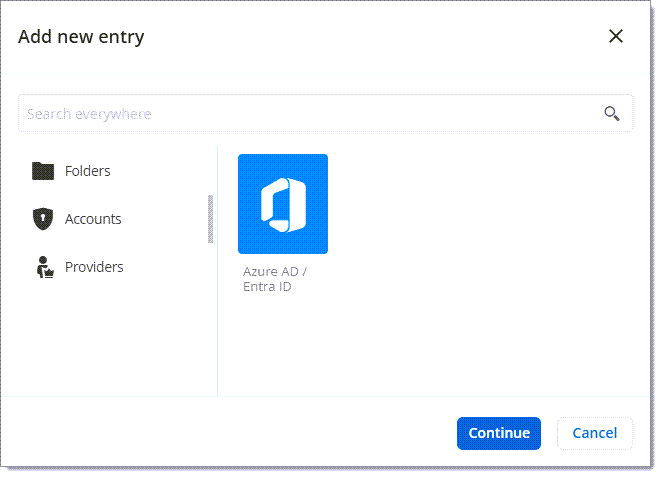
When creating your privileged account, you need to provide some information. See the table below.
#### General information
| Option | Description |
| ---------- | ------------------------------------------------------------------------------------------- |
| **Name** | Name of the privileged account entry. |
| **Folder** | Location of the entry inside the PAM vault. Leave it empty to create the entry at the root. |
#### Connection information
| Option | Description |
| -------------------- | ------------------------------------------------------------------------------------------------------------------------------------------------------------------------------------------------------------------------------------------------------------------------------------------------------------------------------------------------------------------------------------------------------------------------- |
| **Provider** | Name of the PAM provider. |
| **Username** | Username of the privileged account. The username must match the real username used in the provider. |
| **Current password** | If you know the password, enter it here. If not, you can leave this field blank and reset the password on the entry after its creation. Editing your password in the ***Edit credential*** window only changes your password in the Devolutions Cloud database. The password will not be updated on the domain. If you would like to change your password everywhere, click ***Reset password*** on the credential entry. |
#### Password settings
| Option | Description |
| ------------------------ | ----------------------------------------------------------------------------------------------------------------------------------------------------------------------------------------------------------------------------------------------------------------------------------------------------------------------------------------------------------------- |
| **Password policy mode** | Select the password policy mode to use between:
- Inherited: Inherits the password policy specified in the parent folder.
- Custom: Select a custom password policy previously created.
- From provider: Uses the provider's password policy.
|
### Verifying your configuration
To make sure that your configuration and the Devolutions Cloud Services installation work properly, try resetting your password after having created the entry. To do so, select the entry in the ***navigation pane***. Then, click the ellipsis button at the top right and select ***Reset password***.
In the entry logs, you can see the different activities from the request to the password reset.
To see the password reset status, go to the [***Tasks***](https://docs.devolutions.net/pam/pam-with-devolutions-cloud/privileged-access-reports/tasks/) report in ***Reports – Privileged access – Tasks***. If it worked, you will see that the task status is set to ***Completed***.
---
# Agent Instructions
This documentation is published with GitBook. GitBook is the documentation platform designed so that both humans and AI agents can read, navigate, and reason over technical content effectively. Learn more at gitbook.com.
## Querying This Documentation
If you need additional information that is not directly available in this page, you can query the documentation dynamically by asking a question.
Perform an HTTP GET request on the current page URL with the `ask` query parameter:
```
GET https://docs.devolutions.net/pam/pam-with-devolutions-cloud/privileged-accounts.md?ask=
```
The question should be specific, self-contained, and written in natural language.
The response will contain a direct answer to the question and relevant excerpts and sources from the documentation.
Use this mechanism when the answer is not explicitly present in the current page, you need clarification or additional context, or you want to retrieve related documentation sections.