> For the complete documentation index, see [llms.txt](https://docs.devolutions.net/llms.txt). Markdown versions of documentation pages are available by appending `.md` to page URLs; this page is available as [Markdown](https://docs.devolutions.net/pam/de/pam-with-devolutions-server/password-propagation-scripts/create-a-script-template.md).
# Eine Skriptvorlage erstellen
Erstellen Sie eine benutzerdefinierte PowerShell-Skriptvorlage für die PAM-Passwortweitergabe in Devolutions Server – von der Eigenschaftszuordnung bis zur Skripterstellung.
Obwohl Devolutions eine große Auswahl an PowerShell-Skriptvorlagen anbietet, können Administratoren eigene erstellen. Hier sind die Schritte dazu:
1. Melden Sie sich mit einem Administratorkonto bei Devolutions Server an.
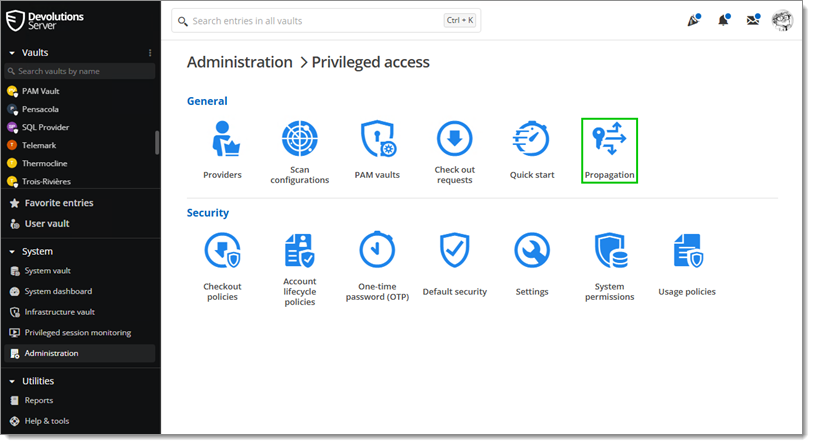
2. Gehen Sie zu ***Administration*** – ***Module*** – ***Privilegierter Zugriff*** – ***Passwortweitergabe***.
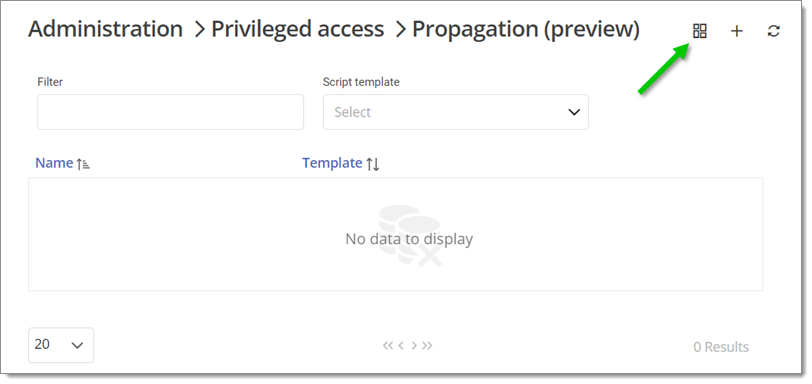
3. Klicken Sie auf ***Skriptvorlagen***.
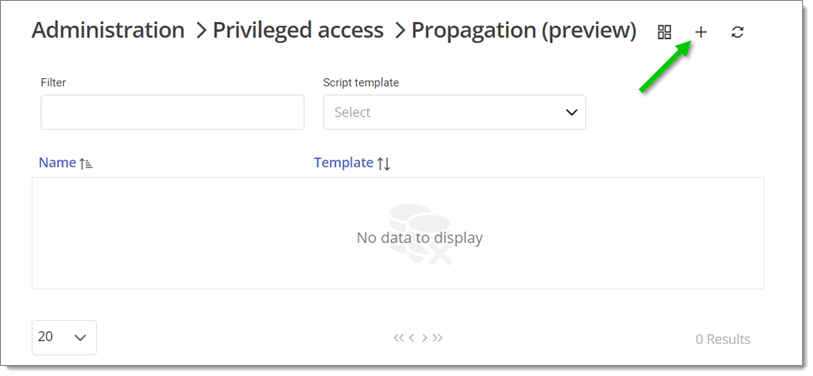
4. Klicken Sie auf ***Hinzufügen***.
5. Fügen Sie im Tab ***Allgemein*** einen ***Namen*** für diese Vorlage hinzu.
Es ist möglich, eine Beschreibung hinzuzufügen. Das Symbol kann ebenfalls geändert werden, indem Sie darauf klicken.
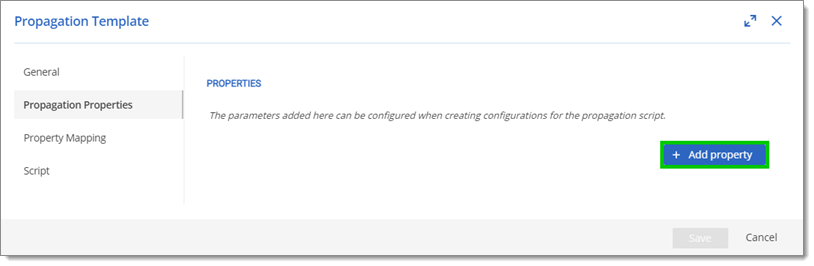
6. Fügen Sie im Tab ***Passwortweitergabe-Eigenschaften*** die Variablen für das Skript hinzu, indem Sie auf ***+ Eigenschaft hinzufügen*** klicken. Die in diesem Tab hinzugefügten Variablen sollten die URL zum Remote-Computer darstellen (d. h. ComputerIP, Username, Password und RootFolder).
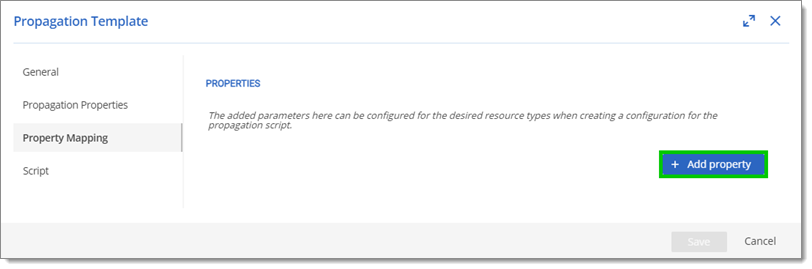
7. Fügen Sie im Tab ***Eigenschaftszuordnung*** die Variablen für das Skript hinzu, indem Sie auf ***+ Eigenschaft hinzufügen*** klicken. Die in diesem Tab hinzugefügten Variablen sollten die ***Feldzuordnung*** des Remote-Computers darstellen (d. h. FileName und FilePath).
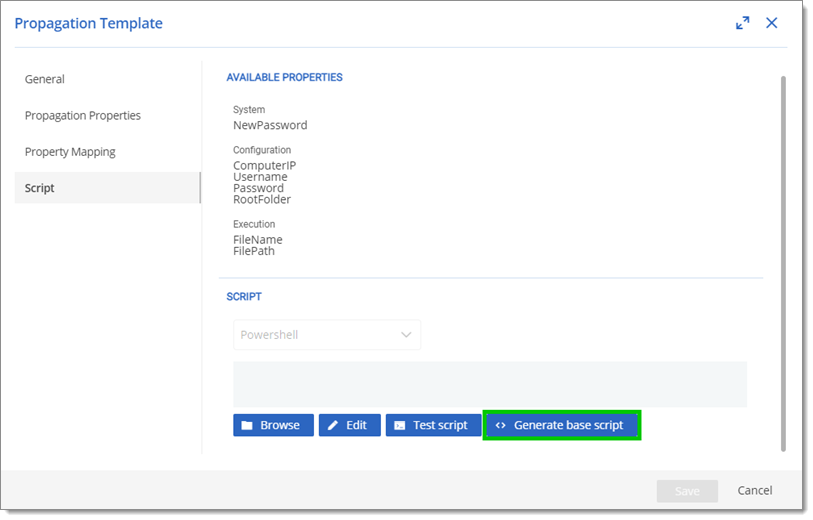
8. Im Tab ***Skript*** erscheinen die vorherigen Variablen sowie die Variable ***NewPassword***. Diese neue Variable enthält das neue Passwort für das Konto bei der Skriptausführung.
9. Klicken Sie auf ***Basisskript generieren***.
Klicken Sie auf Bearbeiten, um das Skript zu ändern oder zu ergänzen.
10. Klicken Sie auf ***Speichern***, um diese Konfiguration zu speichern und das Fenster zu schließen.
Erfahren Sie mehr über benutzerdefinierte Skripte für diese Funktion auf unserem öffentlichen GitHub.
#### Siehe auch
* [Spotlight on password propagation: Keeping all passwords in sync across systems](https://www.youtube.com/watch?v=TjvE-nubPXY\&ab_channel=Devolutions)
---
# Agent Instructions
This documentation is published with GitBook. GitBook is the documentation platform designed so that both humans and AI agents can read, navigate, and reason over technical content effectively. Learn more at gitbook.com.
## Querying This Documentation
If you need additional information that is not directly available in this page, you can query the documentation dynamically by asking a question.
Perform an HTTP GET request on the current page URL with the `ask` query parameter, and the optional `goal` query parameter:
```
GET https://docs.devolutions.net/pam/de/pam-with-devolutions-server/password-propagation-scripts/create-a-script-template.md?ask=&goal=
```
`ask` is the immediate question: it should be specific, self-contained, and written in natural language.
`goal` is optional and describes the broader end goal you are ultimately trying to accomplish on behalf of the user. GitBook uses it to tailor the answer towards what is most useful for that goal.
The response will contain a direct answer to the question and relevant excerpts and sources from the documentation.
Use this mechanism when the answer is not explicitly present in the current page, you need clarification or additional context, or you want to retrieve related documentation sections.